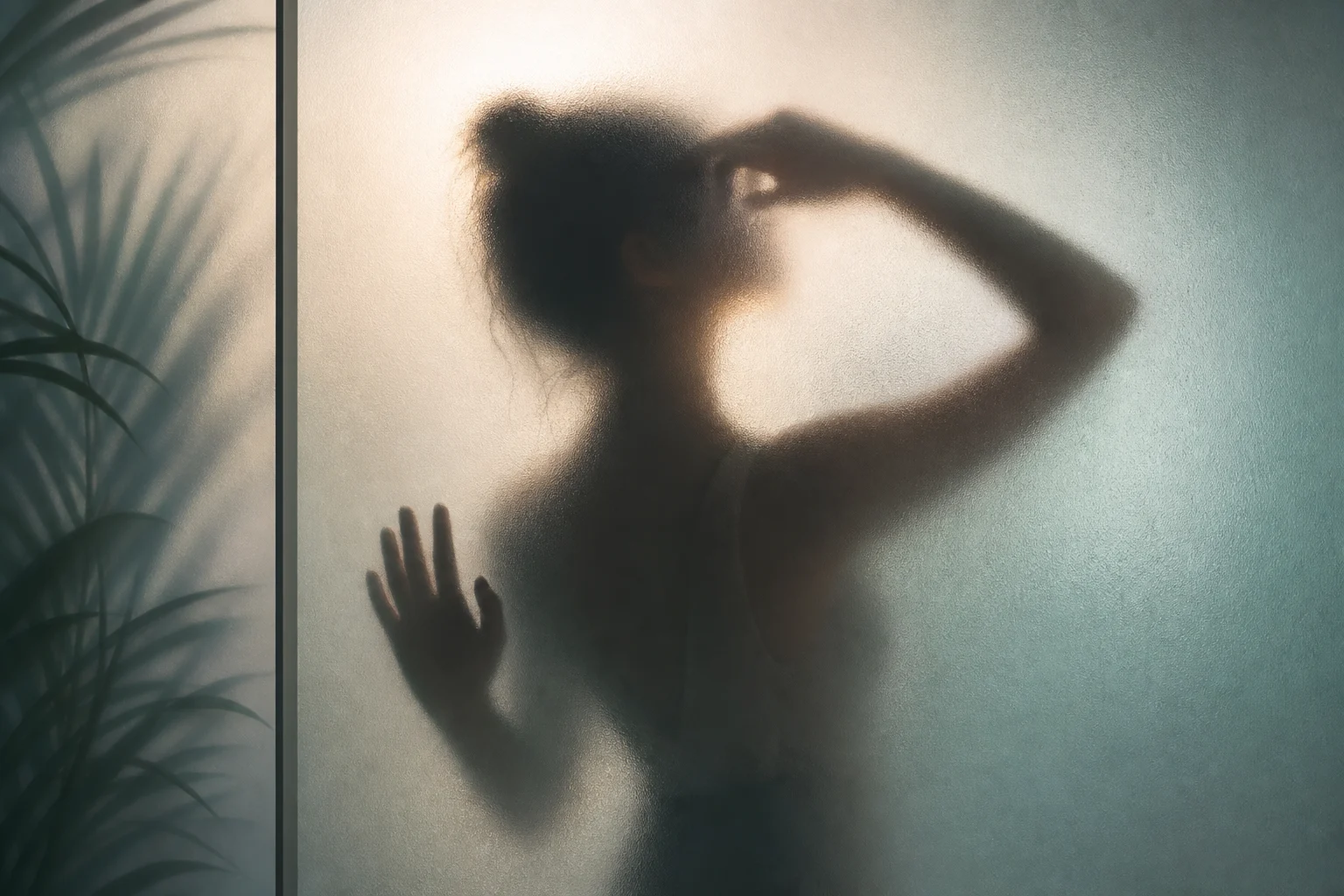
AI frosted glass silhouette effect

AI frosted glass silhouette effect

Turn a clear portrait or subject photo into a soft frosted glass silhouette with blurred translucent detail, glowing edges, muted color, and a clean graphic finish.

AI frosted glass silhouette effect frosted glass silhouette portrait
0 / 2000
Template prompt

AI frosted glass silhouette effect

Apply the AI Frosted Glass Silhouette effect to the uploaded portrait or subject photo. Preserve the subject pose, outline, body silhouette, key clothing shape, and overall mood while intentionally hiding fine facial detail. Recreate the image as a soft figure behind frosted glass with blurred translucent edges, diffused light, muted colors, gentle shadows, and elegant profile-cover composition. Do not reveal detailed facial features; the silhouette should be the main effect.

AI frosted glass silhouette effect frosted glass silhouette portrait

What is the frosted glass silhouette effect?

The AI frosted glass silhouette effect transforms your subject into a figure seen through softened glass. It keeps the pose, outline, clothing shape, and overall mood recognizable while reducing fine facial detail into diffused light, subtle shadows, and a translucent silhouette.

How the image is transformed

This template is designed for a blurred, translucent, glass-like silhouette result while keeping the main subject’s structure and mood intact.

What changes

  • Creates a frosted-glass version of your subject with blurred translucent detail, glowing edges, soft contrast, and a minimal graphic finish.
  • Produces frosted glass silhouette portrait outputs with clean detail and a polished visual direction.
  • Softens facial detail intentionally while emphasizing outline, diffused light, muted colors, and gentle shadows.
  • Lets you compare the preview and rerun with a clearer photo or more focused prompt when the silhouette needs refinement.

What stays recognizable

  • Preserves the subject pose, outline, body silhouette, key clothing shape, and overall mood while intentionally hiding fine facial detail.
  • Keeps the main subject recognizable from the source image.
  • Maintains defining colors, pose, silhouette, and important subject details in a coherent way.

How to create the effect

Create the effect from a clear source image, then review the preview for subject clarity, glass texture, and overall polish.

1

Upload a clear image

Select a sharp portrait or subject photo where the main outline, pose, and clothing shape are easy to read.

2

Preview the result

Apply the frosted glass silhouette effect and look for blurred translucent edges, diffused light, muted colors, and a clean composition.

3

Refine if needed

Compare the output with your source image. If the subject is unclear or the glass effect feels inconsistent, try a clearer photo or more specific direction.

4

Choose your final image

Keep the version that best matches your intended mood, framing, and level of silhouette detail.

Frosted glass silhouette examples

Explore different examples of the frosted glass silhouette effect, from portrait-focused compositions to softer atmospheric treatments.

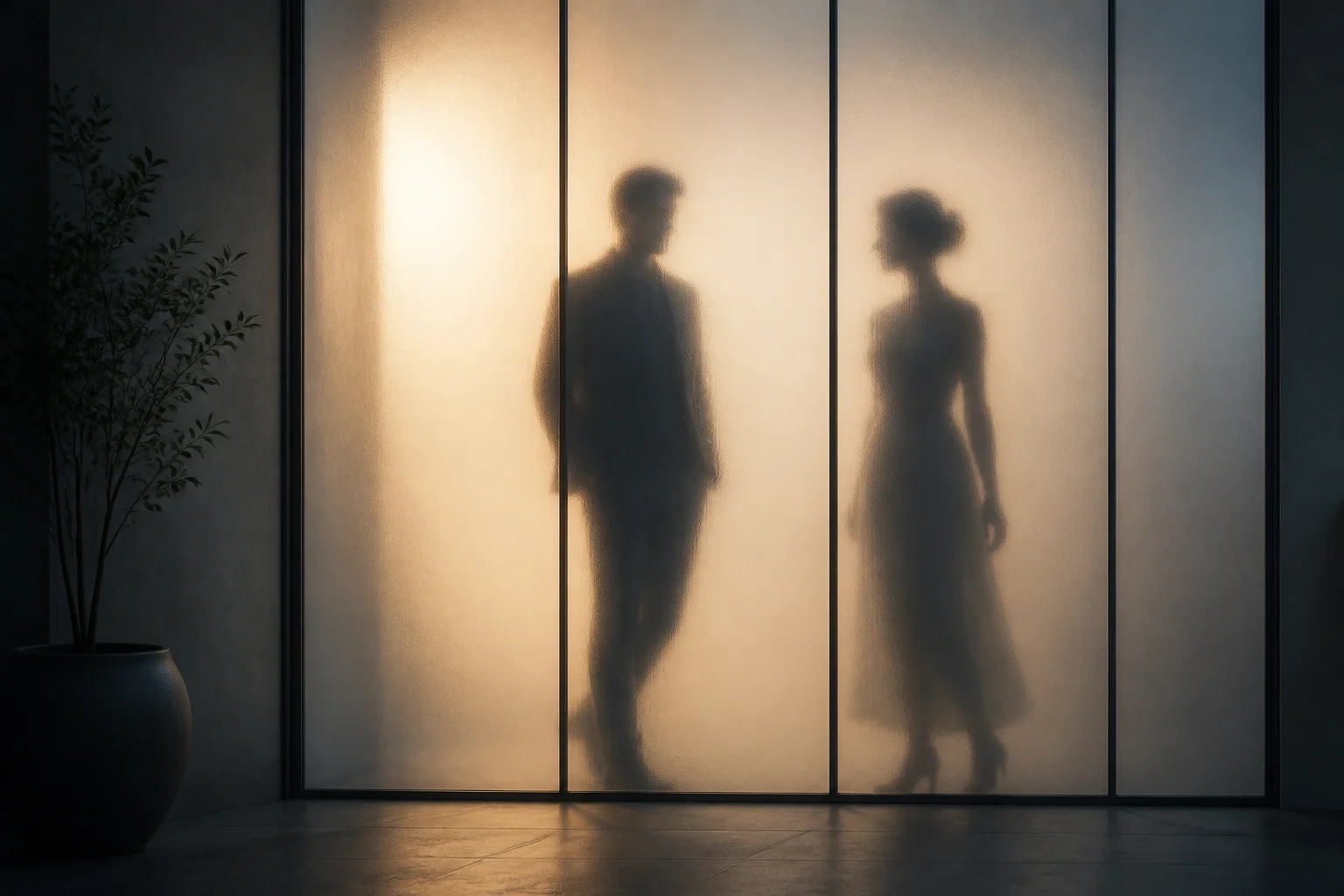
AI frosted glass silhouette effect example 1

Soft portrait silhouette

A clean portrait-style silhouette with soft glass blur, muted tones, and a recognizable subject outline.

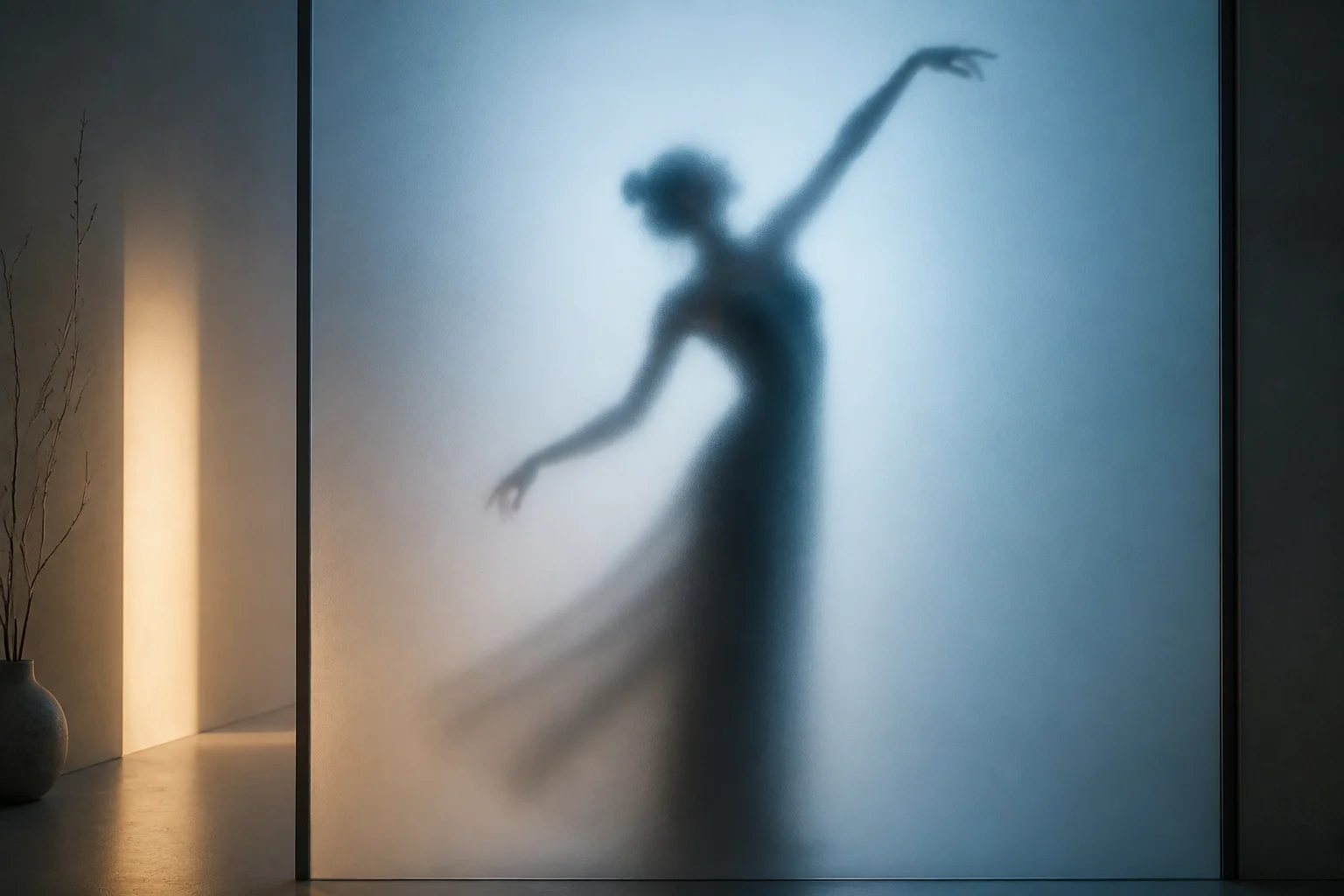
AI frosted glass silhouette effect example 2

Diffused glass glow

A more atmospheric frosted glass result with diffused light and a calm, minimal finish.

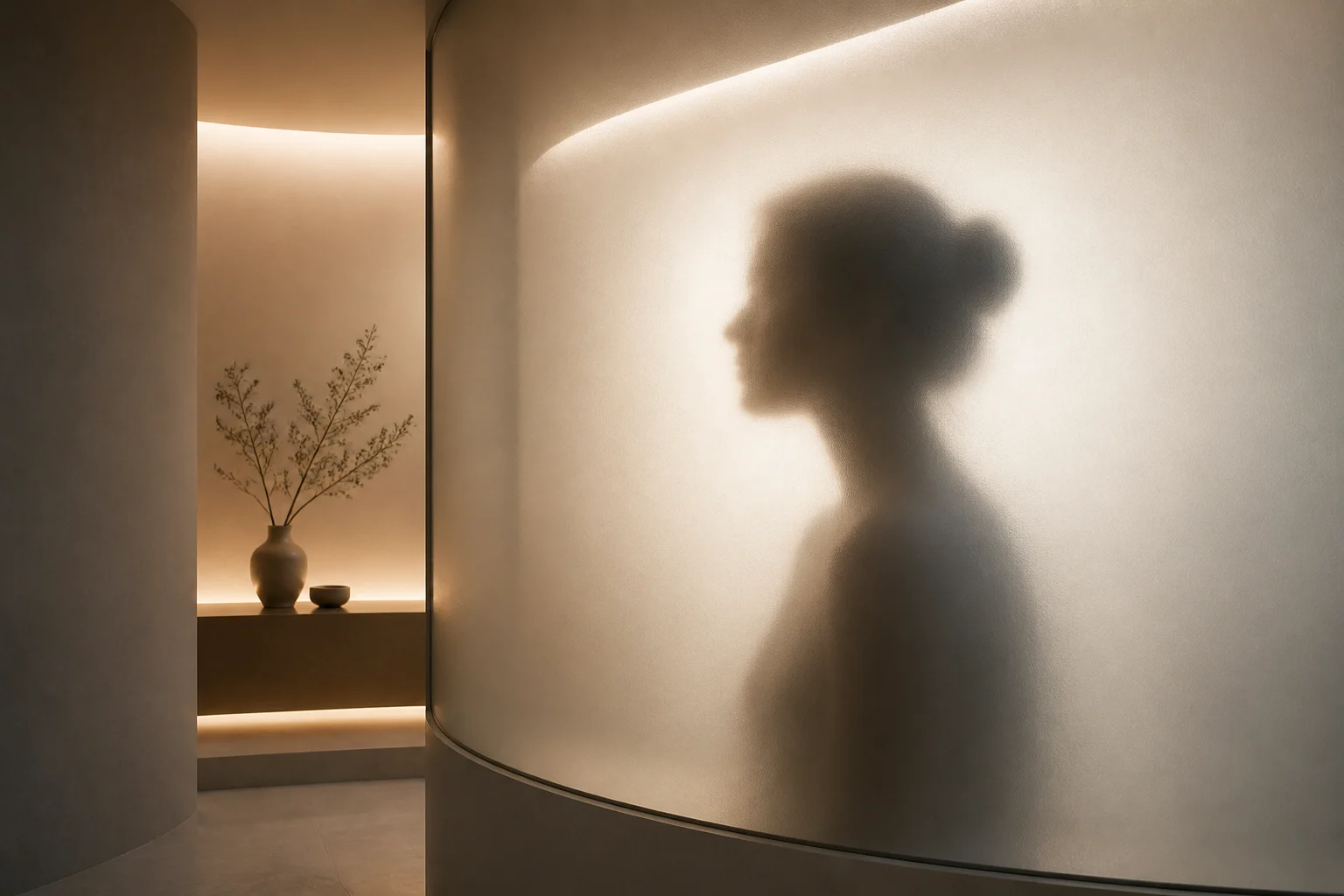
AI frosted glass silhouette effect example 3

Elegant profile cover

A stylized silhouette treatment that emphasizes profile shape, gentle shadows, and translucent edges.

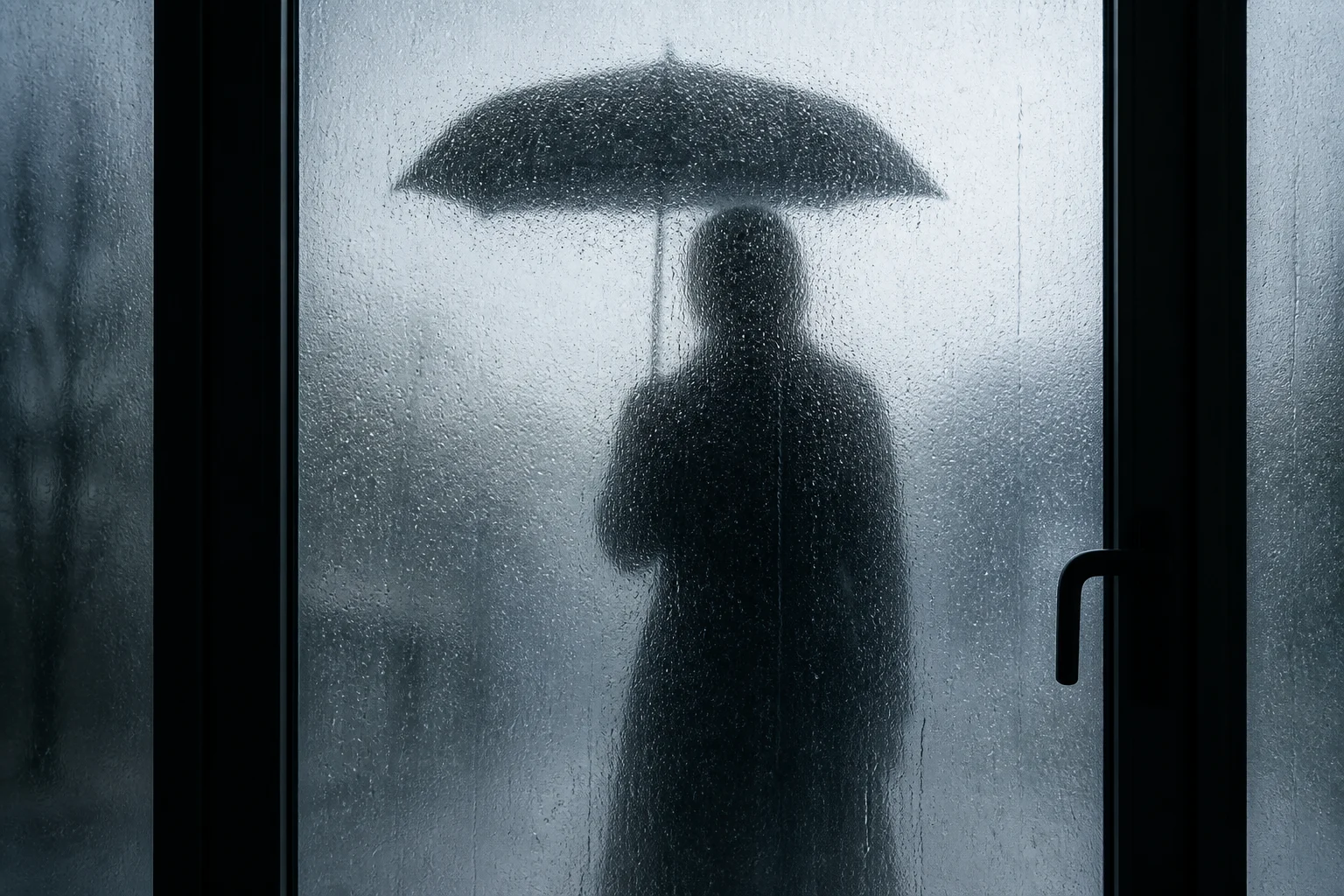
AI frosted glass silhouette effect example 4

Minimal glass finish

A polished frosted glass image with soft contrast, hidden facial detail, and a simple graphic look.

Popular uses for this effect

Use this effect when you want a refined silhouette treatment that feels minimal, atmospheric, and visually focused.

Personal and creative projects

Create a focused frosted glass silhouette preview for a personal portrait, concept image, profile-style visual, or creative study.

Visual direction comparison

Test the mood, silhouette strength, and glass blur direction before refining, sharing, or presenting the final visual.

Minimal portrait styling

Turn a clear subject photo into a soft graphic image with reduced facial detail and a polished translucent finish.

How to get a cleaner frosted glass effect

A strong source image helps the frosted glass treatment keep the subject readable while hiding fine detail in a deliberate, elegant way.

Source image checklist

  • Use a sharp source image with the main subject clearly visible.
  • Avoid heavy blur, blocked details, extreme crops, or confusing overlaps.
  • Choose a source whose pose and framing support the intended AI frosted glass silhouette effect result.

How to guide the result

Describe the intended mood, framing, and amount of diffusion. Mention frosted glass, translucent silhouette, soft glow, muted colors, and whether you want a portrait, profile, or full-body composition.

Review before downloading

Generated details can vary between previews, so review the image closely and rerun with a clearer source or tighter direction when needed.

Check subject recognition

Compare the pose, body outline, clothing shape, and defining colors with the source image so the subject remains recognizable.

Review the glass effect

Look for a coherent frosted glass silhouette treatment across the image, including softened edges, diffused light, and gentle contrast.

Inspect fine details

Inspect faces, hands, text, small objects, edges, and background transitions for distortions or distracting artifacts before using the result.

AI frosted glass silhouette effect FAQ

Answers to common questions about creating a frosted, glass-inspired silhouette result from a source image.

What is the AI frosted glass silhouette effect?
It is a visual effect that recreates your subject as a soft silhouette behind frosted glass, with blurred translucent edges, diffused lighting, muted tones, and reduced facial detail.
Is the AI frosted glass silhouette effect free?
You can open the template, upload a suitable image, preview the result, and decide whether the output fits your project before saving it.
How do I use the AI frosted glass silhouette effect?
Start with a sharp portrait or subject photo. Choose the template, upload the image, review the frosted glass silhouette preview, and refine with a clearer photo or more specific direction if needed.
What image formats does the AI frosted glass silhouette effect support?
Use a common image file with the subject clearly visible. For best results, choose a source with strong framing, clear lighting, and enough detail in the pose and clothing shape.
Can I use AI frosted glass silhouette effect results commercially?
Usage can depend on the image you upload and the rights attached to your project. Review your source image permissions and intended use before publishing or distributing the result.
What changes does the AI frosted glass silhouette effect make?
The effect softens the subject into a frosted glass figure, reduces fine facial detail, adds translucent blur, supports glowing edges, and keeps the overall silhouette and mood coherent.
Which source image works best?
A sharp image with one clearly visible main subject works best. Avoid heavy blur, extreme crops, blocked faces, confusing overlaps, or backgrounds that merge with the silhouette.
How do I keep the subject recognizable?
Use a source with a distinct pose, visible outline, and recognizable clothing shape. After previewing, compare the silhouette, pose, and defining details with the original image.

Create your frosted glass silhouette

Upload a clear subject image and create a frosted glass silhouette result with soft contrast, translucent blur, and a minimal polished finish.