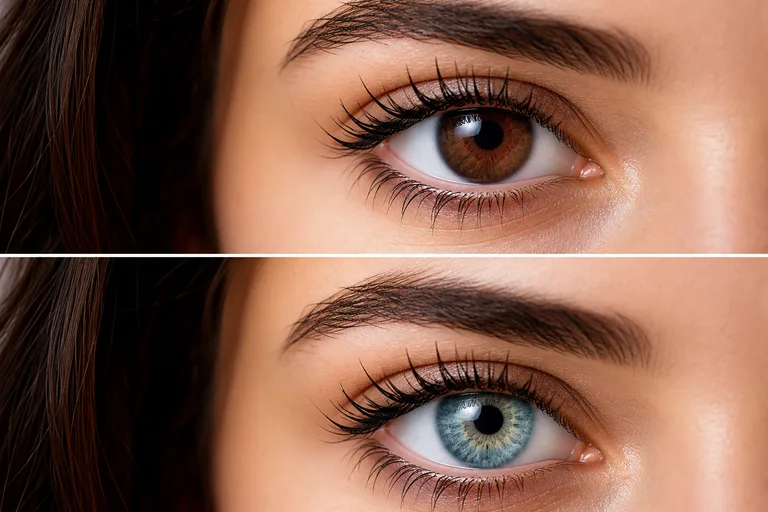
AI Eye Color Filter for realistic portrait previews
Upload a clear portrait and preview a new Eye Color with realistic iris texture, depth, catchlights, and shadows while keeping the rest of the photo familiar.
AI Eye Color Filter for realistic portrait previews
Apply the AI Eye Color Filter effect to the uploaded portrait. Preserve the same person, face shape, expression, pose, clothing, lighting, camera angle, background, skin tone, hair, and makeup. Change only the iris color to the requested or visually appropriate new eye color with realistic texture, depth, catchlights, pupil detail, and shadows. Do not change eye shape or identity.
What is AI Eye Color Filter?
AI Eye Color Filter is a portrait editing template for changing only the iris Color in a source photo. It is designed to keep the same person, expression, pose, lighting, makeup, hair, clothing, and background while giving the eyes a new realistic look.
What the AI Eye Color Filter changes
This template is built for a targeted Eye Color change rather than a full portrait restyle. It previews a new look while aiming to keep the original person and photo context consistent.
What changes
Changes the iris Color while keeping the edit focused on the eyes.
Adds realistic iris texture, catchlights, shadows, pupil detail, and depth for a natural-looking preview.
Lets you compare the visual direction before refining, sharing, or presenting the portrait.
Supports subtle natural shades or more expressive creative Eye Color choices when the source photo is clear.
What stays the same
Preserve the same person, face shape, expression, pose, clothing, lighting, camera angle, background, skin tone, hair, and makeup.
The main subject remains recognizable from the source image.
Defining colors, pose, silhouette, and important subject details stay coherent.
How to use AI Eye Color Filter
Follow a simple process to create a clean Eye Color preview from a portrait source.
1
Upload a clear portrait
Choose a sharp, well-lit portrait where the eyes are visible and the main subject is easy to recognize.
2
Describe the Color change
Specify the new Eye Color and include realism details such as iris texture, catchlights, pupil detail, and natural shadows.
3
Review and refine
Compare the result with the original photo. Check identity, eye shape, lighting, skin tone, and small details before saving the image.
AI Eye Color Filter examples
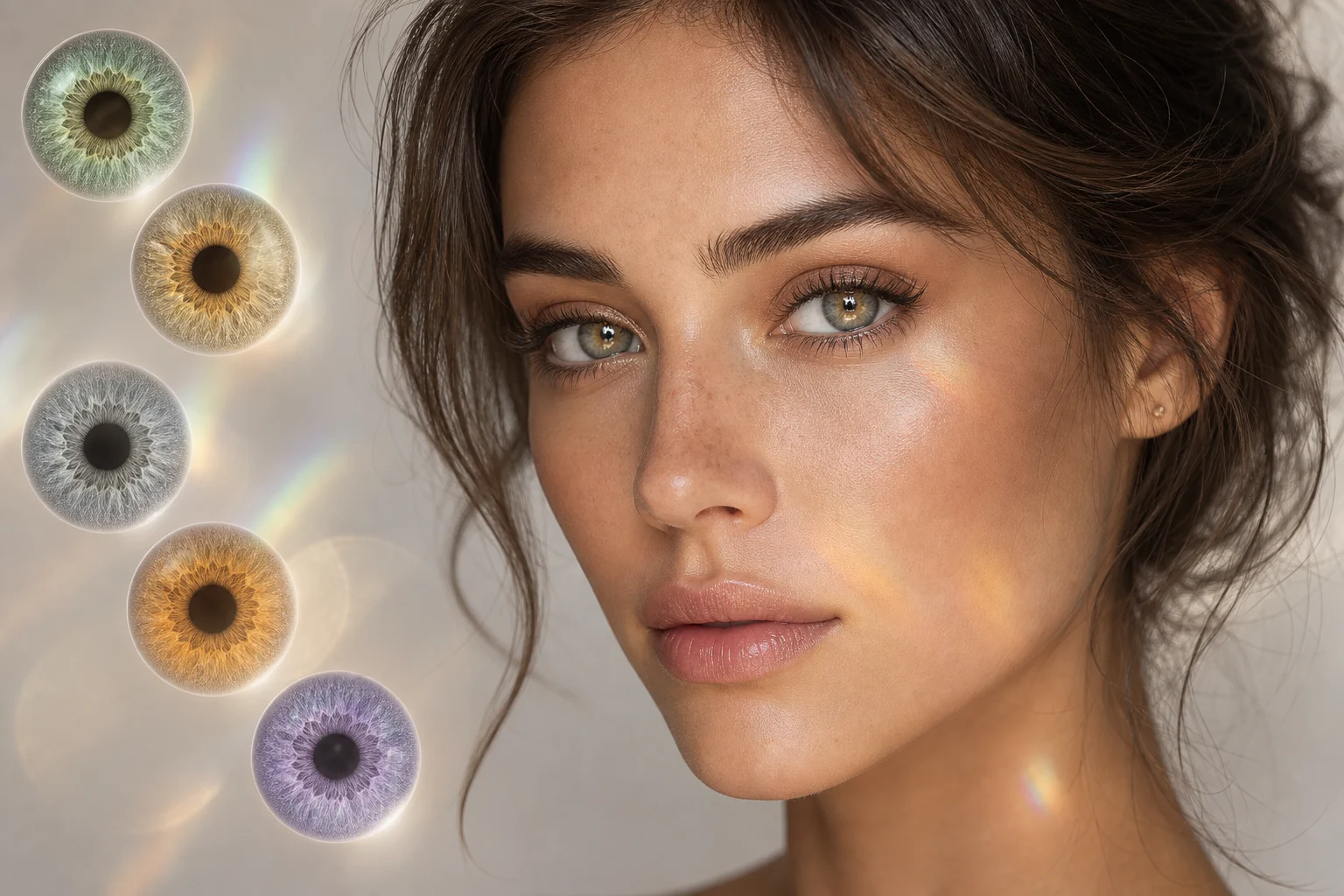
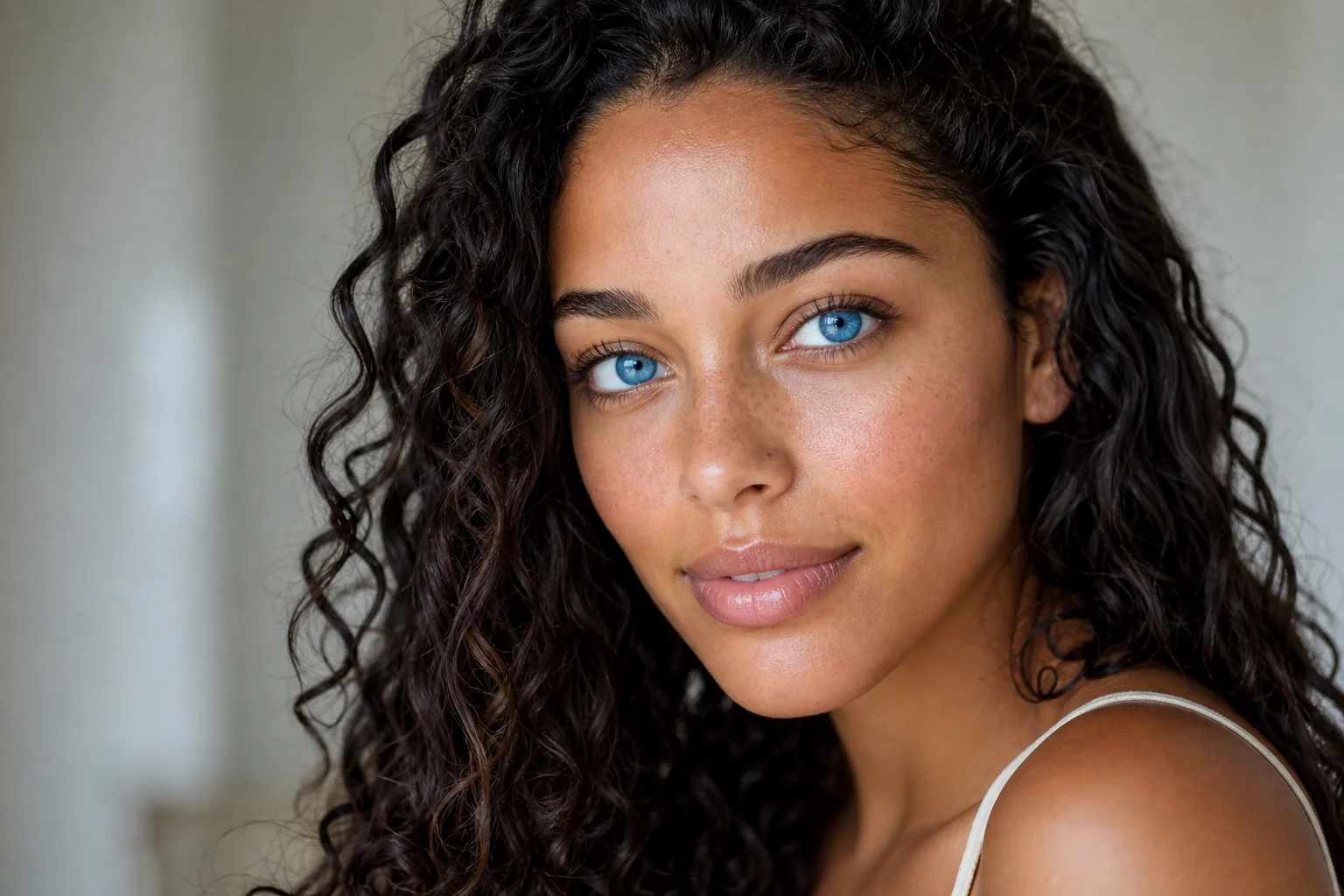
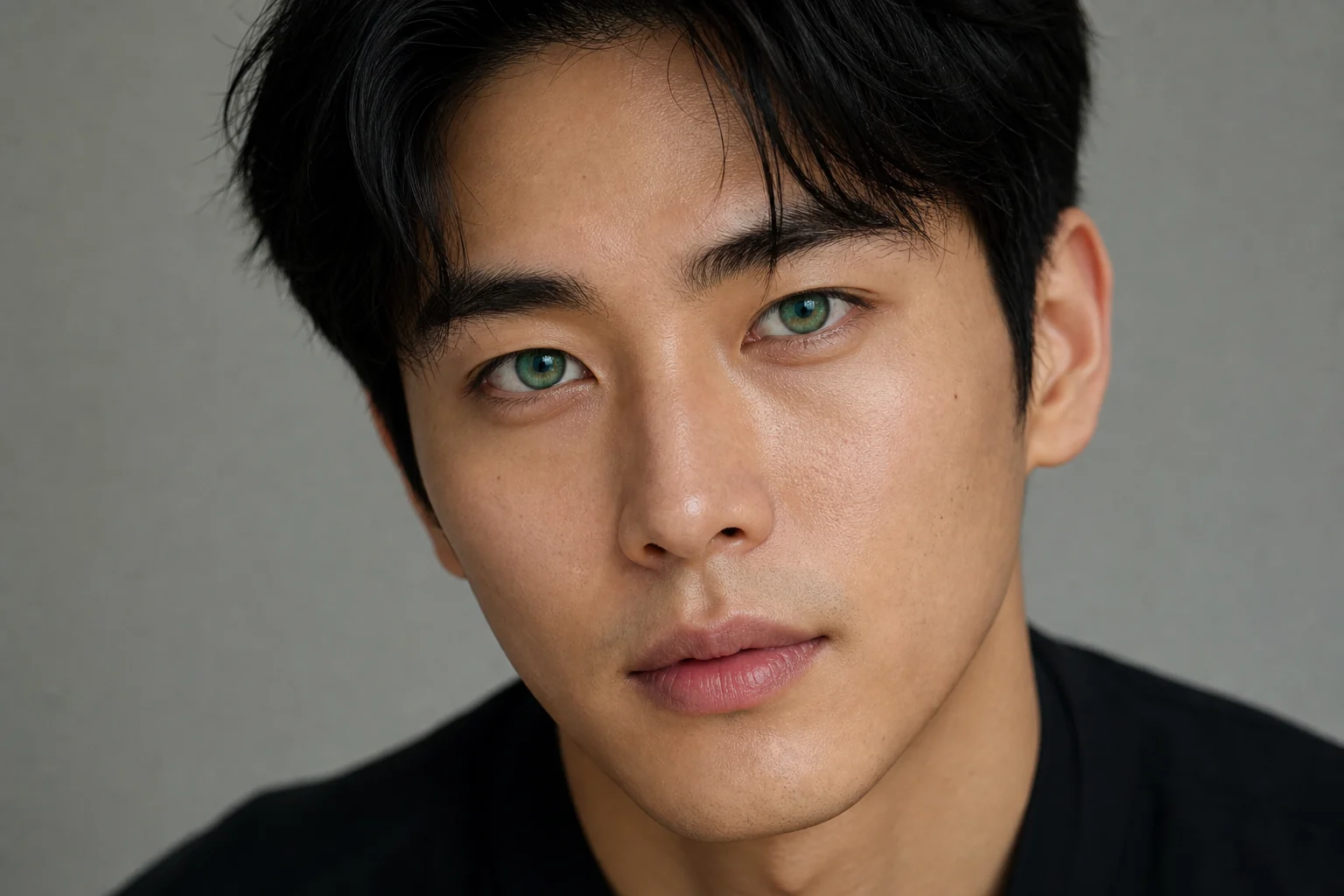
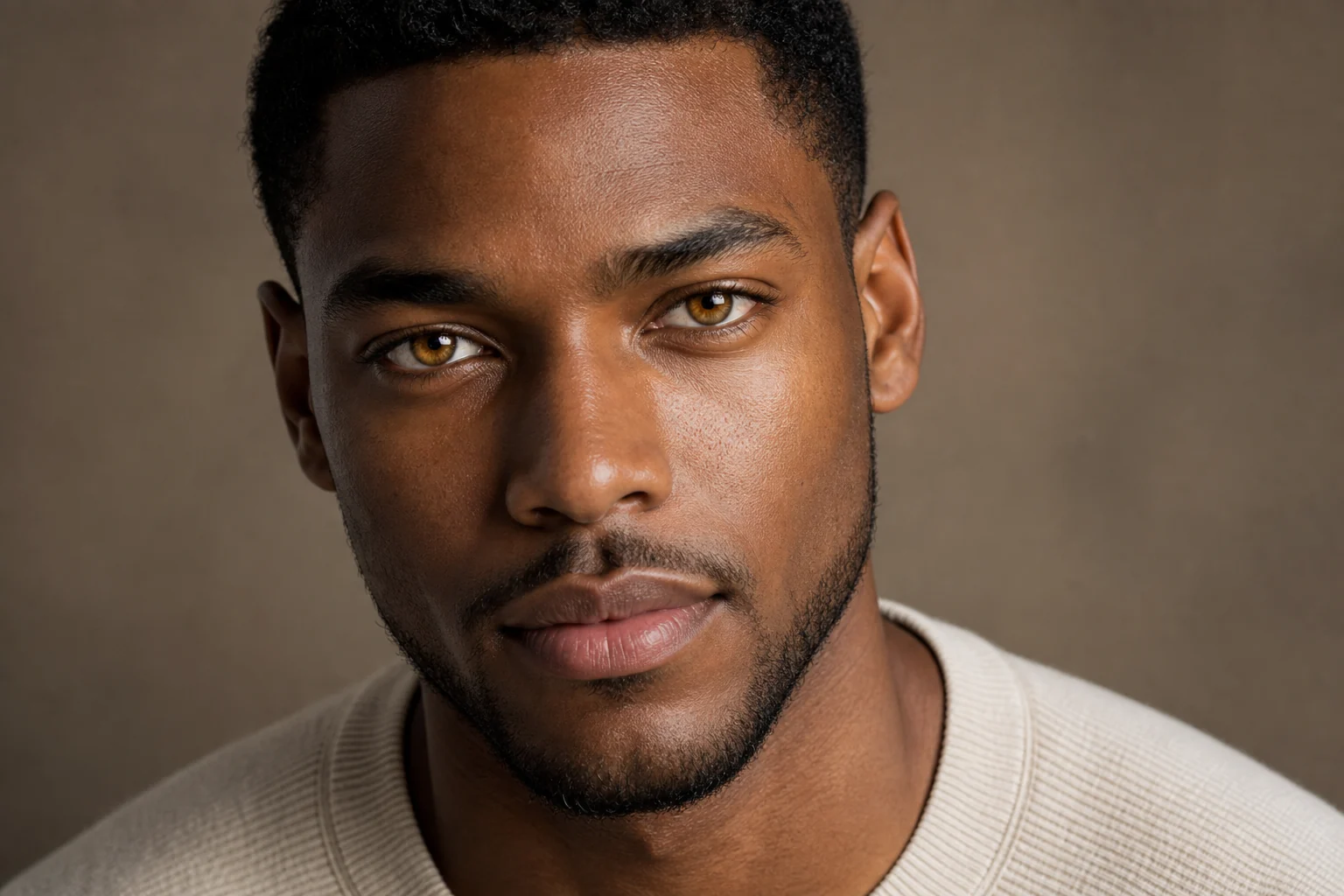
Explore different Eye Color directions, from natural enhancements to more expressive portrait looks. Each variation keeps the edit centered on the iris area.
Natural iris Color change
A realistic preview with a noticeable but natural Eye Color change, suited for comparing a polished portrait direction.
Bright Eye Color preview
A close portrait example showing how a new iris shade can add contrast while preserving the subject’s face and expression.
Subtle realistic enhancement
A softer Eye Color variation for testing a subtle transformation with believable texture, depth, and catchlights.
Creative iris Color look
A more dramatic Eye Color direction for creative portraits, character concepts, or bolder visual experiments.
Use cases for AI Eye Color Filter
Use this template when you want to test how a new Eye Color changes the mood of a portrait without rebuilding the whole image.
Personal Eye Color previews
Preview blue, green, hazel, gray, amber, brown, or creative iris shades for profile photos, concept images, costume ideas, or personal style exploration.
Creative comparison
Compare several Eye Color directions before deciding which look fits a character, mood board, campaign concept, or portrait retouching direction.
Portrait refinement
Create a focused visual draft that changes the eyes while keeping the subject’s expression, lighting, clothing, and background close to the source.
How to get a better AI Eye Color Filter result
A strong source photo and a focused prompt help the edit stay believable. Keep the request centered on Eye Color, not facial reshaping or broader style changes.
Source photo checklist
Use a sharp source image with the main subject clearly visible.
Avoid heavy blur, blocked details, extreme crops, or confusing overlaps.
Choose a source whose pose and framing support the intended AI Eye Color Filter result.
Prompt tips for realistic Eye Color edits
Describe the target iris Color clearly, such as emerald green, icy blue, warm hazel, amber brown, gray, violet, or a subtle natural enhancement. Add notes like “realistic iris texture,” “preserve pupil detail,” and “keep the same lighting and catchlights.”
Review your Eye Color preview before downloading
Generated details can vary between runs, so review the image before using or sharing it. If the eyes look unclear, try a sharper source photo or a more specific Color description.
Check subject identity
Compare the edited portrait with the source photo to confirm the same face shape, expression, pose, silhouette, hair, makeup, clothing, and background remain recognizable.
Inspect the Eye Color treatment
Look closely at both eyes. The new Color should follow the iris shape, preserve the pupils, and include believable texture, shadows, depth, and catchlights.
Look for artifacts
Review eyelids, lashes, skin around the eyes, hair edges, glasses, small accessories, and background transitions for distortion or inconsistent blending.
AI Eye Color Filter FAQ
Common questions about using an Eye Color Filter online for realistic portrait edits.
What is AI Eye Color Filter?
AI Eye Color Filter changes the iris Color in a portrait while preserving the person’s face, expression, pose, lighting, skin tone, hair, makeup, clothing, and background. The goal is a believable Eye Color preview with iris detail, pupil definition, shadows, and catchlights.
Is AI Eye Color Filter free?
Availability can vary by product experience. Check the current ClipCanva page for the latest access details before starting your edit.
How do I use AI Eye Color Filter?
Upload a clear portrait with visible eyes, choose or describe the Eye Color you want, review the preview, and adjust with a clearer image or more specific wording if the result needs refinement.
What photos work best for AI Eye Color Filter?
Sharp, well-lit portraits work best. The eyes should be visible, not heavily blurred, blocked by hair or glasses glare, or cropped too tightly. A front-facing or slightly angled portrait usually gives the filter more usable iris detail.
Can I use AI Eye Color Filter results commercially?
Usage needs depend on your source image, the people shown, and where you plan to publish the result. Review any relevant permissions, licenses, and platform requirements before using an edited portrait in a commercial context.
What does AI Eye Color Filter change?
It changes only the iris Color and visual treatment of the eyes, including realistic texture, depth, catchlights, pupil detail, and natural shadowing. It should not intentionally change Eye shape, identity, face structure, or the rest of the portrait.
Which source image works best?
Use a clear source image where the main subject is easy to recognize and the eyes are visible. Avoid heavy blur, low resolution, extreme crops, confusing overlaps, or lighting that hides the iris.
How do I keep the subject recognizable?
Start with a recognizable portrait and keep the edit focused on Eye Color only. When reviewing the result, compare face shape, expression, pose, skin tone, hair, makeup, clothing, and background against the original photo.
Try AI Eye Color Filter on your portrait
Start with a sharp portrait, choose the Eye Color direction you want, and review a realistic preview that keeps the person and scene intact.