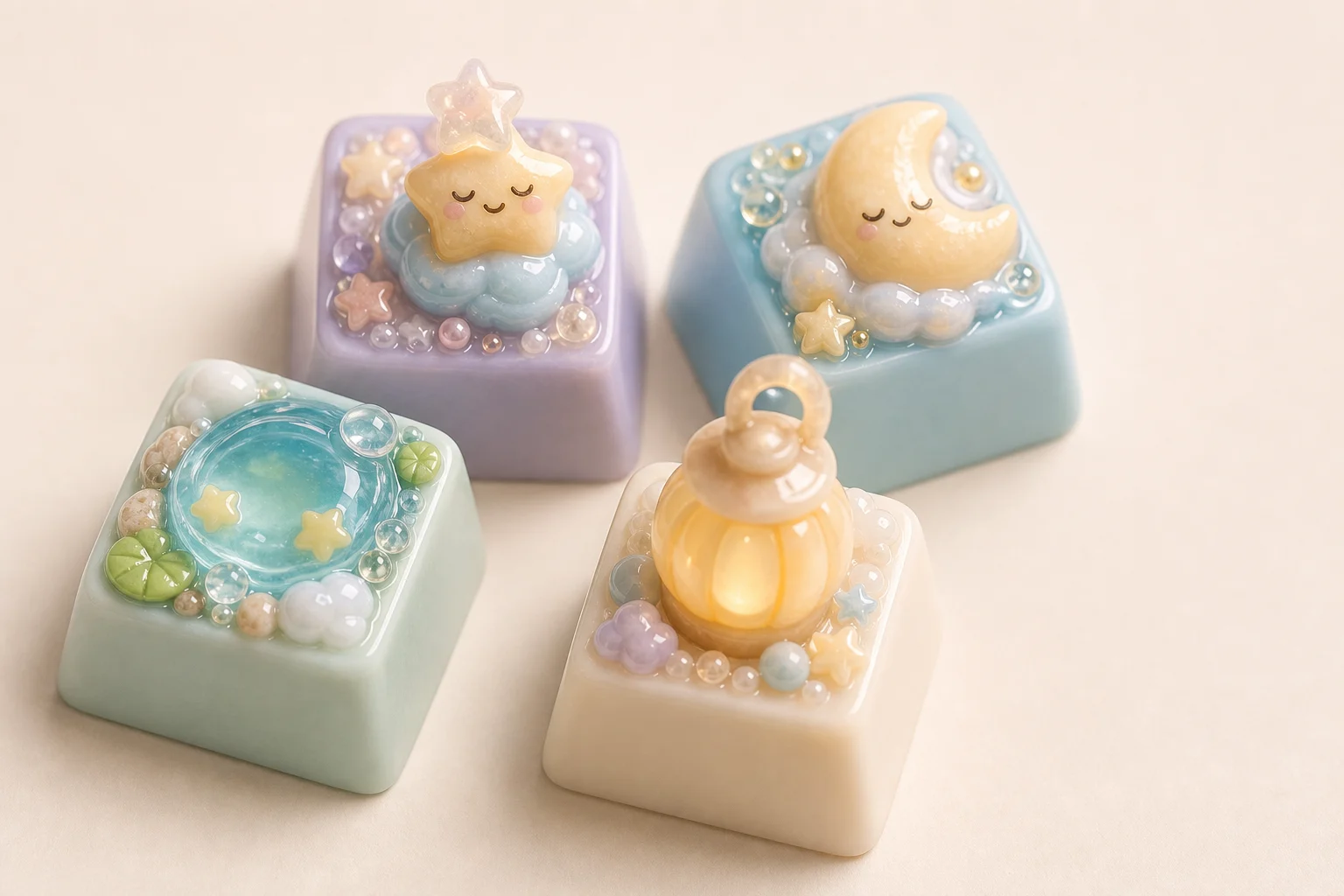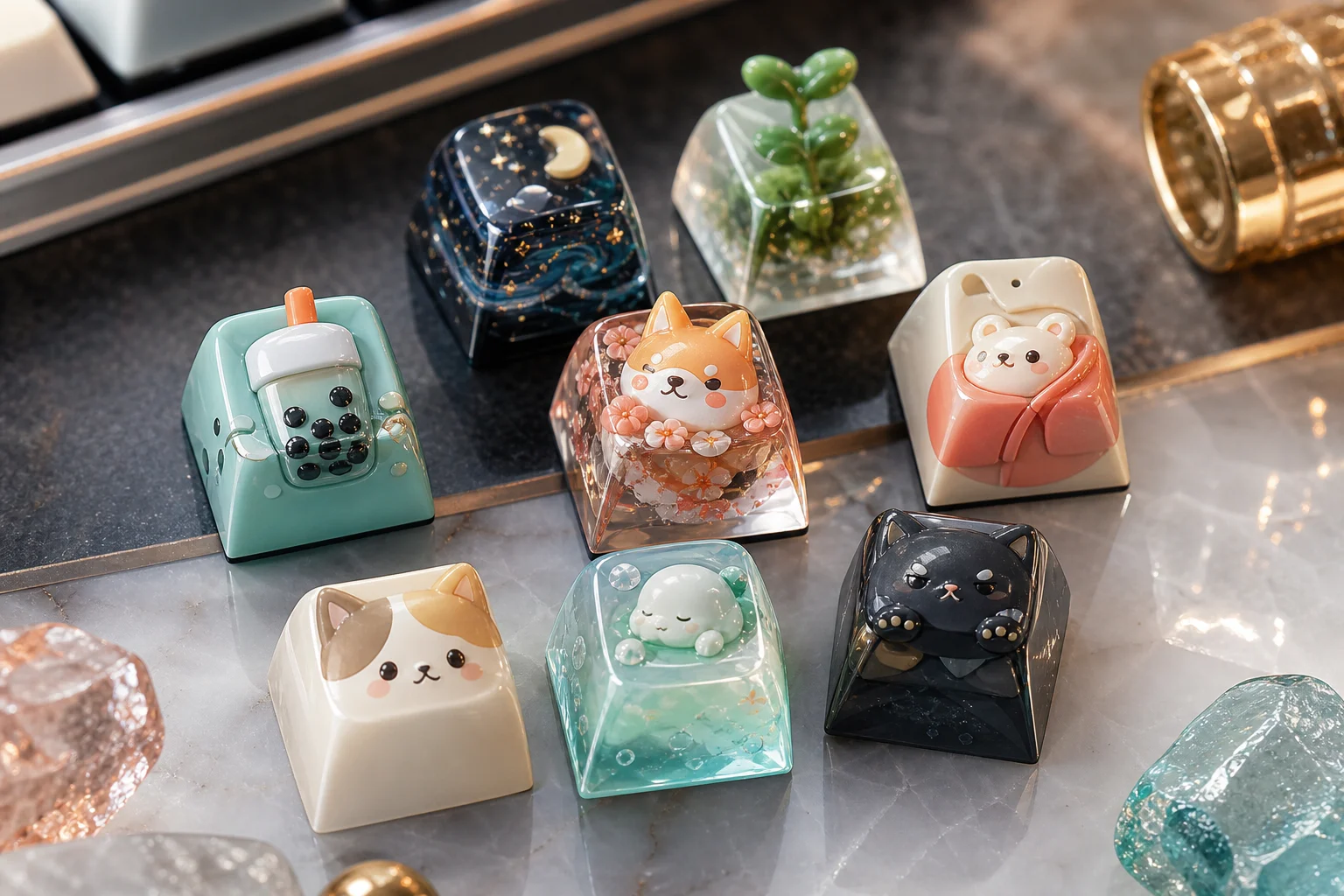
AI Cute Keycap Generator

AI Cute Keycap Generator

Upload a face, pet, character, or object photo and turn it into a Cute artisan Keycap concept with glossy resin detail, tiny sculpted accents, and mechanical keyboard proportions.

a cute artisan keycap render
0 / 2000
Template prompt

AI Cute Keycap Generator

Apply the AI Cute Keycap effect to the uploaded face, pet, character, or object photo. Preserve the subject silhouette, identity or object shape, key colors, expression, and distinctive details. Rebuild it as an adorable artisan mechanical-keyboard keycap with tiny sculpted detail, glossy resin or plastic material, realistic keycap proportions, stem/base cues, soft product lighting, and clean premium composition. Keep the uploaded subject recognizable in miniature keycap form.

a cute artisan keycap render

What is the AI Cute Keycap Generator?

The AI Cute Keycap Generator helps reinterpret your uploaded subject as an adorable artisan mechanical-keyboard keycap. It focuses on a compact keycap base, glossy resin or plastic material, miniature sculpted details, and soft product-style lighting while keeping the original subject recognizable.

From source photo to artisan Keycap concept

This template transforms the uploaded subject into an adorable miniature keycap while keeping the source image’s most important visual traits in view.

What changes

  • Turns a face, pet, character, or object photo into a cute artisan keycap concept with glossy resin detail and mechanical keyboard proportions.
  • Adds a molded keycap shape, glossy or resin-like material, tiny decorative details, and desk-ready product lighting.
  • Builds a miniature collectible look with realistic keycap proportions, stem or base cues, and a clean premium composition.
  • Creates an image that can be compared, refined, or presented as a focused Cute Keycap visual direction.

What stays recognizable

  • The subject silhouette, identity or object shape, key colors, expression, and distinctive details.
  • The uploaded subject’s recognizable look in miniature keycap form.
  • The main pose, defining colors, and important visual cues from the source image.
  • A coherent connection between the original photo and the final Cute Keycap concept.

How to use the AI Cute Keycap Generator

Create a Cute Keycap concept by starting with a clear subject photo, applying the keycap visual direction, and checking the result for both likeness and finish.

1

Upload a clear source

Select a sharp image where the face, pet, character, or object is visible, well framed, and easy to identify from its outline and colors.

2

Apply the keycap style

Use the cute artisan keycap direction to shape the subject into a miniature mechanical-keyboard keycap with glossy material and sculpted details.

3

Review and refine

Compare the result with the original photo, then refine with a clearer source or more specific prompt if the identity, proportions, or small details need improvement.

Cute Keycap style examples

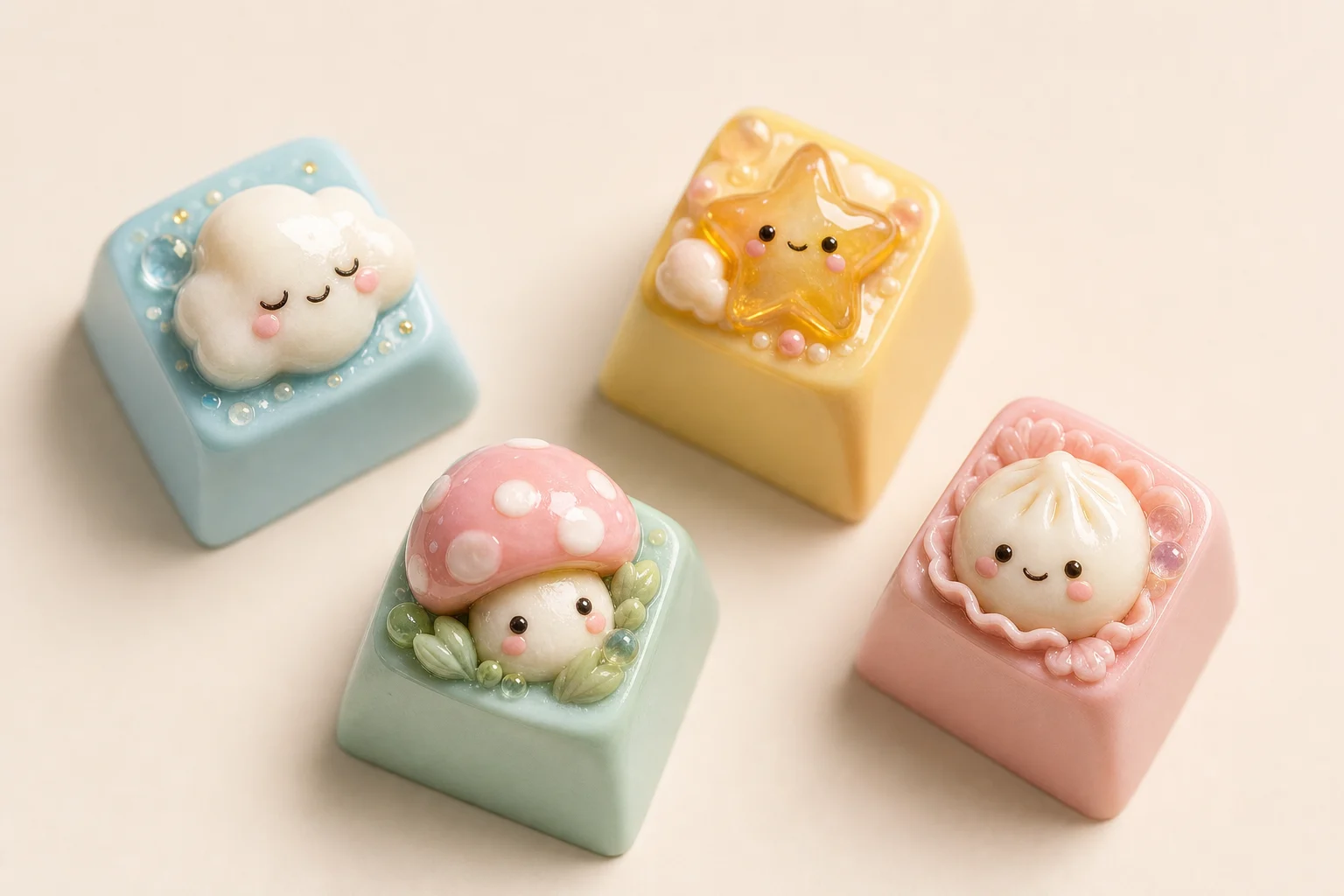
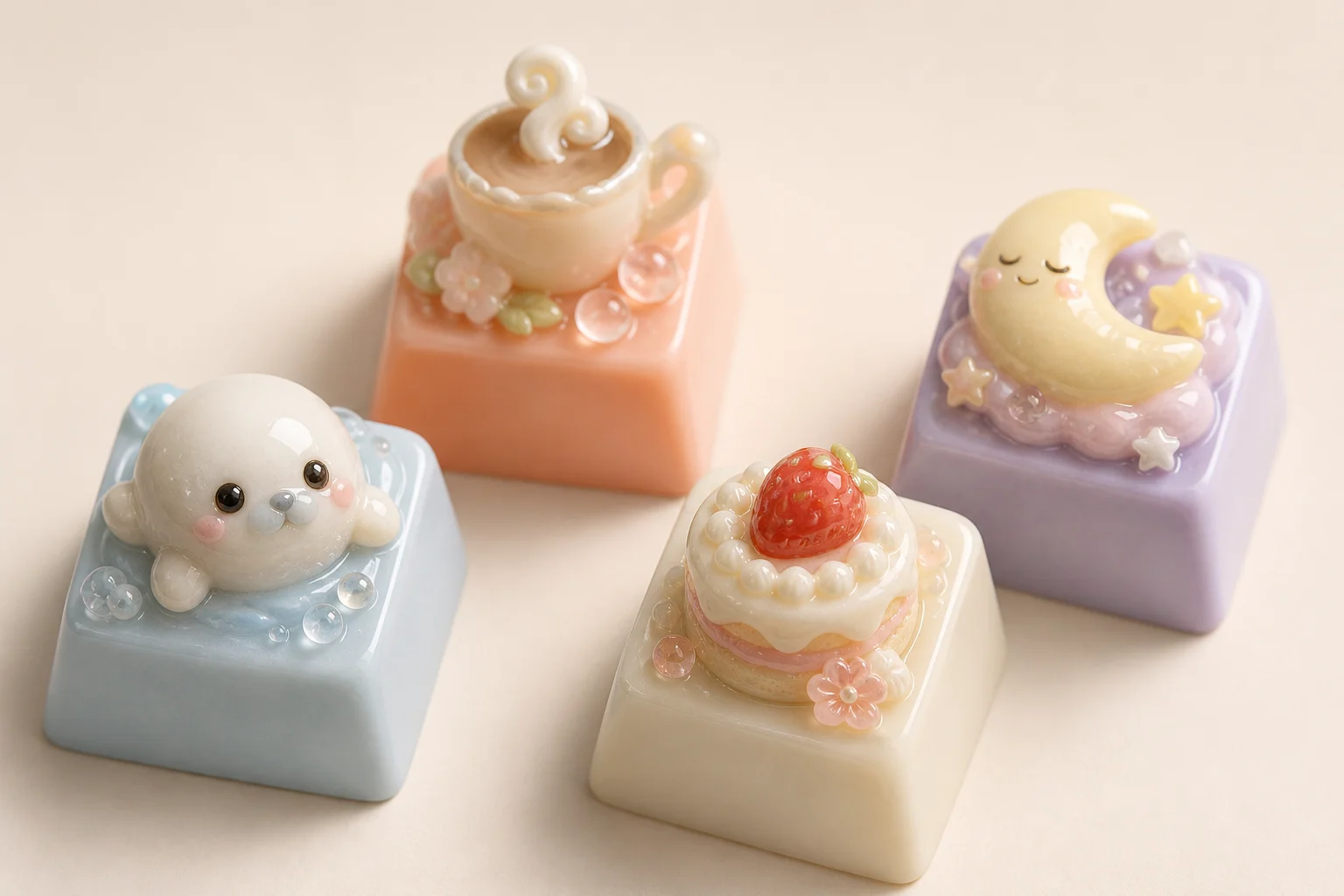
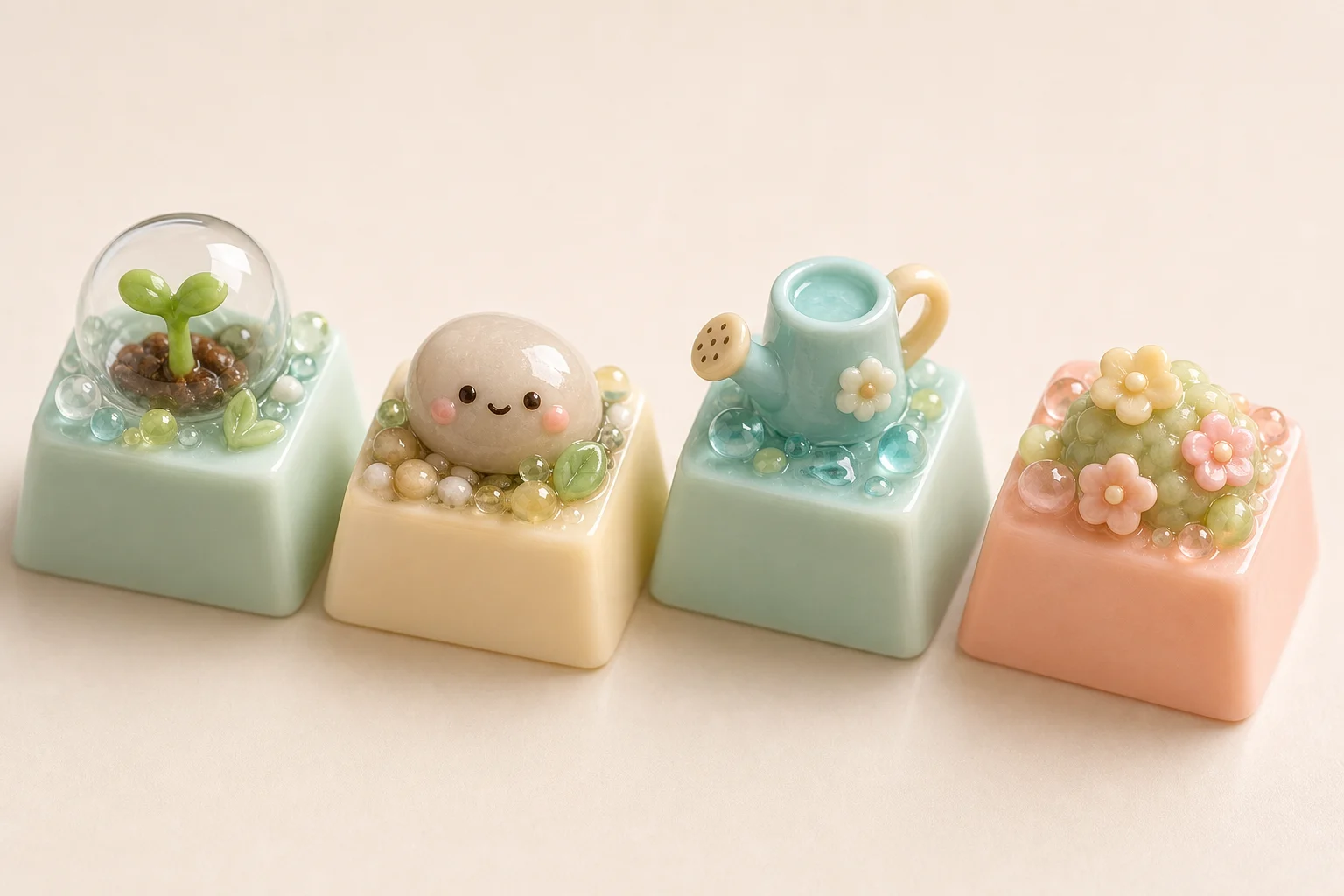
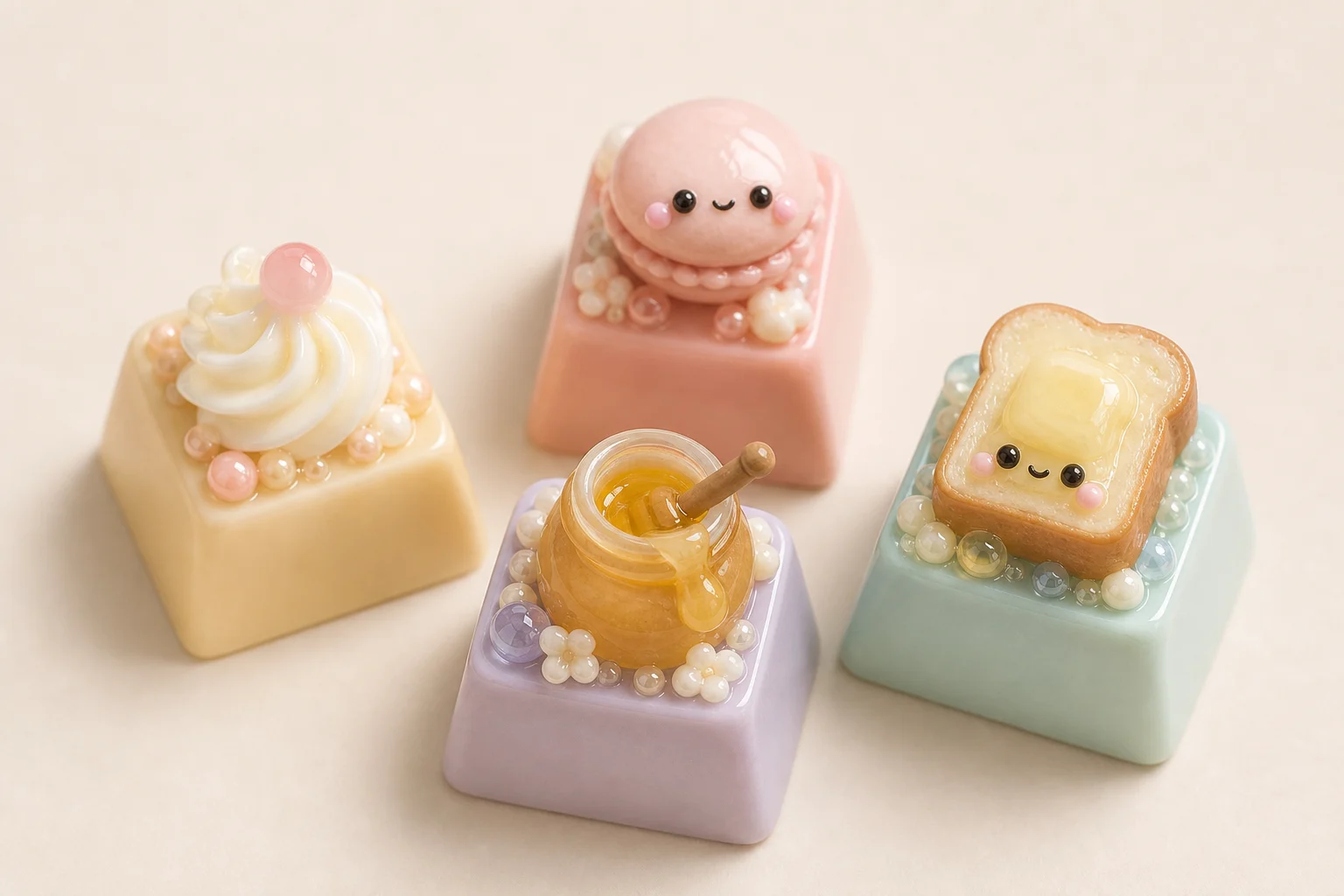
Explore different Cute Keycap examples that show glossy materials, miniature sculpting, and mechanical keyboard-inspired proportions.

a cute artisan keycap render example 1

Glossy artisan keycap

A cute keycap concept with polished resin texture, rounded forms, and a collectible artisan keyboard look.

a cute artisan keycap render example 2

Soft-lit collectible keycap

A miniature keycap-style render focused on soft product lighting, sculpted detail, and a clean presentation.

a cute artisan keycap render example 3

Decorative resin keycap

A cute mechanical-keyboard keycap variation with a compact base, decorative accents, and premium resin styling.

a cute artisan keycap render example 4

Mini sculpted subject

A playful artisan Keycap example that keeps the subject readable while giving it a small sculpted form.

a cute artisan keycap render example 5

Premium keyboard detail

A polished Cute Keycap render with realistic proportions, glossy finish, and a simple premium composition.

Popular ways to use a Cute Keycap Generator online

Use the AI Cute Keycap Generator when you need a charming mechanical-keyboard inspired visual based on a recognizable subject.

Personal creative previews

Turn a pet, avatar, character, object, or face into a focused keycap preview for a personal concept, moodboard, or creative project.

Visual direction comparison

Explore how a subject might look as a cute resin artisan keycap before refining the image direction or sharing it with others.

Desk-ready presentation style

Create a polished product-style image with soft lighting, a clean composition, and a miniature collectible feel.

How to get a better Cute Keycap result

A strong source image helps the keycap version preserve the subject while adding glossy resin texture, molded proportions, and decorative miniature detail.

Source image checklist

  • Use a sharp source image with the main subject clearly visible.
  • Avoid heavy blur, blocked details, extreme crops, or confusing overlaps.
  • Choose a source whose pose and framing support the intended AI Cute Keycap Generator result.

Prompt guidance

Describe the subject you want to keep recognizable, then emphasize an adorable artisan mechanical-keyboard keycap, tiny sculpted details, glossy resin or plastic material, realistic keycap proportions, stem or base cues, soft product lighting, and a clean premium composition.

Review your generated keycap image

Review the output as a visual draft before using it in a project, presentation, or shareable concept.

Check subject recognition

Compare the finished keycap with the source image to confirm the silhouette, pose, expression, defining colors, and object shape still feel recognizable.

Check the keycap treatment

Look for a coherent Cute Keycap style, including a molded base, resin-like shine, small sculpted accents, and believable mechanical keyboard proportions.

Check small details

Inspect faces, hands, text, edges, tiny accessories, and background transitions, since small details may vary and can need another attempt with a clearer source or prompt.

AI Cute Keycap Generator FAQ

Answers to common questions about creating Cute Keycap images from uploaded photos.

What is AI Cute Keycap Generator?
It is a photo-to-image template for turning a face, pet, character, or object into a cute artisan keycap concept with glossy resin styling and realistic mechanical keyboard proportions.
Is AI Cute Keycap Generator free?
Availability can vary by platform or account settings. Check the creation page for the current access options before starting.
How do I use AI Cute Keycap Generator?
Upload a clear source image, use the built-in cute keycap direction, then review the result for subject likeness, keycap shape, resin finish, and small sculpted details.
What photos work best for AI Cute Keycap Generator?
Sharp photos with one clear subject work best. The face, pet, character, or object should be well lit, not heavily cropped, and easy to recognize from its silhouette and key colors.
Can I use AI Cute Keycap Generator results commercially?
Usage rights can depend on the source image, platform terms, and the final context. Review the relevant terms and make sure you have permission to use the uploaded subject.
What AI Cute Keycap Generator changes can I expect?
It reshapes the subject into a miniature artisan Keycap design, adding a molded base, glossy material, desk-ready product lighting, stem or base cues, and decorative sculpted accents.
Which source image works best?
Choose a source with the main subject visible, clear edges, recognizable colors, and minimal obstruction. Avoid heavy blur, confusing overlaps, or extreme crops.
How do I keep the subject recognizable?
Use a source where the subject’s silhouette, expression, colors, pose, and distinctive details are easy to read. After generation, compare those traits against the original image.

Create your AI Cute Keycap Generator image

Use a clear face, pet, character, or object photo to create a polished Cute Keycap concept with miniature artisan detail and mechanical keyboard styling.