
อัปโหลดภาพต้นฉบับหนึ่งภาพ
เลือกภาพสินค้า ภาพขนาดย่อ กราฟิกโซเชียล ภาพสแกน หรือภาพอื่นที่ต้องเพิ่มขนาดพิกเซล.
อัปโหลดภาพขนาดเล็ก เพิ่มขนาดพิกเซล เปรียบเทียบผลลัพธ์ก่อนและหลัง แล้วดาวน์โหลดเวอร์ชันที่ใหญ่ขึ้นเมื่อเหมาะกับปลายทางของคุณ.
โหมดเริ่มต้น
พร้อมอัปโหลด
ดูตัวอย่าง เปรียบเทียบ ดาวน์โหลด
เครื่องปรับขนาดภาพด้วยปัญญาประดิษฐ์สร้างภาพหนึ่งภาพจากต้นฉบับให้มีพิกเซลมากขึ้น เหมาะเมื่อภาพเล็กเกินไปสำหรับรายการสินค้า ภาพขนาดย่อ งานนำเสนอ โพสต์โซเชียล หรือร่างงานพิมพ์ แต่ยังต้องตรวจสอบผลลัพธ์ที่ขยายด้วยสายตา.
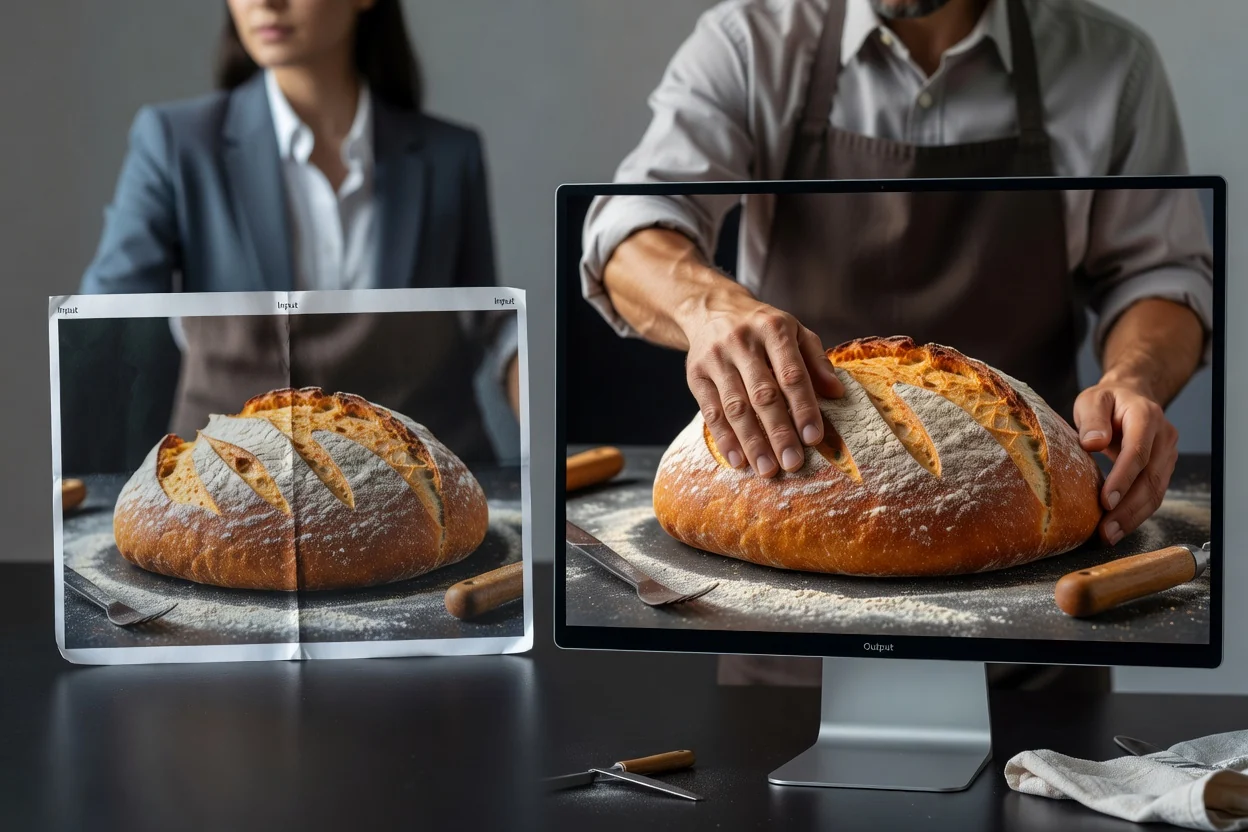
เริ่มจากการใช้งานปลายทาง และตรวจดูผลลัพธ์ขนาดใหญ่ในขนาดที่ภาพจะแสดงจริง.
เลือกภาพสินค้า ภาพขนาดย่อ กราฟิกโซเชียล ภาพสแกน หรือภาพอื่นที่ต้องเพิ่มขนาดพิกเซล.
ตัดสินใจว่าภาพขนาดใหญ่ขึ้นจะใช้สำหรับรายการสินค้า ภาพขนาดย่อ โฆษณา งานนำเสนอ โพสต์โซเชียล หรือร่างงานพิมพ์.
ประมวลผลภาพ เปรียบเทียบต้นฉบับกับผลลัพธ์ แล้วตรวจดูขอบ ข้อความ ใบหน้า และพื้นผิวก่อนดาวน์โหลด.
เครื่องมือนี้เก็บภาพต้นฉบับหนึ่งภาพ ผลลัพธ์ขนาดใหญ่หนึ่งภาพ และตัวเลือกการขยายที่มีไว้ด้วยกันเพื่อเปรียบเทียบโดยตรง.
อัปโหลดภาพที่ชัดที่สุดเท่าที่มี เพื่อให้ขอบ ข้อความ ใบหน้า และพื้นผิวให้ข้อมูลต้นฉบับที่เป็นประโยชน์.
ดาวน์โหลดเวอร์ชันที่ขยายแล้วซึ่งมีขนาดพิกเซลเพิ่มขึ้น หลังเปรียบเทียบกับต้นฉบับ.
เลือกระดับการขยายที่มีให้ ประมวลผลภาพ แล้วตรวจดูแผงก่อนและหลัง.
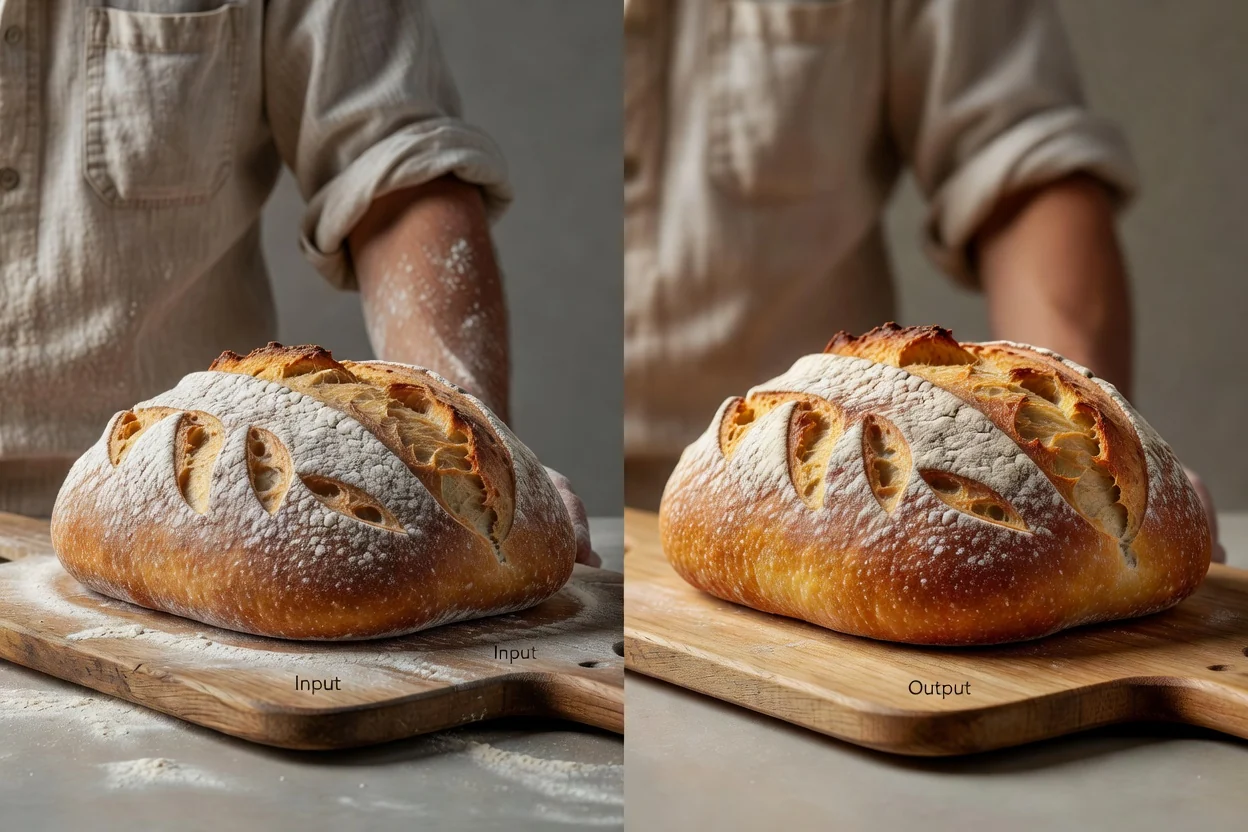
ขั้นตอนการทำงานของเครื่องมือแบบกำหนดไว้ช่วยรวมการอัปโหลด การประมวลผล การเปรียบเทียบ และการดาวน์โหลดไว้กับงานภาพเดียว.
สร้างผลลัพธ์ที่มีขนาดใหญ่ขึ้นเมื่อไฟล์ต้นฉบับเล็กเกินไปสำหรับเลย์เอาต์หรือช่องทางที่ต้องแสดงภาพ.
ใช้กระบวนการปรับปรุงภาพเมื่อการปรับขนาดทั่วไปเพียงยืดพิกเซลเดิมให้เป็นไฟล์ที่ใหญ่ขึ้น.
เปรียบเทียบต้นฉบับกับผลลัพธ์ที่ขยายแล้วก่อนเก็บภาพที่เสร็จสมบูรณ์.
เตรียมภาพต้นฉบับขนาดใหญ่ขึ้นสำหรับอีคอมเมิร์ซ ภาพขนาดย่อ โฆษณา งานนำเสนอ โพสต์โซเชียล และร่างงานพิมพ์.
เลือกผลลัพธ์ขนาดใหญ่สำหรับปลายทางที่กำหนด แทนการขยายทุกไฟล์เป็นค่าเริ่มต้น.
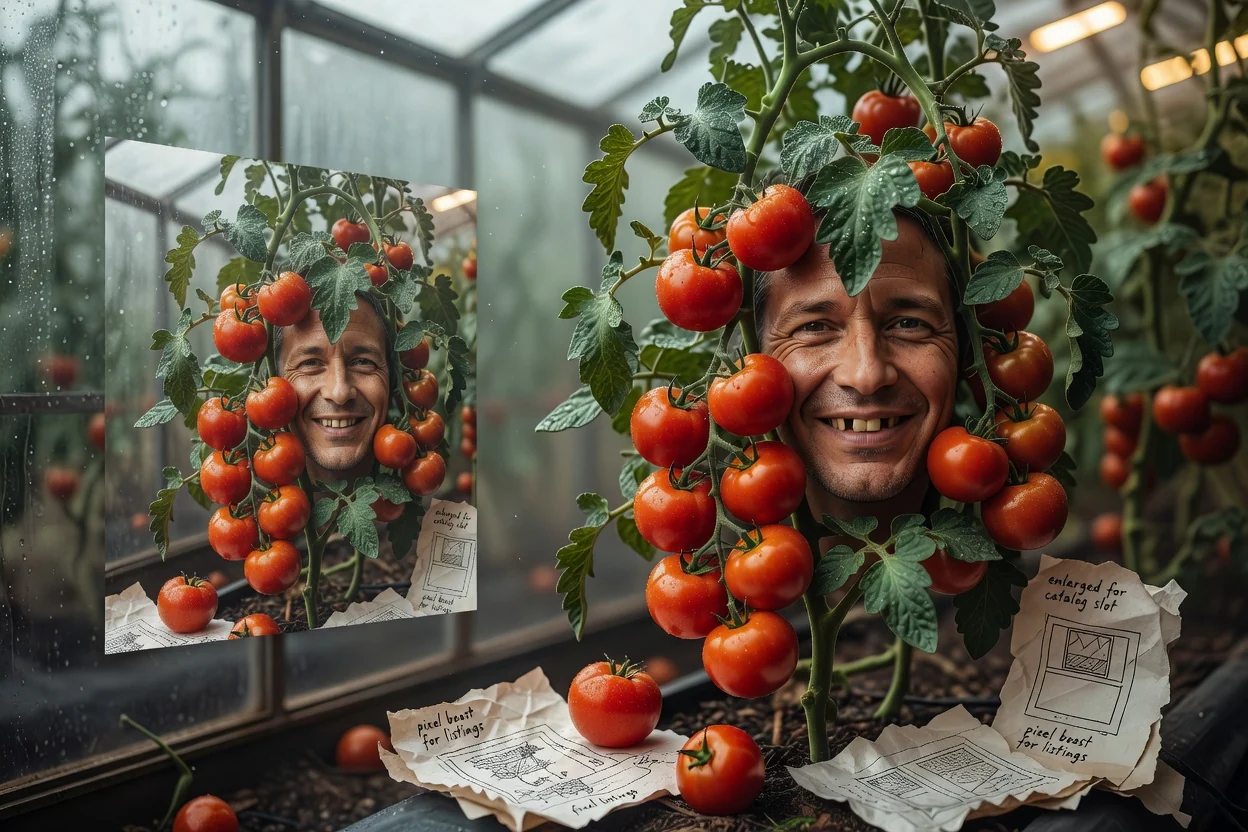
เตรียมภาพสินค้าขนาดใหญ่ขึ้นเมื่อช่องในมาร์เก็ตเพลส หน้าร้าน หรือแค็ตตาล็อกต้องการพิกเซลมากขึ้น.
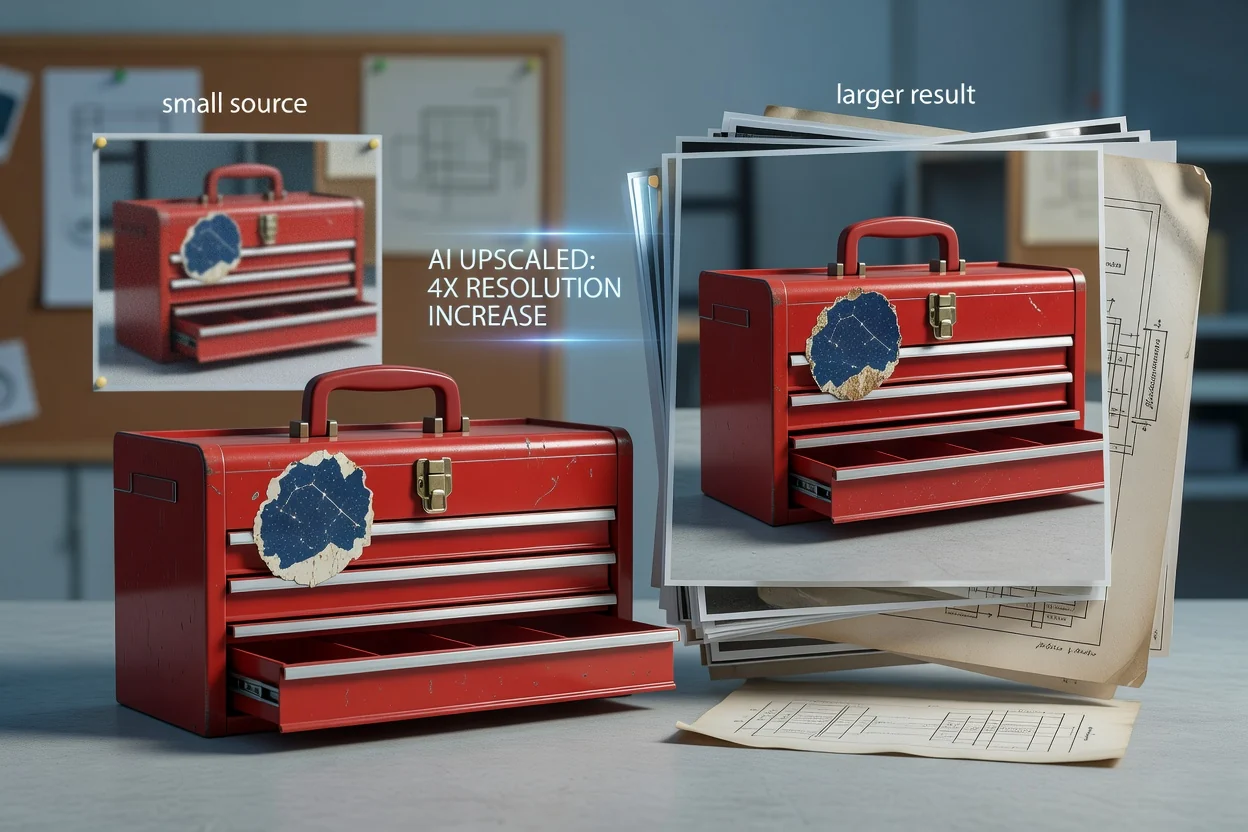
เพิ่มขนาดภาพต้นฉบับขนาดเล็กก่อนวางลงในภาพขนาดย่อ กราฟิกแคมเปญ งานนำเสนอ หรือเลย์เอาต์โซเชียล.
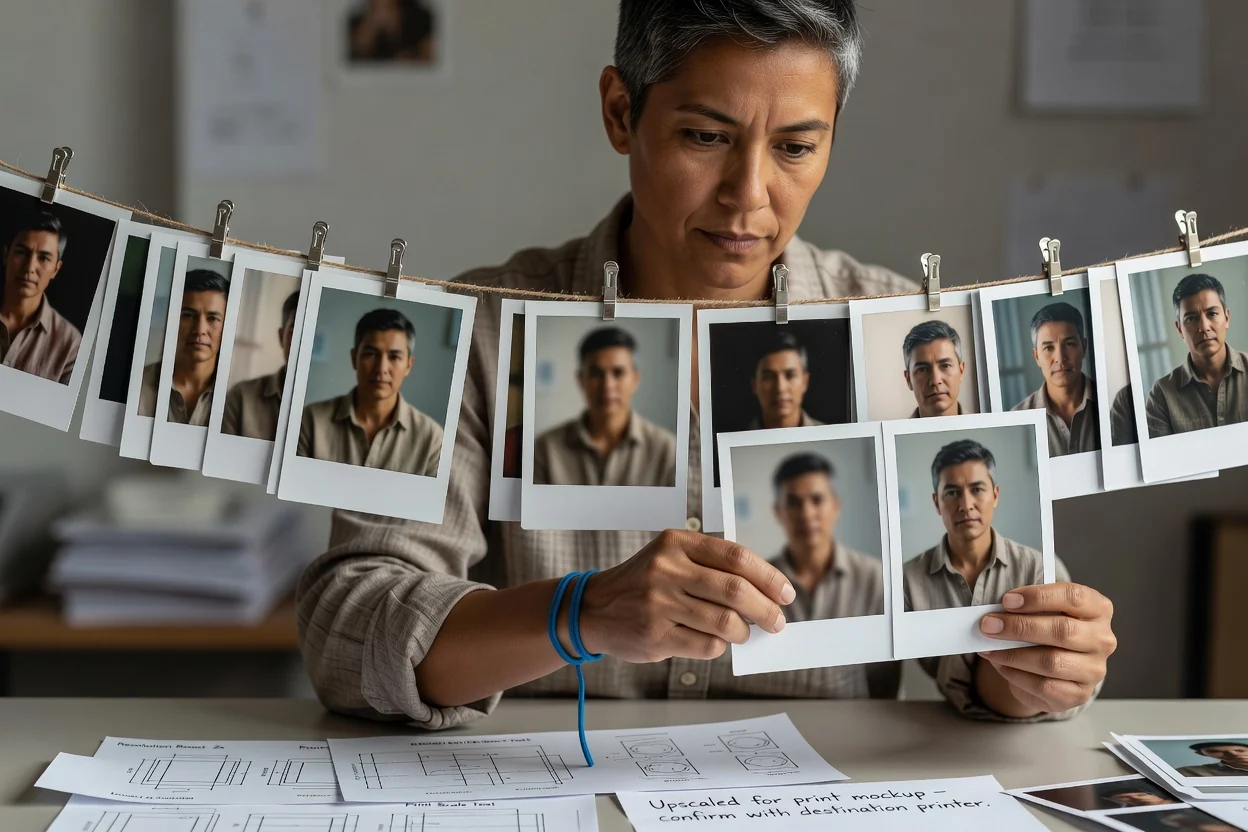
ทดสอบเวอร์ชันขนาดใหญ่ขึ้นสำหรับตัวอย่างงานพิมพ์หรือสไลด์ แล้วตรวจสอบความละเอียดที่ใช้ได้กับปลายทางสุดท้าย.
การขยายภาพอาจสร้างผลลัพธ์ที่ใหญ่ขึ้นและดูสะอาดตาขึ้น แต่ไม่สามารถกู้คืนข้อมูลต้นฉบับที่ไม่เคยถูกบันทึกไว้ได้.
ภาพต้นฉบับที่เล็กมาก เบลอ บีบอัด หรือเสียหาย อาจยังดูไม่คมชัดหรือมีพื้นผิวที่ถูกสร้างขึ้นหลังการขยายภาพ.
ตรวจดูตัวอักษร โลโก้ ลักษณะใบหน้า ลวดลายซ้ำ ขอบ และรายละเอียดสินค้าเล็ก ๆ ที่ขนาดแสดงผลสุดท้าย.
เลือกขนาดผลลัพธ์ให้ตรงกับปลายทาง แทนการสร้างไฟล์ใหญ่เกินจำเป็นโดยไม่มีประโยชน์ที่มองเห็นได้.
คำตอบเกี่ยวกับการปรับขนาดภาพ ขนาดผลลัพธ์ คุณภาพต้นฉบับ และการตรวจสอบก่อนและหลัง.
ทำงานต่อด้วยเครื่องมือเฉพาะทางเมื่อขั้นตอนถัดไปคือการบีบอัด ครอบตัด หรือแปลงรูปแบบไฟล์.
อัปโหลดภาพต้นฉบับหนึ่งภาพ ประมวลผลเวอร์ชันที่ใหญ่ขึ้น แล้วเปรียบเทียบรายละเอียดสำคัญก่อนดาวน์โหลด.