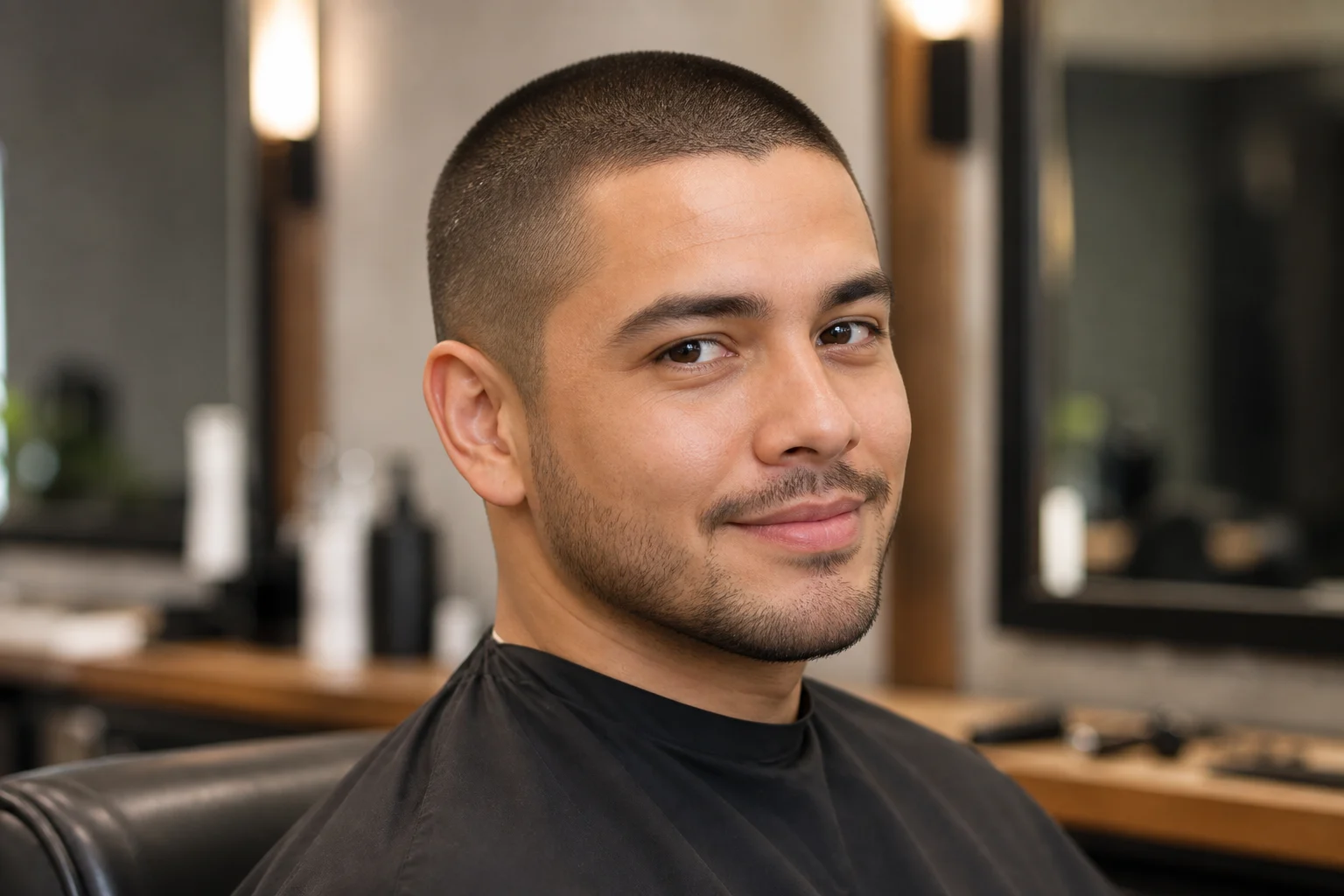
స్పష్టమైన పోర్ట్రెయిట్పై చాలా చిన్న హెయిర్స్టైల్ను ప్రయత్నించండి. రూపొందించిన ముఖం, హెయిర్లైన్, నేపథ్యాన్ని అసలుతో పోల్చండి; వివరాలు మారవచ్చు. ఇది నిజమైన హెయిర్కట్ ఫలితానికి అంచనా కాదు.
Apply the AI Buzz Cut Filter effect to the uploaded portrait. Preserve the same person, face shape, expression, pose, clothing, lighting, camera angle, and background. Change only the hair into a realistic buzz cut or very short haircut with natural scalp visibility, hairline fit, short-hair texture, shadows, and skin blending. Keep identity and facial details unchanged.
AI బజ్ కట్ ఫిల్టర్ అంటే ఏమిటి?
ఈ టెంప్లేట్ పోర్ట్రెయిట్పై బజ్ కట్ లేదా అత్యంత చిన్న హెయిర్స్టైల్ను కోరుతుంది. జుట్టును మార్చేటప్పుడు వ్యక్తిని, చిత్ర అమరికను అలాగే ఉంచేందుకు ప్రాంప్ట్ ప్రయత్నిస్తుంది; కానీ మోడల్ ముఖ వివరాలు, వెలుతురు లేదా నేపథ్యాన్ని కూడా మార్చవచ్చు. చిత్రాన్ని రూపానికి సంబంధించిన ఆలోచనగా వాడండి; నిజమైన హెయిర్కట్ ఫలితానికి అంచనాగా కాదు.
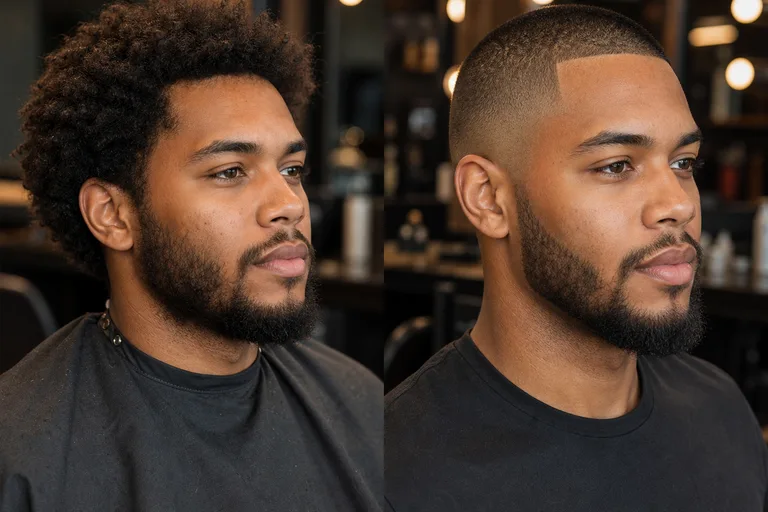
ప్రస్తుత హెయిర్స్టైల్ నుంచి చాలా చిన్న బజ్ కట్ ప్రివ్యూకు
కోరే మార్పు జుట్టులో మాత్రమే. మోడల్ ఇతర పోర్ట్రెయిట్ వివరాలను కూడా మార్చవచ్చు కాబట్టి, ఫలితాన్ని అసలు చిత్రంతో పోల్చండి.
ఏవి మారుతాయి
కనిపించే జుట్టును పదునైన బజ్ కట్ లేదా అత్యంత చిన్న హెయిర్కట్గా మారుస్తుంది.
హెయిర్కట్ను అసలు తల కోణం, నీడలు, చర్మ రంగుతో సరిపోల్చేందుకు ప్రయత్నిస్తుంది; ఫలితంలో తేడాలను పరిశీలించండి.
మెరుగుపరచడం, పంచుకోవడం లేదా ప్రదర్శించడం ముందు పోల్చుకోగల కేంద్రీకృత దృశ్య ప్రివ్యూను రూపొందిస్తుంది.
అసలుతో పోల్చాల్సినవి
ముఖ ఆకృతి, భావవ్యక్తీకరణ, భంగిమ, దుస్తులు, కెమెరా కోణం, వెలుతురు, నేపథ్యాన్ని పోల్చండి.
గుర్తుపట్టేందుకు తోడ్పడే ముఖ వివరాలను మార్చిన ప్రివ్యూను తిరస్కరించండి.
సోర్స్ చిత్రంలోని వ్యక్తిని ఇంకా గుర్తుపట్టగలుగుతున్నారో తనిఖీ చేయండి.
రంగులు, బాహ్య ఆకృతి, పోర్ట్రెయిట్ అంచుల్లో ఊహించని మార్పుల కోసం పరిశీలించండి.
AI బజ్ కట్ ఫిల్టర్ ఎలా పనిచేస్తుంది
స్పష్టమైన పోర్ట్రెయిట్ను ఉపయోగించి, హెయిర్కట్ దిశను వర్తింపజేసి, మీకు నచ్చిన వెర్షన్ను సేవ్ చేయడానికి ముందు ఫలితాన్ని అసలు చిత్రంతో పోల్చి పరిశీలించండి.
1
స్పష్టమైన పోర్ట్రెయిట్ను అప్లోడ్ చేయండి
ముఖం, తల ఆకృతి, హెయిర్లైన్ భాగం, ప్రధాన వ్యక్తి స్పష్టంగా కనిపించే, తక్కువ బ్లర్ లేదా ఆటంకాలున్న పదునైన ఫోటోను ఎంచుకోండి.
2
బజ్ కట్ శైలిని వర్తింపజేయండి
సహజమైన తలచర్మ దృశ్యమానత, సరిపోయే హెయిర్లైన్ వివరాలు, తగిన వెలుతురుతో వాస్తవిక బజ్ కట్ లేదా అత్యంత చిన్న హెయిర్కట్గా రూపాన్ని సెట్ చేయండి.
అవసరమైతే మరింత స్పష్టమైన సోర్స్ చిత్రం లేదా నిర్దిష్టమైన వివరణను ప్రయత్నించి హెయిర్కట్ ఆకృతి, కలయికను మెరుగుపరచండి.
AI బజ్ కట్ ఫిల్టర్ ఉదాహరణలు
ఈ చిత్రాలు ప్రయత్నించగల హెయిర్స్టైల్ దిశలను చూపిస్తాయి. ఇవి ధృవీకరించిన ముందు-తర్వాత జతలు కావు; మీ చిత్రం ఫలితానికీ హామీ ఇవ్వవు.
సహజమైన బజ్ కట్ ప్రివ్యూ
అసలు పోర్ట్రెయిట్ను అనుసరించే మృదువైన తలచర్మ దృశ్యమానత, వెలుతురుతో సహజమైన దగ్గరగా కత్తిరించిన రూపం.
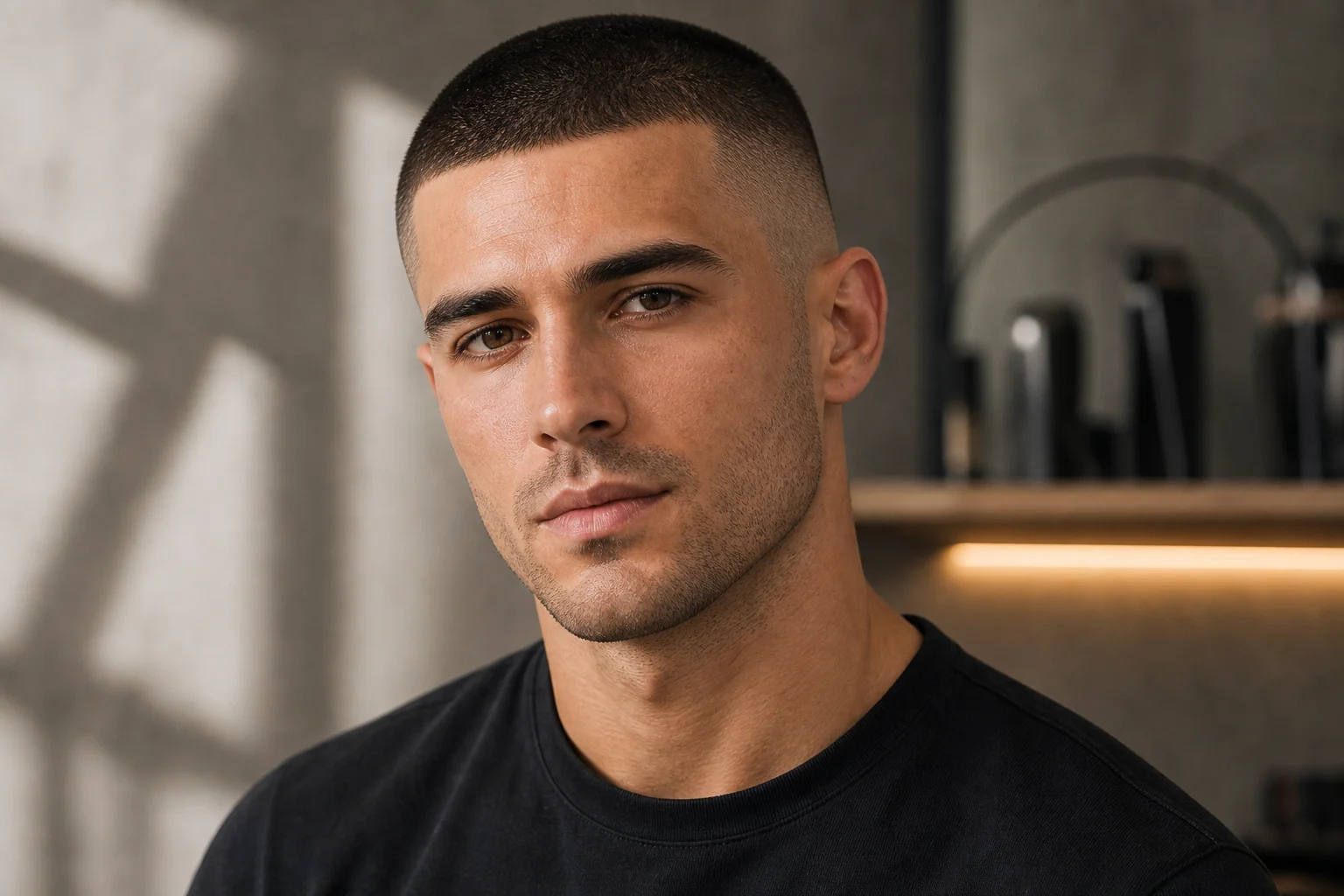
పదునైన హెయిర్లైన్ వివరాలు
నిర్వచించిన హెయిర్లైన్ అంచులు, తల అంతటా చిన్న జుట్టు ఆకృతితో మరింత శుభ్రమైన, పదునైన కట్ ప్రభావం.
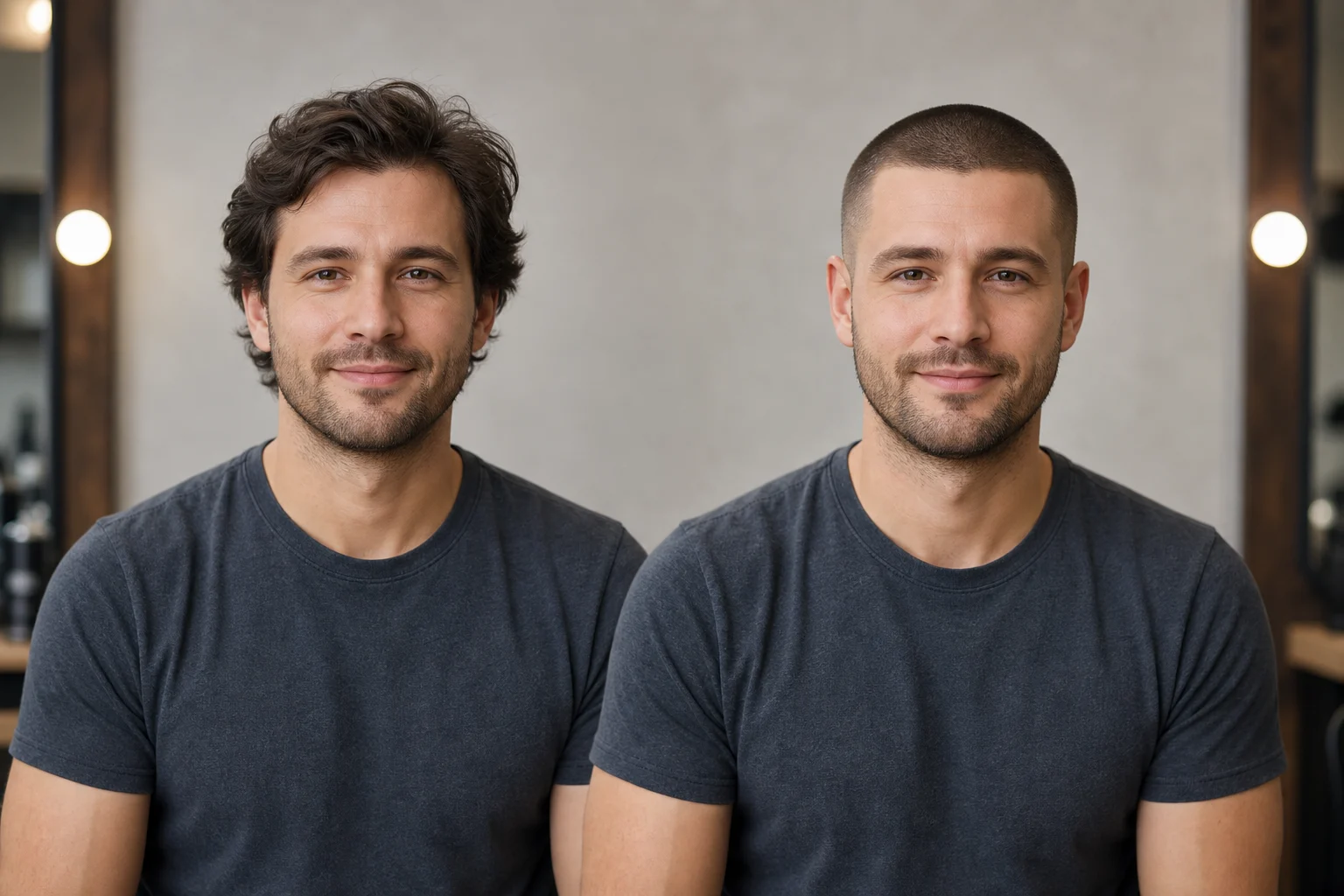
అత్యంత చిన్న హెయిర్కట్ రూపం
ముఖం, భావవ్యక్తీకరణ, దుస్తులు, నేపథ్యాన్ని సోర్స్కు దగ్గరగా ఉంచే సమతుల్యమైన అత్యంత చిన్న హెయిర్కట్ ప్రివ్యూ.
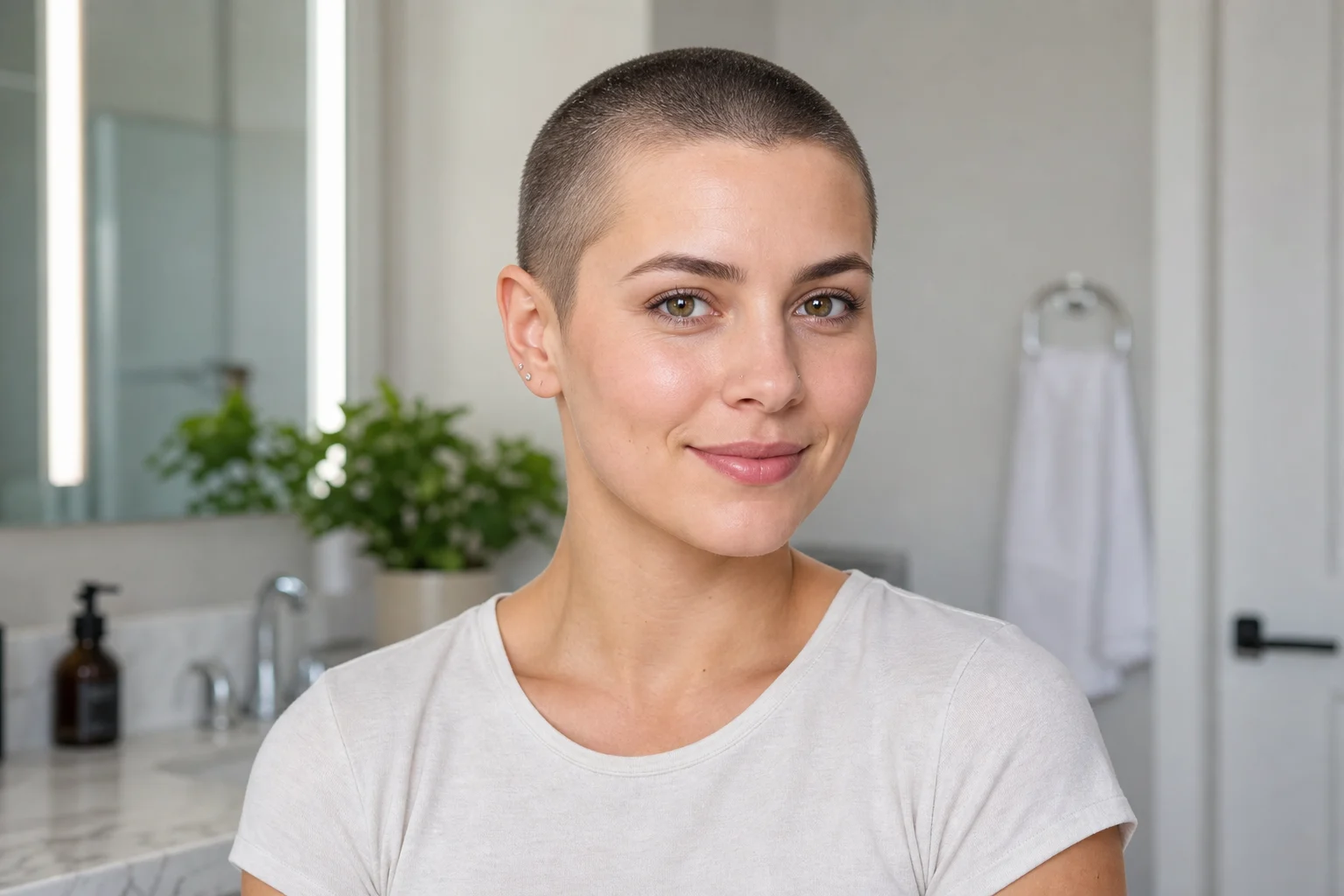
పోర్ట్రెయిట్కు సిద్ధమైన బజ్ కట్
ఉద్దేశించిన నీడలు, తలచర్మ కలయిక, చిన్న జుట్టు బాహ్య ఆకృతిని చూపే పోర్ట్రెయిట్ ఆధారిత హెయిర్స్టైల్ ఉదాహరణ.
AI బజ్ కట్ ఫిల్టర్ను ఉపయోగించే ప్రసిద్ధ మార్గాలు
వ్యక్తిగత లేదా సృజనాత్మక చిత్రంలో అత్యంత చిన్న హెయిర్కట్ దిశకు నిర్ణయించుకునే ముందు కేంద్రీకృతమైన, వాస్తవికంగా కనిపించే ప్రివ్యూ కావాలనుకున్నప్పుడు బజ్ కట్ ఫిల్టర్ను ఆన్లైన్లో ఉపయోగించండి.
హెయిర్కట్ ఆలోచనను ముందుగా చూడండి
మీ పోర్ట్రెయిట్ సుపరిచితంగా ఉండగానే పదునైన బజ్ కట్ లేదా దగ్గరగా కత్తిరించిన హెయిర్స్టైల్ మీ మొత్తం రూపాన్ని ఎలా మారుస్తుందో చూడండి.
దృశ్య దిశను అన్వేషించండి
చిత్రాన్ని మెరుగుపరచడం, పంచుకోవడం లేదా ప్రదర్శించడం ముందు అత్యంత చిన్న హెయిర్స్టైల్ను మీ ప్రస్తుత రూపంతో పోల్చండి.
సృజనాత్మక సూచనను రూపొందించండి
మూడ్ బోర్డులు, పాత్ర సూచనలు, ప్రొఫైల్ భావనలు లేదా స్టైలింగ్ ప్రయోగాల కోసం శుభ్రమైన పోర్ట్రెయిట్ వైవిధ్యాన్ని రూపొందించండి.
మెరుగైన AI బజ్ కట్ ఫిల్టర్ ఫలితాన్ని ఎలా పొందాలి
స్పష్టమైన సోర్స్ ఫోటో, నిర్దిష్టమైన హెయిర్కట్ సూచనలు ఫలితం వాస్తవికంగా, గుర్తుపట్టగలిగేలా ఉండటానికి సహాయపడతాయి.
సోర్స్ ఇమేజ్ తనిఖీ జాబితా
ప్రధాన వ్యక్తి స్పష్టంగా కనిపించే సోర్స్ చిత్రాన్ని ఉపయోగించండి.
ఎక్కువ బ్లర్, కప్పబడిన వివరాలు, తీవ్ర క్రాప్లు లేదా గందరగోళంగా కలిసిన భాగాలను నివారించండి.
ఉద్దేశించిన AI బజ్ కట్ ఫిల్టర్ ఫలితానికి అనుకూలమైన భంగిమ, ఫ్రేమింగ్ ఉన్న సోర్స్ను ఎంచుకోండి.
మరింత శుభ్రమైన బజ్ కట్ ఫలితం కోసం ప్రాంప్ట్ చిట్కాలు
హెయిర్కట్ను వాస్తవిక బజ్ కట్ లేదా అత్యంత చిన్నగా దగ్గరగా కత్తిరించిన శైలిగా వివరించండి. సహజమైన తలచర్మ దృశ్యమానత, సరిపోయే హెయిర్లైన్, చిన్న జుట్టు ఆకృతి, మృదువైన నీడలు, చర్మంతో కలయికను పేర్కొనండి. అదే వ్యక్తి, భావవ్యక్తీకరణ, భంగిమ, దుస్తులు, వెలుతురు, కెమెరా కోణం, నేపథ్యం మారకుండా ఉండాలని కూడా స్పష్టం చేయండి.
మీ AI బజ్ కట్ ఫిల్టర్ ప్రివ్యూను పరిశీలించండి
రూపొందించిన వివరాలు ప్రతిసారి మారవచ్చు కాబట్టి, ఉపయోగించే లేదా పంచుకునే ముందు ప్రివ్యూను జాగ్రత్తగా పరిశీలించండి. మరింత స్పష్టమైన సోర్స్ చిత్రం లేదా నిర్దిష్టమైన హెయిర్కట్ వివరణ బలహీనమైన ఫలితాన్ని మెరుగుపరచవచ్చు.
గుర్తింపు, నిర్మాణాన్ని తనిఖీ చేయండి
వ్యక్తి గుర్తుపట్టగలిగేలా ఉండేందుకు ముఖ ఆకృతి, భావవ్యక్తీకరణ, కళ్ళు, నోరు, దవడ రేఖ, భంగిమ, బాహ్య ఆకృతిని సోర్స్ చిత్రంతో పోల్చండి.
హెయిర్కట్ వివరాలను పరిశీలించండి
బజ్ కట్ ప్రభావం పొందికగా ఉందని నిర్ధారించడానికి హెయిర్లైన్, తలచర్మ దృశ్యమానత, చిన్న జుట్టు ఆకృతి, నీడలు, చర్మ కలయికను దగ్గరగా పరిశీలించండి.
పూర్తి చిత్రాన్ని పరిశీలించండి
తల చుట్టూ అంచులు, నేపథ్య మార్పులు, దుస్తులు, చిన్న వస్తువులు, చేతులు, ఏదైనా వచనంలో లోపాలు లేదా ఊహించని మార్పుల కోసం పూర్తి చిత్రాన్ని పరిశీలించండి.
AI బజ్ కట్ ఫిల్టర్ తరచుగా అడిగే ప్రశ్నలు
బజ్ కట్ ఫిల్టర్ను ఆన్లైన్లో ఉపయోగించడం, స్పష్టమైన హెయిర్కట్ ప్రివ్యూ కోసం పోర్ట్రెయిట్ను సిద్ధం చేయడం గురించి సాధారణ ప్రశ్నలు.
AI బజ్ కట్ ఫిల్టర్ అంటే ఏమిటి?
AI బజ్ కట్ ఫిల్టర్ అనేది పదునైన బజ్ కట్ లేదా అత్యంత చిన్న హెయిర్కట్ను ముందుగా చూడటానికి ఉపయోగించే పోర్ట్రెయిట్ ఎడిటింగ్ టెంప్లేట్. ఒకే వ్యక్తి, ముఖ ఆకృతి, భావవ్యక్తీకరణ, కెమెరా కోణం, దుస్తులు, వెలుతురు, నేపథ్యాన్ని సాధ్యమైనంత స్థిరంగా ఉంచుతూ ఇది జుట్టు భాగాన్ని మారుస్తుంది.
నేను ఏ సోర్స్ చిత్రాన్ని ఉపయోగించాలి?
తల ఆకృతి, హెయిర్లైన్ భాగం, ముఖం, ప్రధాన వ్యక్తి స్పష్టంగా కనిపించే, మంచి వెలుతురున్న పోర్ట్రెయిట్ను ఉపయోగించండి. తలకు చుట్టూ ఎక్కువ బ్లర్, కప్పబడిన జుట్టు, తీవ్ర క్రాప్లు, టోపీలు, దట్టమైన నీడలు లేదా గందరగోళంగా కలిసిన భాగాలను నివారించండి.
AI బజ్ కట్ ఫిల్టర్ను ఎలా ఉపయోగించాలి?
అనుకూలమైన పోర్ట్రెయిట్ను అప్లోడ్ చేసి AI బజ్ కట్ ఫిల్టర్ను వర్తింపజేయండి, ఆపై డౌన్లోడ్ చేయడానికి ముందు ఫలితాన్ని పరిశీలించండి. హెయిర్లైన్, తలచర్మ కలయిక లేదా చిన్న జుట్టు ఆకృతికి మెరుగుదల అవసరమైతే, మరింత స్పష్టమైన ఫోటోను ప్రయత్నించండి లేదా కావాల్సిన హెయిర్కట్ వివరణను మెరుగుపరచండి.
AI బజ్ కట్ ఫిల్టర్ ఏ ఇమేజ్ ఫార్మాట్లకు మద్దతిస్తుంది?
మీ కెమెరా, ఫోన్ లేదా డిజైన్ వర్క్ఫ్లో నుంచి వచ్చే సాధారణ పోర్ట్రెయిట్ ఫైళ్ల వంటి అప్లోడ్ సాధనం మద్దతిచ్చే సాధారణ ఇమేజ్ ఫార్మాట్లను ఉపయోగించండి. ఉత్తమ ఫలితం కోసం ముఖం, హెయిర్లైన్ వివరాలు కనిపించేంత రిజల్యూషన్ ఉన్న స్పష్టమైన చిత్రాన్ని ఎంచుకోండి.
AI బజ్ కట్ ఫిల్టర్ ఫలితాలను వాణిజ్యపరంగా ఉపయోగించవచ్చా?
వినియోగం మీ సోర్స్ చిత్రానికి సంబంధించిన హక్కులు, చిత్రంలో ఉన్న వ్యక్తులు, మీరు ఉద్దేశించిన సందర్భంపై ఆధారపడి ఉంటుంది. ఫలితాన్ని బహిరంగ, క్లయింట్, బ్రాండ్ లేదా చెల్లింపు ప్రాజెక్టుల్లో ఉపయోగించే ముందు అనుమతులు, వర్తించే ప్లాట్ఫారమ్ నిబంధనలను పరిశీలించండి.
AI బజ్ కట్ ఫిల్టర్లో ఎలాంటి మార్పులు ఆశించవచ్చు?
ప్రాంప్ట్ బజ్ కట్ లేదా అత్యంత చిన్న హెయిర్స్టైల్ను కోరుతుంది. మోడల్ ముఖ లక్షణాలు, నీడలు, దుస్తులు లేదా నేపథ్య వివరాలను కూడా మార్చవచ్చు. పూర్తి చిత్రాన్ని అసలుతో పోల్చి, అవాంఛిత మార్పులను తిరస్కరించండి. ప్రివ్యూ నిజంగా హెయిర్కట్ చేయించిన తర్వాత ఎలా కనిపిస్తారో అంచనా వేయదు.
ఏ సోర్స్ చిత్రం ఉత్తమంగా పనిచేస్తుంది?
తల, హెయిర్లైన్, ముఖం దాగకుండా ఉన్న ముందువైపు లేదా కొద్దిగా కోణంలో తీసిన పోర్ట్రెయిట్ సాధారణంగా బాగా పనిచేస్తుంది. స్వచ్ఛమైన వెలుతురు, సరళమైన ఫ్రేమింగ్ ఆన్లైన్ బజ్ కట్ ఫిల్టర్ మరింత పొందికైన ప్రివ్యూను రూపొందించడంలో సహాయపడతాయి.
వ్యక్తి గుర్తుపట్టగలిగేలా ఎలా ఉంచాలి?
వ్యక్తిని సులభంగా గుర్తించగలిగే ఫోటోతో ప్రారంభించి, పూర్తయిన చిత్రాన్ని అసలుదానితో పోల్చండి. వ్యక్తి ఇప్పటికీ అదే వ్యక్తిలా కనిపిస్తోందని నిర్ధారించడానికి ముఖ ఆకృతి, కళ్ళు, నోరు, భావవ్యక్తీకరణ, బాహ్య ఆకృతి, నేపథ్య మార్పులను పరిశీలించండి.
మీ పోర్ట్రెయిట్పై AI బజ్ కట్ ఫిల్టర్ను ప్రయత్నించండి
స్పష్టమైన పోర్ట్రెయిట్తో మొదలుపెట్టి, హెయిర్కట్ ప్రివ్యూను రూపొందించి, సేవ్ చేసే ముందు పూర్తి చిత్రాన్ని అసలుతో పోల్చండి.