
ஒரு காட்சியைப் பதிவேற்றுங்கள்
தொடக்கப்புள்ளியாகப் பயன்படுத்த விரும்பும் பொருள், இயக்கம் மற்றும் கட்டமைப்புடன் 100 மெகாபைட் வரை உள்ள MP4, WebM அல்லது MOV கிளிப்பைத் தேர்ந்தெடுங்கள்.
மூலக் கிளிப்பைப் பதிவேற்றி, வேண்டிய காட்சிமாற்றத்தை விவரித்து, 1080p மாறுபாட்டை உருவாக்குங்கள்; பின்னர் இயக்கம், பொருள்கள், காட்சியைச் சரிபார்க்குங்கள்.
உப்ல்ோட் உங்கள் ஸ்ௌர்கெ வீடியோ
தொடங்கவும் உடன் ஒரு க்லிப் அது ஹஸ் தெ இயக்கம், பொருள், அல்லது கொம்பொஸிஷன் நீங்கள் வன்ட் க்கு ரெஉஸெ.
காட்சியிலிருந்து காட்சிக்கு செயற்கை நுண்ணறிவு, பதிவேற்றிய கிளிப்பிலிருந்தும் எழுதப்பட்ட மாற்றக் குறிப்பாணையிலிருந்தும் புதிய காட்சி மாறுபாட்டை உருவாக்குகிறது. பயனுள்ள இயக்கமும் கட்டமைப்பும் உள்ள காட்சிப்பதிவில் தொடங்கி, அடுத்த பதிப்பில் ஆராய விரும்பும் காட்சித் திசையைக் குறிப்பிடுங்கள்.
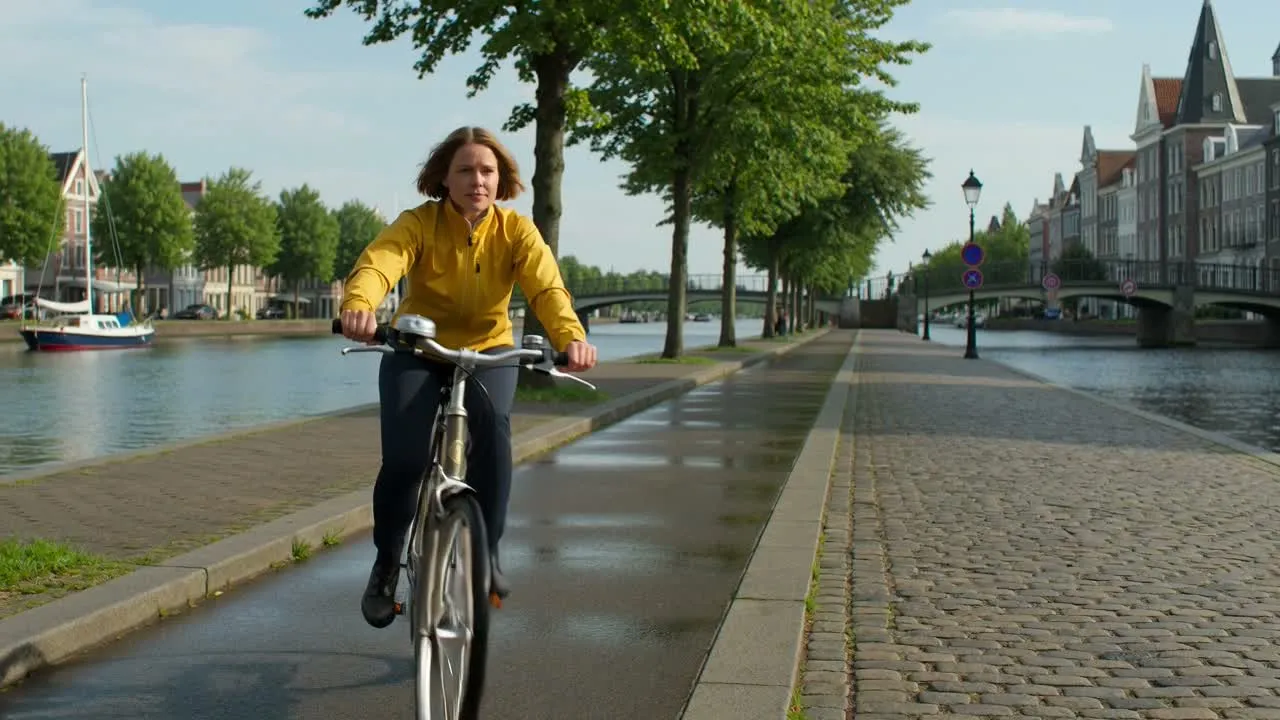
குறுகிய, தெளிவான மூலக் கிளிப்பைப் பயன்படுத்தி, காட்சிப்பதிவில் ஏற்கனவே இருக்கும் விவரங்களை மீண்டும் கூறாமல் காட்சிமாற்றத்தை வரையறையுங்கள்.
தொடக்கப்புள்ளியாகப் பயன்படுத்த விரும்பும் பொருள், இயக்கம் மற்றும் கட்டமைப்புடன் 100 மெகாபைட் வரை உள்ள MP4, WebM அல்லது MOV கிளிப்பைத் தேர்ந்தெடுங்கள்.
காட்சி மாறுபாட்டுக்கான காட்சி அணுகுமுறை, பாணி, ஒளியமைப்பு, சூழல், பொருள்கள், கேமரா உணர்வு அல்லது பிற காட்சிமாற்றத்தைச் சொல்லுங்கள்.
வெற்றுக் காட்சி விவரணையிலிருந்து தொடங்காமல், புதிய 1080p முடிவை உருவாக்க பதிவேற்றிய காட்சியையும் குறிப்பாணையையும் சமர்ப்பியுங்கள்.
மற்றொரு முயற்சிக்காக குறிப்பாணையை மாற்றும் முன், உருவாக்கிய காட்சியில் பொருள் தொடர்ச்சி, இயக்கம், காட்சி மாற்றங்கள் மற்றும் இறுதி இடமளிப்பைச் சரிபார்க்குங்கள்.
இந்தக் கருவி பதிவேற்றிய கிளிப்பையும் மாற்றக் குறிப்பாணையையும் இணைத்து, அடுத்த காட்சி மாறுபாட்டுக்கு குறிப்பிட்ட படைப்புத் திசையை வழங்குகிறது.
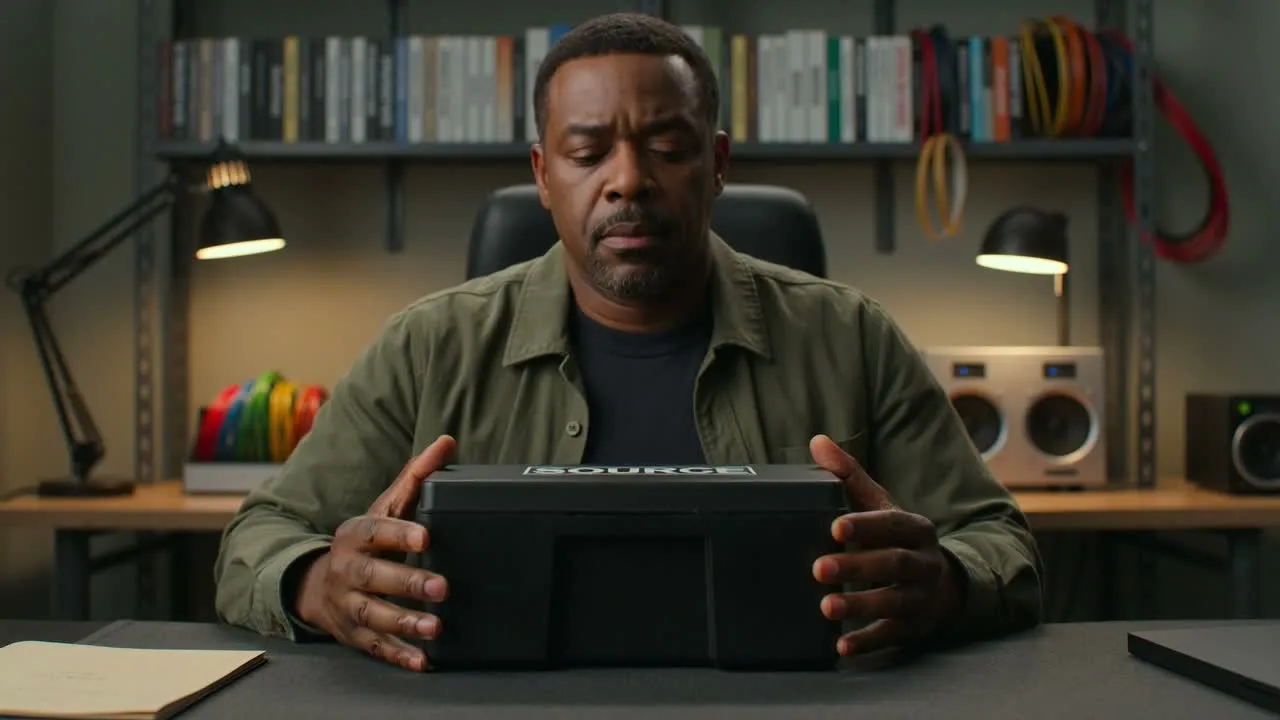
இயக்கம், பொருள், அமைப்பு அல்லது நடிப்பு புதிய காட்சி வடிவத்திற்குப் பொருத்தமானதாக இருக்கும்போது, ஏற்கனவே உள்ள காட்சிப்பதிவை காட்சித் தொடக்கப்புள்ளியாகப் பயன்படுத்துங்கள்.
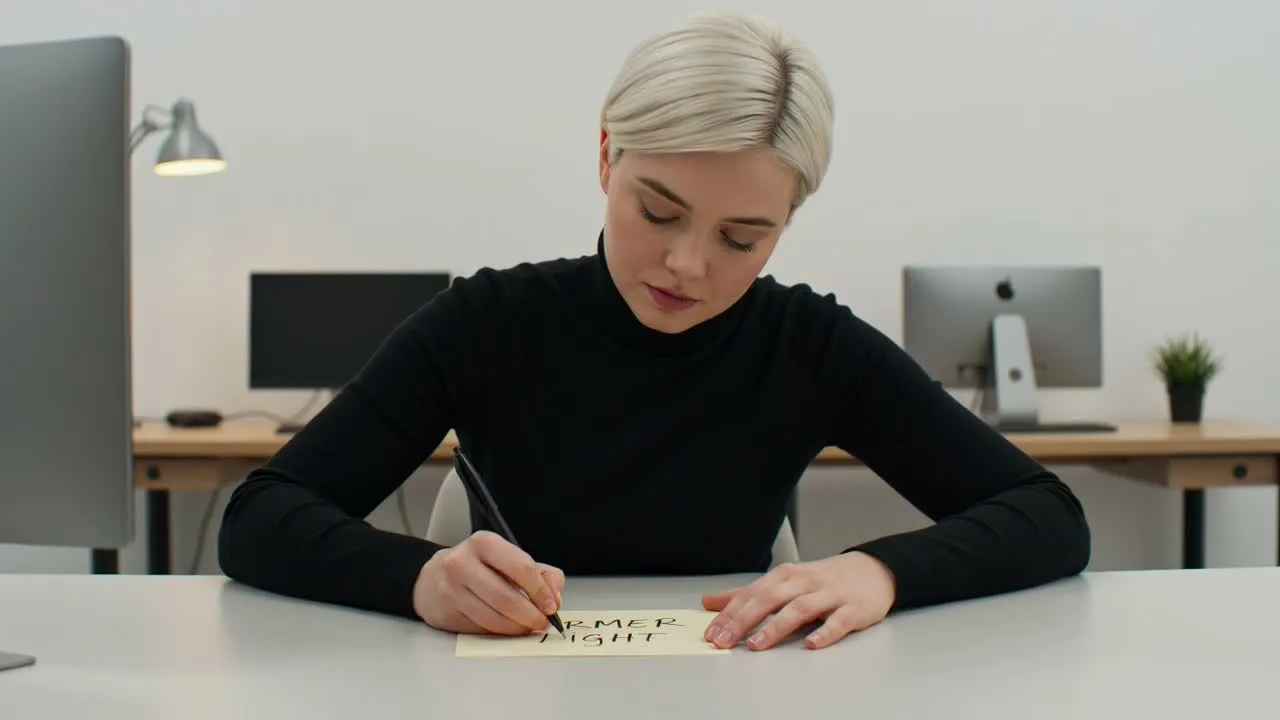
புதிய காட்சி அணுகுமுறை, ஒளியமைப்புத் திசை, சூழல், பொருள் மாற்றம் அல்லது ஒட்டுமொத்த பாணி போன்ற நீங்கள் விரும்பும் காட்சிமாற்றத்தை விவரியுங்கள்.
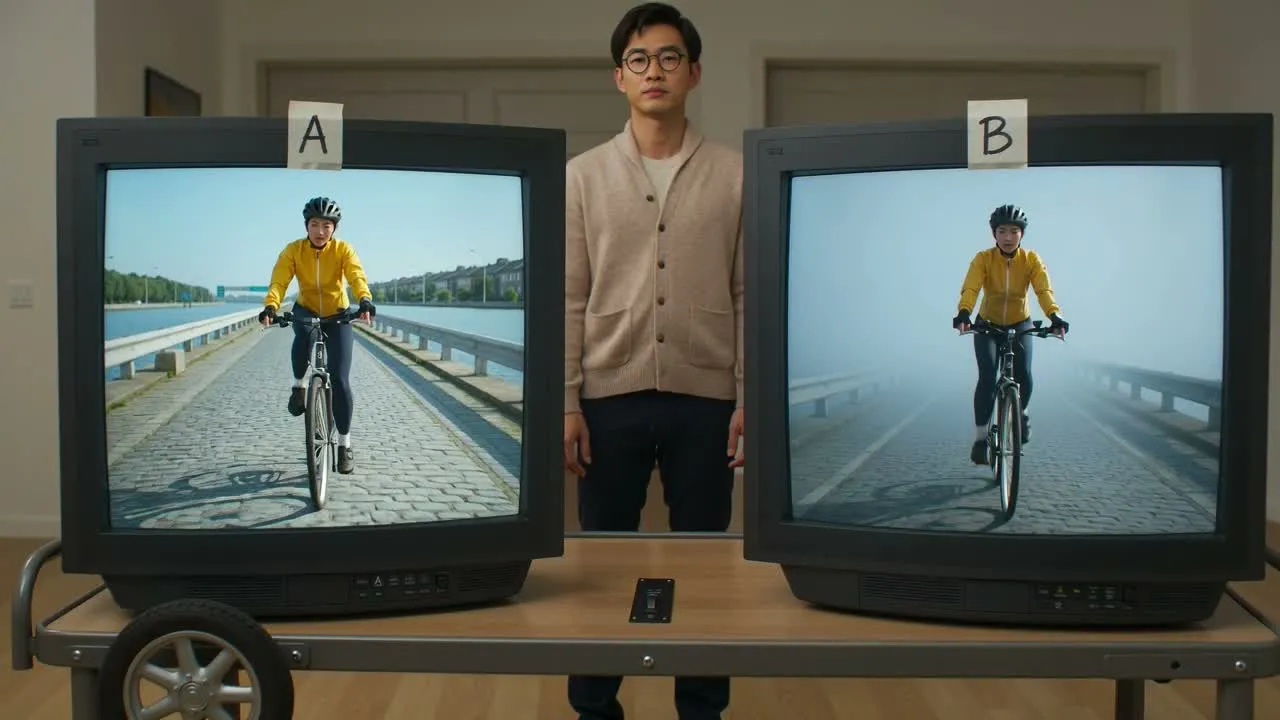
தற்போதைய மாற்றச் செயல்முறை 1080p காட்சி முடிவை வழங்குகிறது; பயன்படுத்துவதற்கு முன் அதை இயக்கிப் பார்த்து மூலக் கிளிப்புடன் ஒப்பிடலாம்.
ஏற்கனவே பயனுள்ள இயக்கம் அல்லது கட்டமைப்பைக் கொண்ட காட்சிப்பதிவில் தொடங்கி, குறிப்பிட்ட வெளியீடு அல்லது மதிப்பாய்வுப் பணிக்காக மாற்றுக் காட்சித் திசையை உருவாக்குங்கள்.
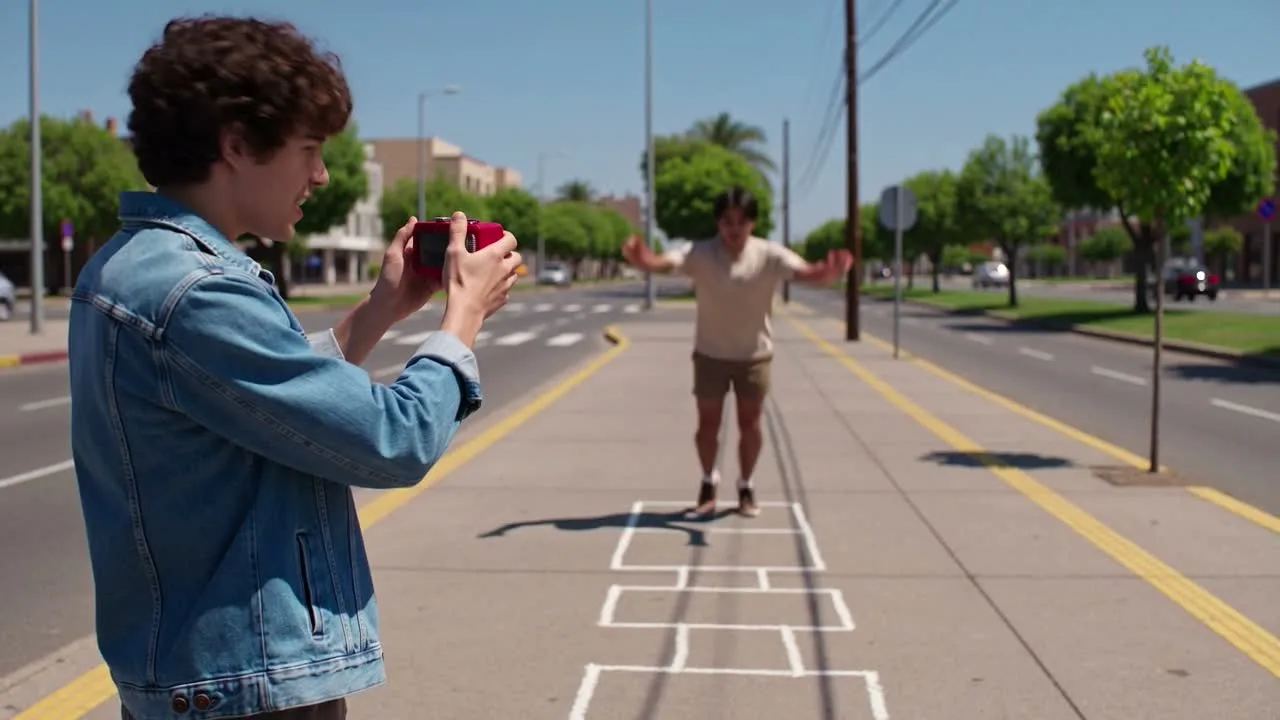
மாறுபாட்டுக்கான தொடக்கப்புள்ளியாக மூலச் செயல் அல்லது கேமரா இயக்கத்தை வைத்துக்கொண்டு, குறுகிய சமூகக் கிளிப்பிற்கு புதிய காட்சி அணுகுமுறையை ஆராயுங்கள்.
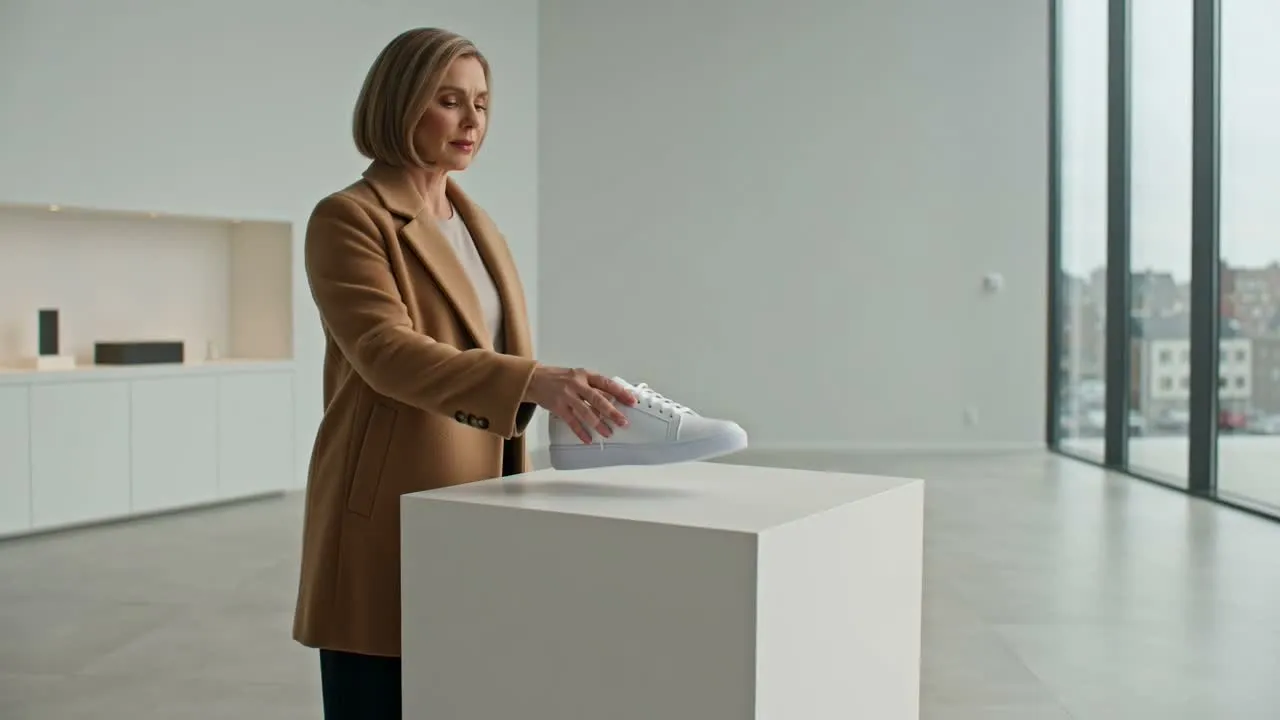
இறுதி தயாரிப்பு முடிவுகளுக்கு முன், ஆரம்ப பிரசாரக் கருத்துக்காக காட்சிச் சூழல், தயாரிப்பு அணுகுமுறை, ஒளியமைப்பு அல்லது பாணிமயமான திசைகளை ஒப்பிடுங்கள்.
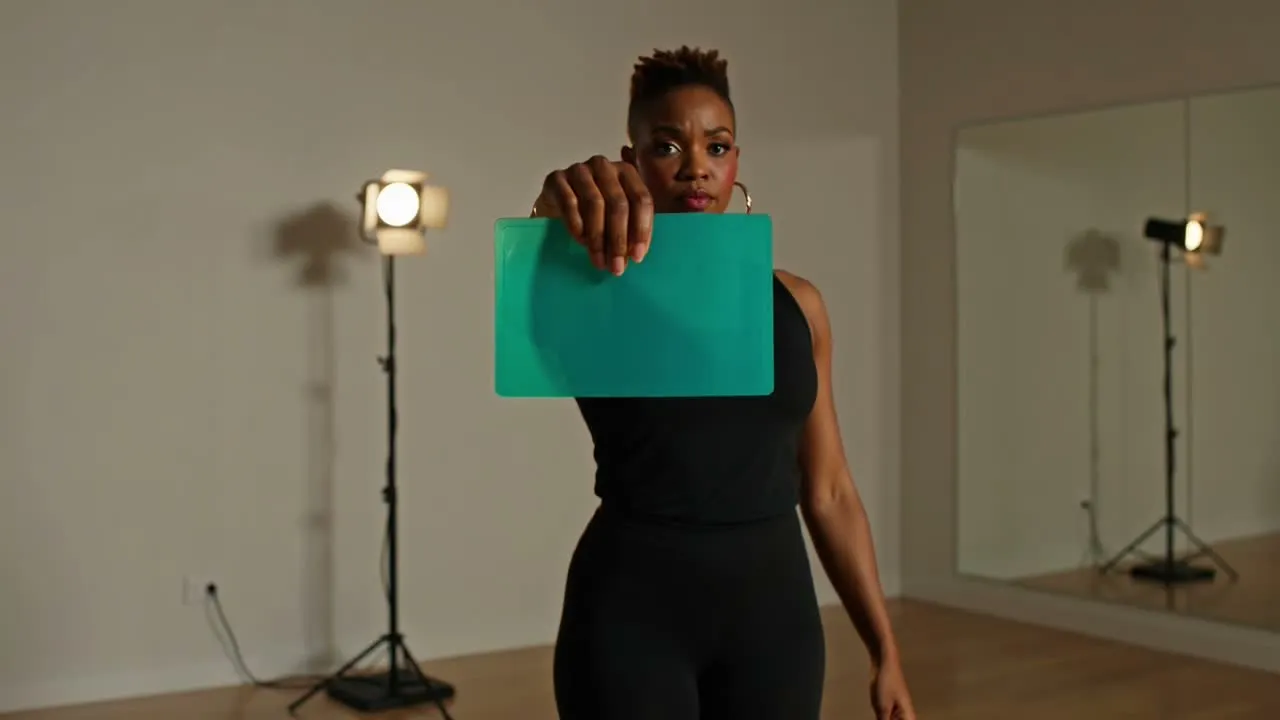
ஏற்கனவே உள்ள நடிப்பு, செயல் அல்லது அமைப்பு வேறுபட்ட காட்சி உலகம், மனநிலை அல்லது வண்ண அணுகுமுறையுடன் எப்படித் தோன்றும் என்பதைச் சோதியுங்கள்.
ஒரே சட்டகத்தை நம்பாமல் முடிவை முழுவதும் பாருங்கள்; ஏனெனில் காலம்சார் மாற்றங்கள் இயக்கம், பொருள் விவரங்கள் அல்லது காட்சித் தொடர்ச்சியைப் பாதிக்கலாம்.
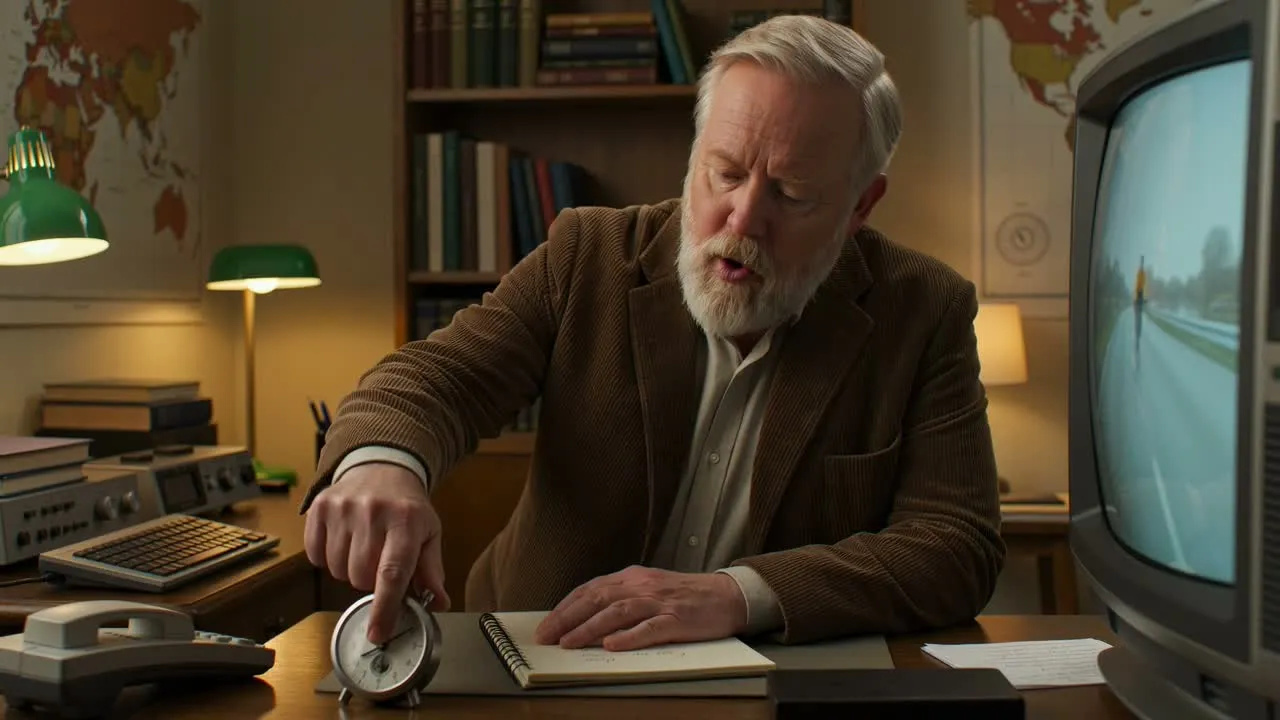
கோரிய காட்சித் திசை தொடக்க அல்லது தனித்த சட்டகத்தில் மட்டும் தோன்றாமல், கிளிப் முழுவதும் உள்ளதா என்பதை உறுதிசெய்யுங்கள்.
மாறிய முகங்கள், கைகள், தயாரிப்புகள், பொருள்கள், இயக்கப் பாதைகள், நேரம் அல்லது காட்சியைப் பயன்படுத்தக் கடினமாக்கும் திடீர் மாறுதல்களைக் கவனியுங்கள்.
குறிப்பிடத்தக்க சறுக்கல் அல்லது மினுமினுப்புக்காக ஒளியமைப்பு, கண்ணோட்டம், அமைப்புகள், பின்னணிக் கூறுகள் மற்றும் காட்சி அணுகுமுறையை சட்டகத்திலிருந்து சட்டகத்திற்குச் சரிபார்க்குங்கள்.
1080p முடிவு சரியாக இயங்குகிறதா, மேலும் காட்சி தோன்றும் இடத்தின் வெட்டு, காலஅளவு, பாதுகாப்புப் பகுதி மற்றும் தளத்திற்குப் பொருந்துகிறதா என்பதைச் சரிபார்க்குங்கள்.
உருவாக்கப்பட்ட காட்சி மாறுபாடு மூலக் கிளிப்பின் பகுதிகளை மறுவிளக்கலாம்; எனவே ஒரே மாதிரியான இயக்கம், பொருள்கள், நேரம் அல்லது காட்சி விவரங்களுக்கு உத்தரவாதமில்லை.
முகங்கள், கைகள், தயாரிப்புகள், மீண்டும் தோன்றும் பொருள்கள், வேகமான இயக்கம் மற்றும் நுணுக்கமான பின்னணிகள் சட்டகங்களுக்கு இடையில் மாறலாம் அல்லது மூலக் காட்சியிலிருந்து வேறுபடலாம்.
தற்போதைய காட்சி மாற்றச் செயல்முறை 1080p முடிவையே வழங்குகிறது; எனவே மாறுபாட்டைத் தொடங்கும் முன் உங்கள் இலக்கு தேவைகளைச் சரிபார்க்குங்கள்.
உங்களுக்குச் சொந்தமான அல்லது மாற்ற அனுமதி உள்ள காட்சிப்பதிவை மட்டும் பதிவேற்றுங்கள்; வெளியிடுவதற்கு முன் பிராண்ட், கலைஞர், இசை மற்றும் மூன்றாம் தரப்பு உரிமைகளை மதிப்பாய்வு செய்யுங்கள்.
இணையவழி மூலக் காட்சி பதிவேற்றங்கள், மாற்றக் குறிப்பாணைகள், 1080p வெளியீடு மற்றும் முடிவுச் சோதனைகள் பற்றிய பதில்கள்.
அனுமதிக்கப்பட்ட மூலக் கிளிப்பைப் பதிவேற்றி, விரும்பும் காட்சிமாற்றத்தை விவரியுங்கள்; பிறகு இயக்கிப் பார்த்துச் சரிபார்க்க 1080p காட்சி மாறுபாட்டை உருவாக்குங்கள்.