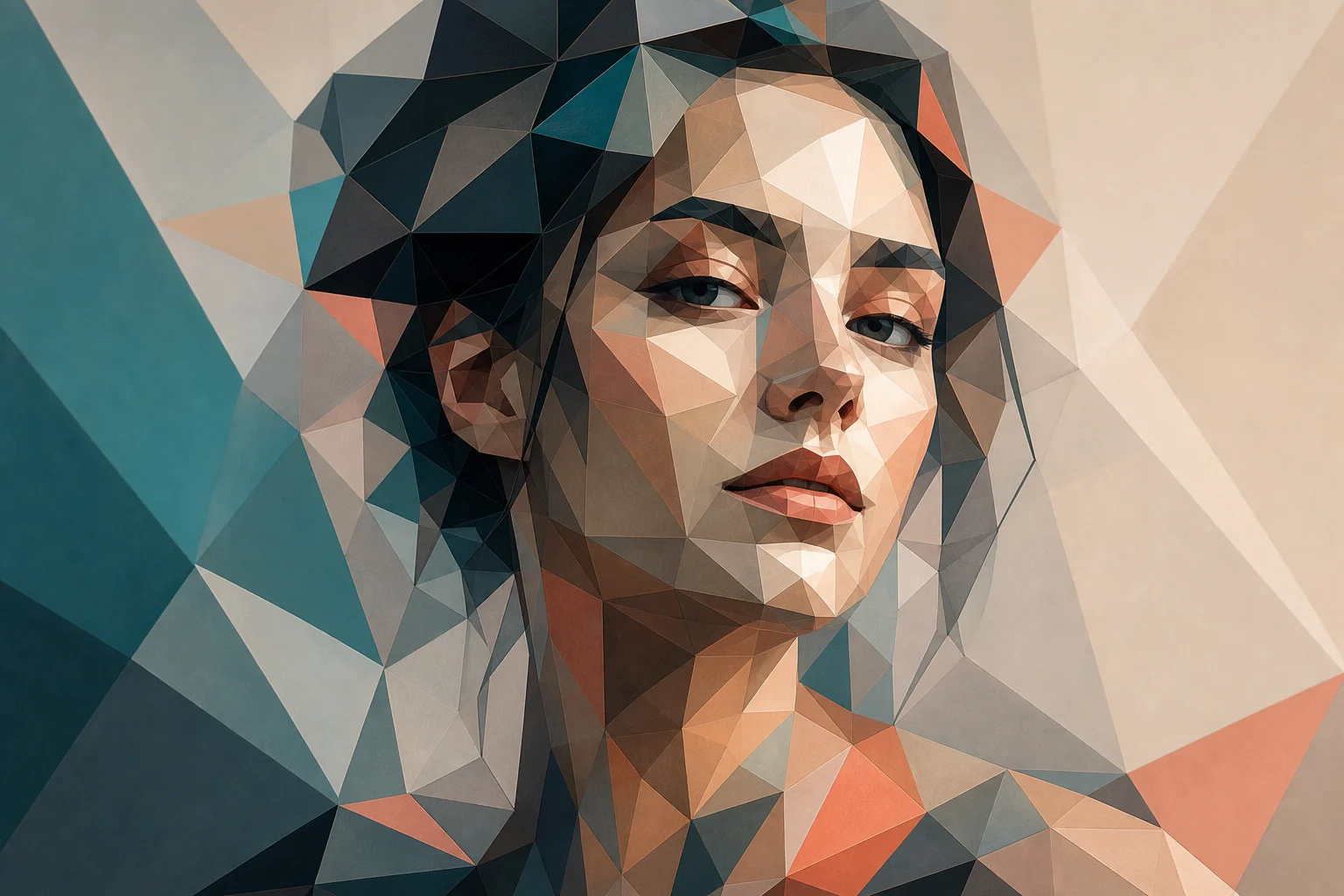
AI Geometric Face Effect

AI Geometric Face Effect

Turn a clear portrait into faceted polygon artwork with crisp geometric planes, clean edges, and a polished poster-like finish while keeping the person recognizable.

AI geometric face effect geometric face portrait
0 / 2000
Template prompt

AI Geometric Face Effect

Apply the AI Geometric Face effect to the uploaded portrait. Preserve the person identity, face shape, expression, hairstyle, pose silhouette, and key colors. Rebuild the face and upper body as geometric polygon art with crisp facets, balanced color planes, clean vector-like edges, controlled shadows, and modern poster composition. Keep the subject recognizable through the geometric abstraction.

AI geometric face effect geometric face portrait

What is the AI geometric face effect?

The AI geometric face effect transforms a portrait into angular geometric art. It rebuilds the face and upper body with polygon-style facets, balanced color planes, controlled shadows, and sharp vector-like edges while preserving the face shape, expression, hairstyle, pose silhouette, and key identity cues.

How the geometric face effect transforms a portrait

This effect adds a bold geometric style to a portrait without turning the subject into an unrecognizable abstraction.

What changes

  • Converts a portrait into faceted geometric artwork while keeping the face shape, expression, hairstyle, and key identity cues visible.
  • Builds a geometric face portrait with crisp facets, balanced color planes, clean vector-like edges, and a polished finish.
  • Creates a preview you can review before choosing whether to keep the result or try again with a clearer photo or more specific direction.
  • Turns a clear source image into a modern polygon-style portrait suited for creative previews, profile visuals, or presentation concepts.

What stays recognizable

  • Preserves the person’s identity, face shape, expression, hairstyle, pose silhouette, and key colors.
  • Keeps the subject recognizable through the geometric abstraction.
  • Maintains the main subject as the visual focus of the image.
  • Keeps defining colors, pose, silhouette, and important subject details coherent.

How to use the AI geometric face effect

Create a geometric face effect online by starting with a clear portrait, reviewing the generated preview, and refining the source or direction if needed.

1

Upload a clear portrait

Choose a sharp portrait where the face, hairstyle, expression, and pose are visible. Avoid heavy blur, extreme crops, blocked details, or clutter that overlaps the subject.

2

Create the geometric portrait

Apply the effect to rebuild the face and upper body as geometric polygon art with crisp facets, clean edges, and balanced color planes.

3

Review the preview

Compare the result with the source image. Check that the subject remains recognizable and that the geometric treatment looks coherent across the face and background.

4

Refine if needed

If the output needs adjustment, try a clearer image, a tighter crop, or more specific wording about preserved features, colors, hairstyle, and the desired geometric style.

AI geometric face effect examples

Explore different examples of the geometric face effect, from bold polygon portraits to cleaner faceted compositions that preserve recognizable facial details.

AI geometric face effect background preview

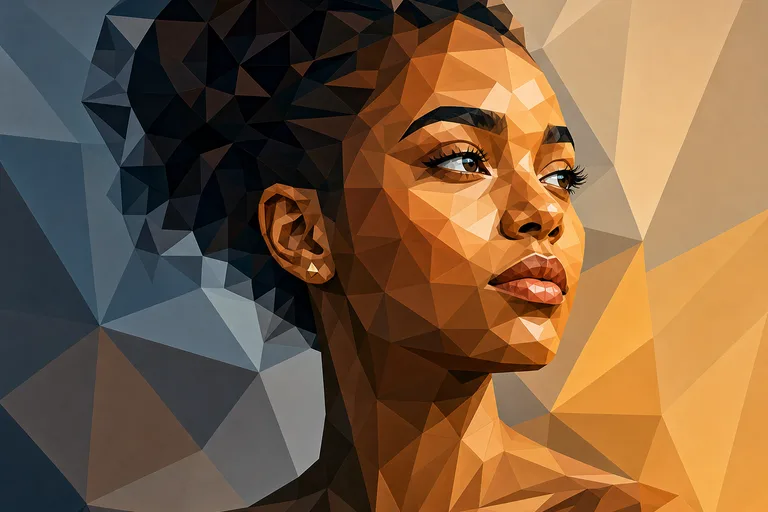
Clean faceted portrait

A polished geometric portrait with angular face planes, clear contours, and a modern poster-like finish.

AI geometric face effect example 1

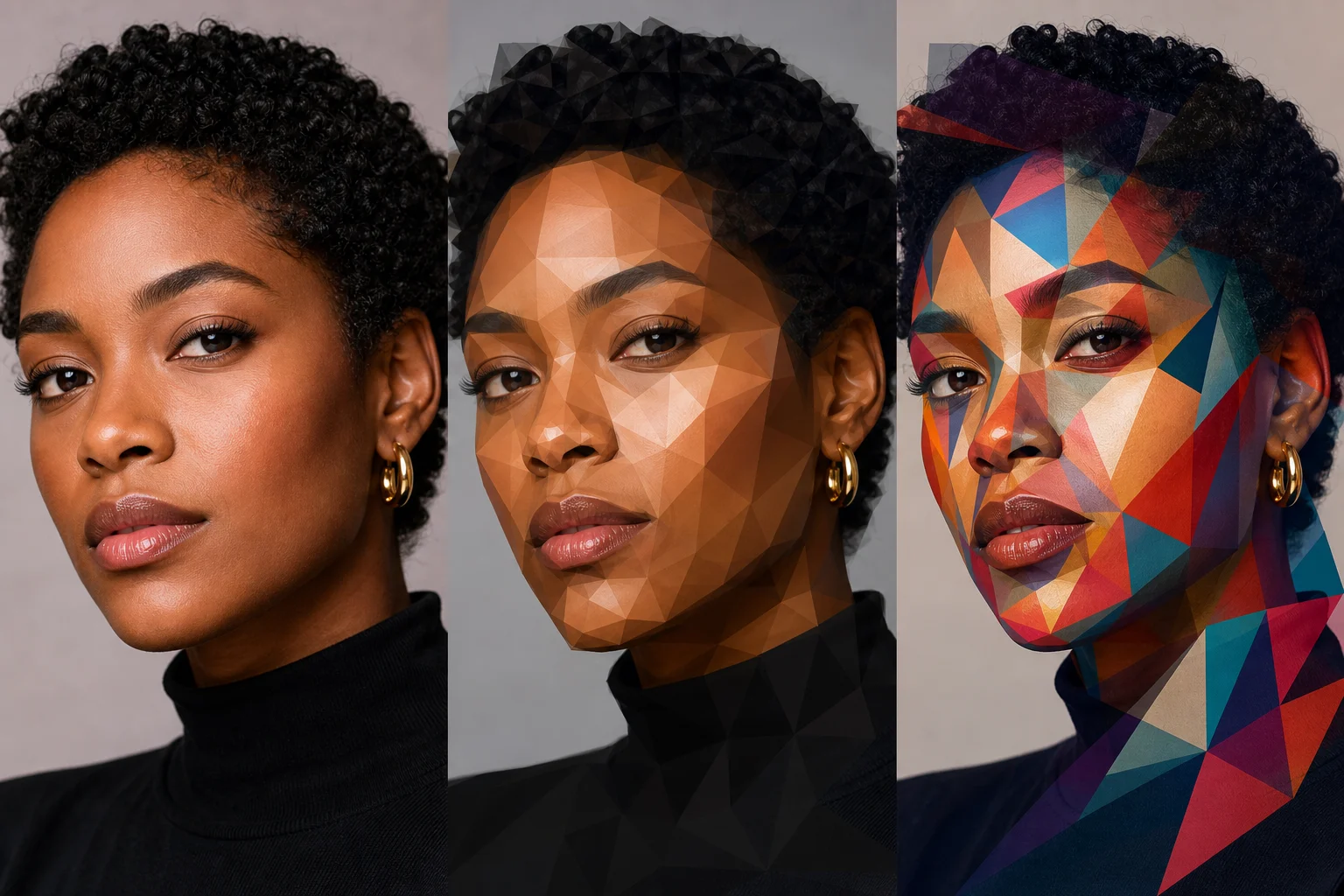
Angular face planes

A crisp low-poly style result that emphasizes face structure, color blocks, and sharp geometric edges.

AI geometric face effect example 2

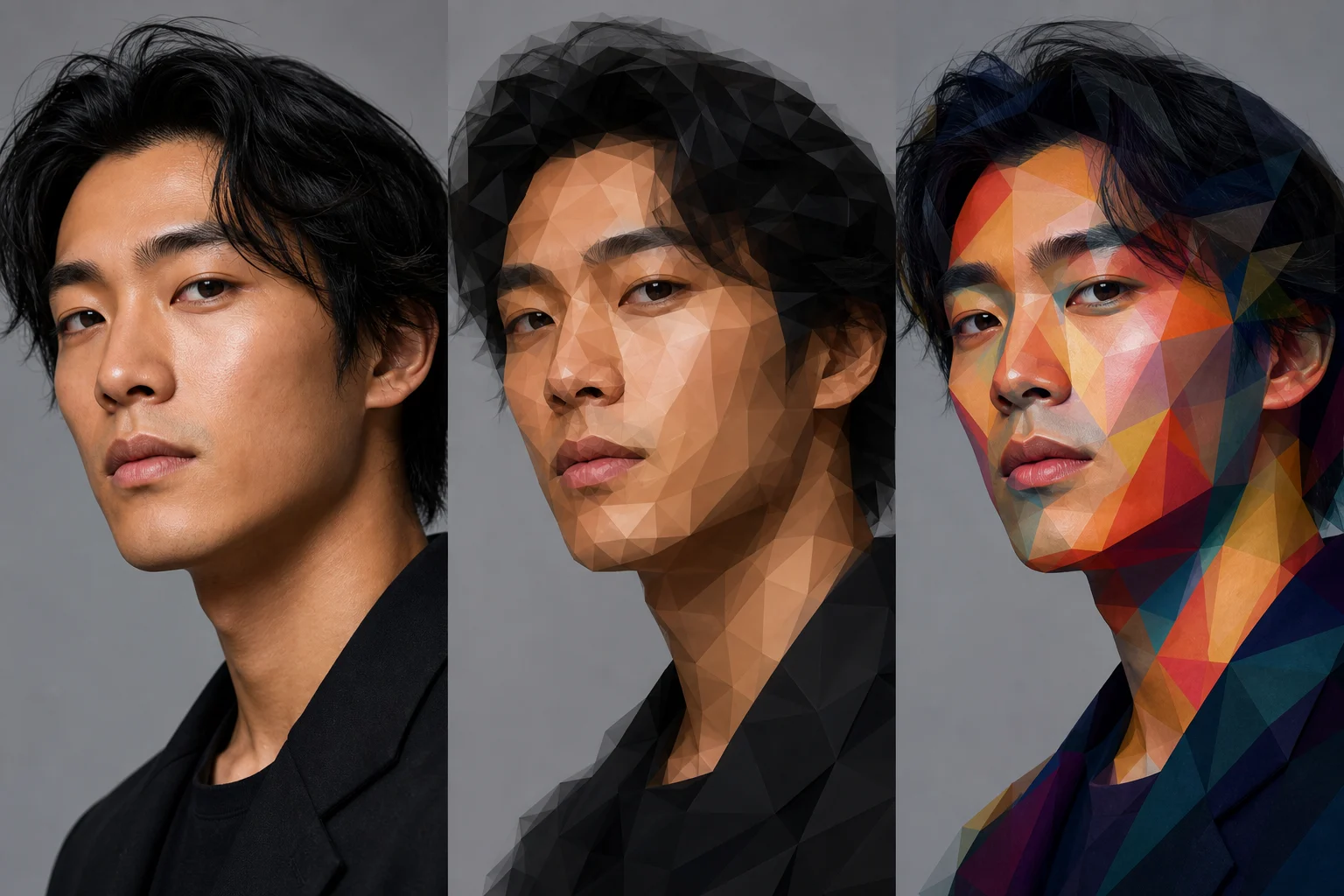
Graphic polygon style

A more graphic geometric face effect with balanced color shapes and a strong recognizable silhouette.

AI geometric face effect example 3

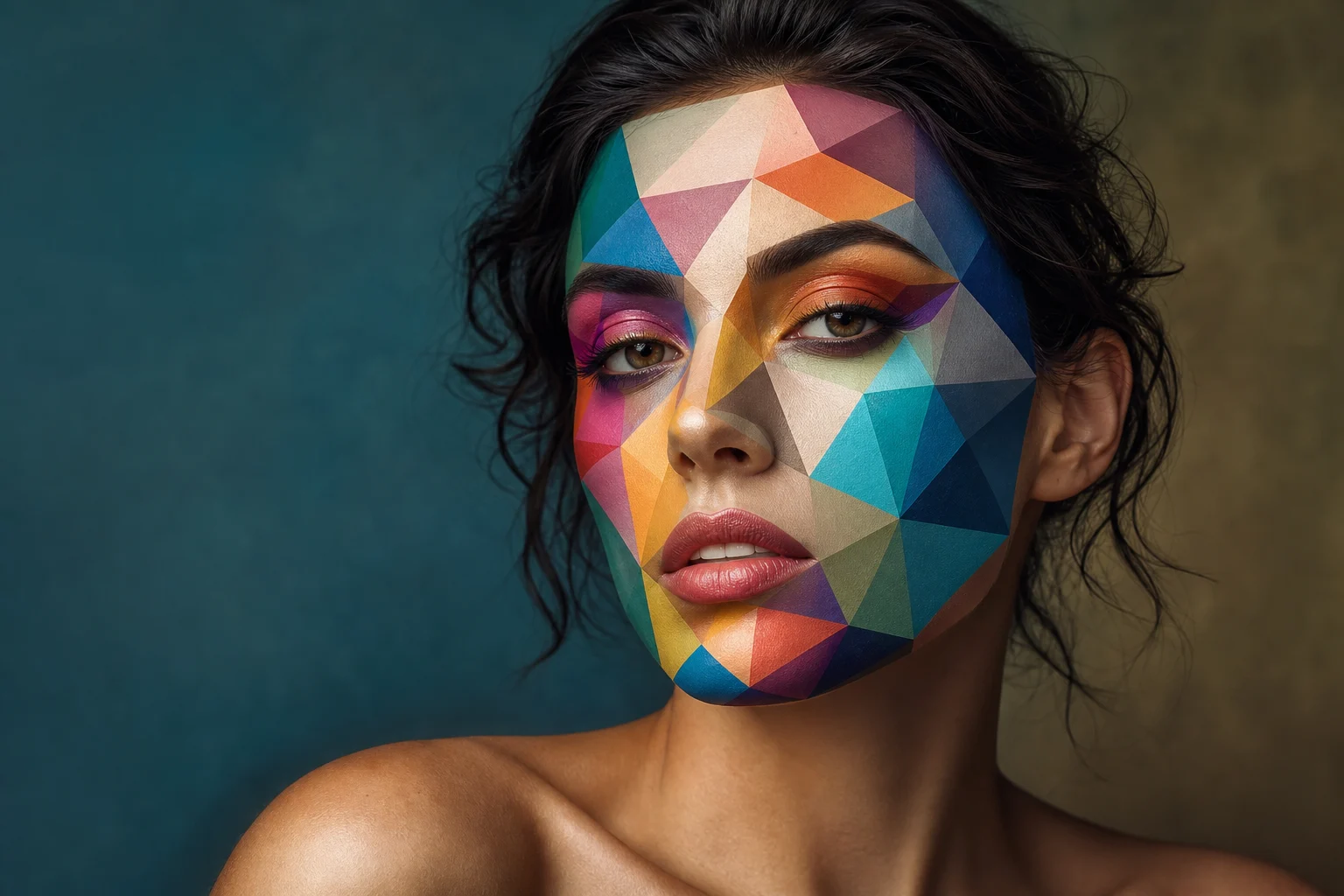
Recognizable geometric face

A stylized portrait direction that keeps hairstyle, expression, and key colors visible through the abstraction.

Ways to use a geometric face effect

Use this template when you want a stylized geometric face portrait that still reflects the original subject.

Personal and creative portraits

Create a focused AI geometric face effect preview for a personal artwork, profile concept, moodboard, or creative project.

Concept previews

Compare the visual direction before refining, sharing, or presenting a geometric portrait concept to others.

Graphic style exploration

Turn a portrait into a clean faceted image for modern poster-inspired visuals, social posts, or design explorations.

How to get a cleaner geometric face effect

A strong source image gives the geometric face effect enough visual information to preserve identity while rebuilding the portrait with angular facets.

Source image checklist

  • Use a sharp source image with the main subject clearly visible.
  • Avoid heavy blur, blocked details, extreme crops, or confusing overlaps.
  • Choose a source whose pose and framing support the intended AI geometric face effect result.

Prompt tips for better geometric results

If you add direction, describe the style you want in plain terms: crisp polygon facets, clean vector-like edges, balanced color planes, modern poster composition, recognizable face, preserved hairstyle, and coherent background. Mention any important colors or features that should remain visible.

Review your AI geometric face effect result

Generated details can vary between runs, so review the preview carefully. A clearer portrait or more specific direction can help if the first version does not match your intended look.

Check identity and silhouette

Compare the generated portrait with the original to confirm the face shape, expression, hairstyle, pose, and defining colors still feel connected to the source.

Review the geometric treatment

Look across the face, hair, clothing, and background to make sure the geometric facets feel intentional, balanced, and consistent rather than noisy or uneven.

Inspect details before downloading

Inspect facial details, hands if visible, edges, small objects, and background transitions for distortions or artifacts before saving the version you want to use.

AI geometric face effect FAQ

Common questions about creating a geometric face effect online from a portrait.

What is the AI geometric face effect?
The AI geometric face effect is a portrait transformation that converts a face into faceted polygon artwork. It aims to keep the subject recognizable while adding angular shapes, clean color planes, and a modern graphic style.
Is the AI geometric face effect free?
Availability and access can vary by product settings or account status. Check the current page experience for any usage details before starting your edit.
How do I use the AI geometric face effect?
Upload a clear portrait, apply the geometric face effect, then review the preview. If the result needs improvement, try a sharper image, a tighter crop, or a more specific prompt about the face, hair, colors, or background.
What image formats does the AI geometric face effect support?
Use a common image format supported by the upload tool. For best results, choose a sharp portrait with the main face clearly visible and avoid files with heavy blur, blocked facial details, or confusing overlaps.
Can I use AI geometric face effect results commercially?
Usage permissions can depend on the source image, platform terms, and where you plan to use the result. Review the applicable terms and make sure you have the rights to any portrait or reference image you upload.
What changes does the AI geometric face effect make?
It changes the portrait into geometric polygon art with crisp facets, clean edges, balanced color planes, and controlled shadows. The goal is an abstracted face that still keeps key identity cues visible.
Which source image works best?
A sharp, well-lit portrait works best. The face, hairstyle, expression, and pose should be visible enough for the effect to preserve the subject while applying the geometric treatment.
How do I keep the subject recognizable?
Start with a clear image where the face is not hidden or heavily cropped. After previewing the result, compare the face shape, expression, hairstyle, pose silhouette, and defining colors with the original.

Create an AI geometric face effect online

Upload a clear portrait, create a faceted geometric face artwork, and choose the preview that best preserves the subject’s expression, style, and recognizable details.