AI GTA Filter for Game-Poster Portraits

AI GTA Filter for Game-Poster Portraits

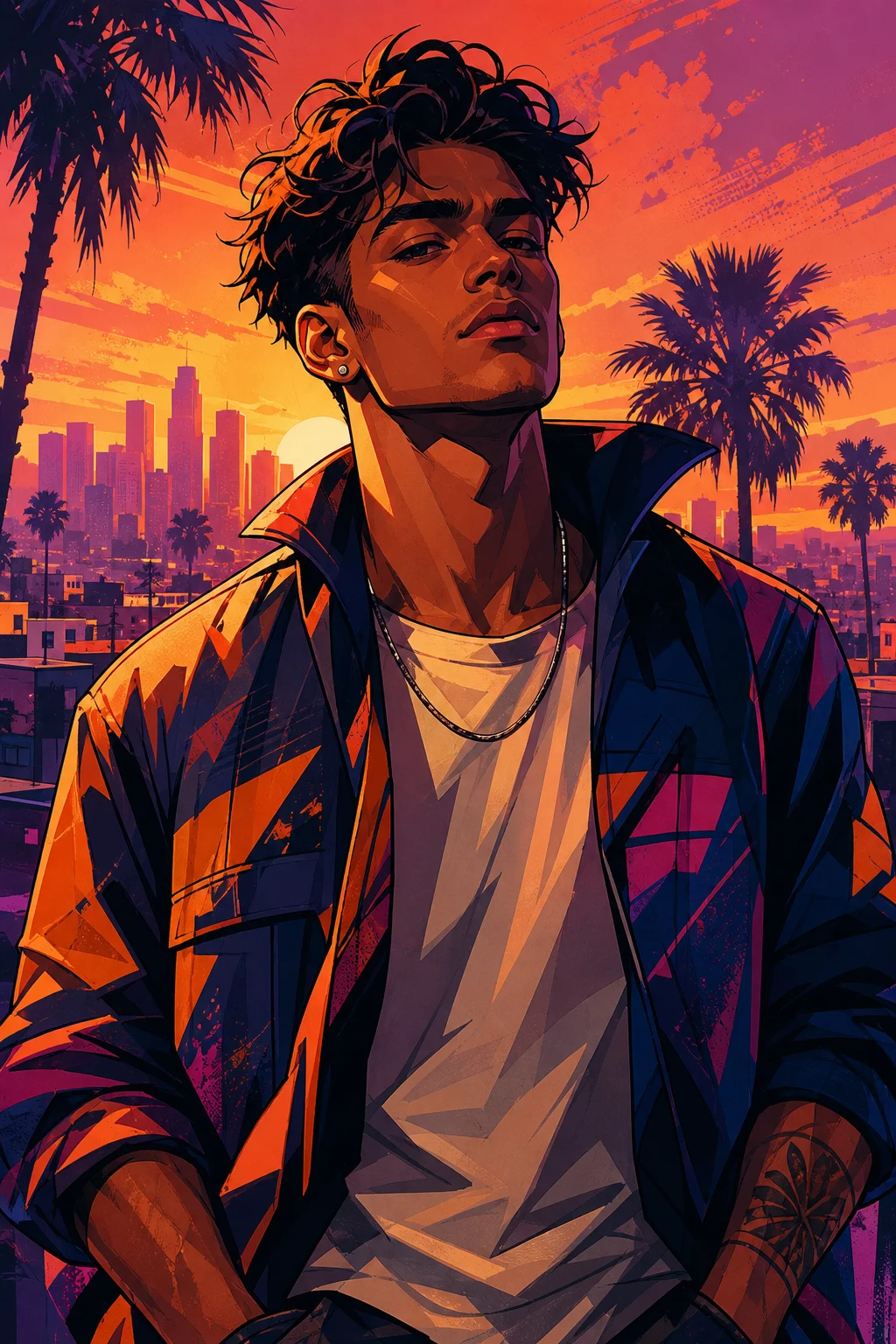
Transform a clear portrait into a GTA-inspired game poster character with dramatic lighting, vivid color, bold outlines, and recognizable facial details.

AI GTA filter GTA-style character portrait
0 / 2000
Template prompt

AI GTA Filter for Game-Poster Portraits

Apply the AI GTA-style Poster effect to the uploaded portrait. Preserve the person identity, face shape, hairstyle, expression, pose silhouette, and outfit color cues. Recreate the image as a satirical open-world crime-game style character poster with bold illustrated shading, strong outlines, cinematic city background, vivid color grading, confident attitude, and polished cover-art composition. Do not change the person into a different character.

AI GTA filter GTA-style character portrait

What is the AI GTA filter?

The AI GTA filter turns a portrait into a stylized character image inspired by open-world game poster art. It emphasizes cinematic contrast, illustrated shading, confident posing, vivid color grading, and strong edge definition while keeping the same person recognizable.

What the AI GTA filter transforms

This template restyles a portrait into a GTA-inspired illustrated character image while keeping the person’s key identity cues intact.

What changes

  • Turn a portrait into a game-poster style character image with dramatic lighting, stylized color, strong outlines, and the same person recognizable.
  • Generate GTA-style character portrait outputs with clean detail and a polished finish.
  • Preview the AI GTA filter result before downloading, then rerun with a clearer photo or tighter prompt when needed.
  • Upload a clear image to AI GTA filter, review the preview, and keep the version that fits your use case.

What stays recognizable

  • Preserve the person identity, face shape, hairstyle, expression, pose silhouette, and outfit color cues.
  • The main subject remains recognizable from the source image.
  • Defining colors, pose, silhouette, and important subject details stay coherent.

How to use the AI GTA filter

Follow a simple process to turn a portrait into a GTA-inspired character poster and choose the strongest result.

1

Upload a clear source image

Select a clear portrait where the face, hairstyle, pose, and outfit are easy to read. Avoid blurry or heavily cropped images.

2

Create the GTA-style portrait

Apply the AI GTA filter and aim for bold illustrated shading, strong outlines, vivid color grading, and a cinematic poster feel.

3

Review the preview

Compare the preview with the original image. Check identity, expression, pose silhouette, hands, edges, and background transitions.

4

Refine and download

Keep the version that fits your project, or try again with a clearer image or more specific direction if the likeness or style needs improvement.

AI GTA filter examples

Explore different AI GTA filter examples with bold lighting, illustrated detail, and poster-like composition.

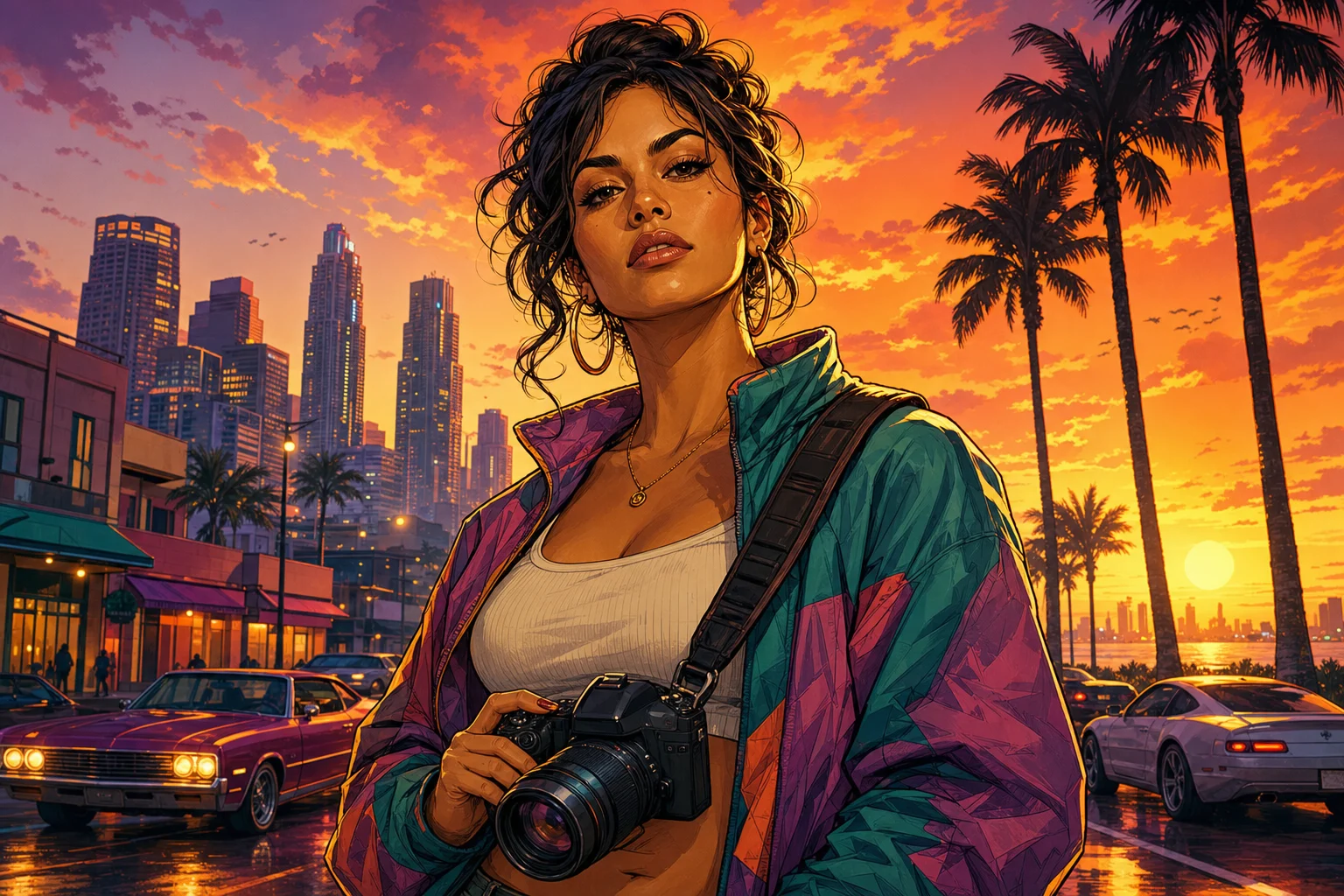
AI GTA filter example 1

Bold character poster look

A polished GTA-style character portrait with strong outlines, vivid color, and a cinematic poster mood.

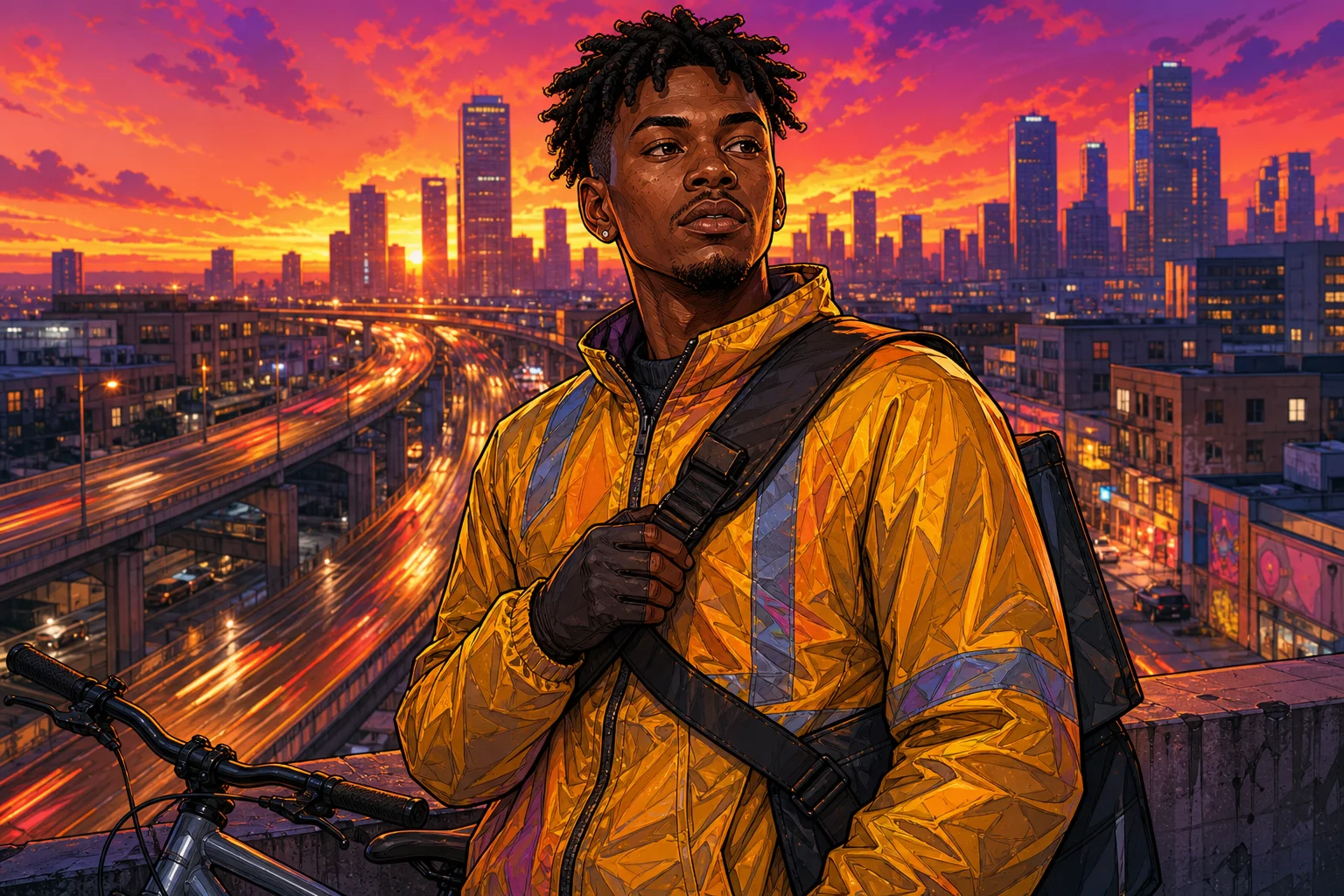
AI GTA filter example 2

Cinematic GTA-inspired portrait

A dramatic portrait treatment that emphasizes lighting contrast, confident attitude, and clean illustrated detail.

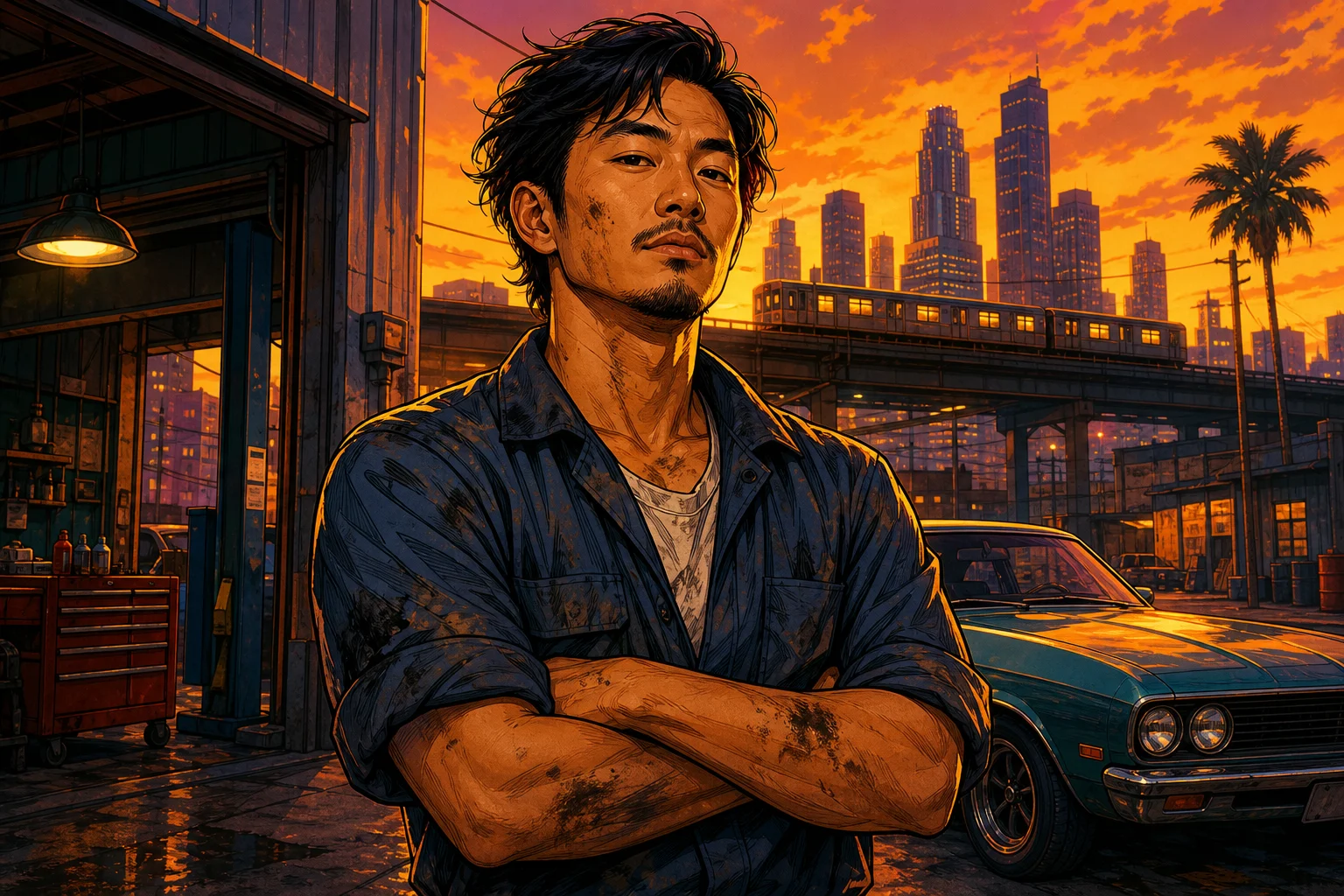
AI GTA filter example 3

Vivid illustrated game style

A vivid game-art result with stylized shading, defined edges, and a polished cover-art finish.

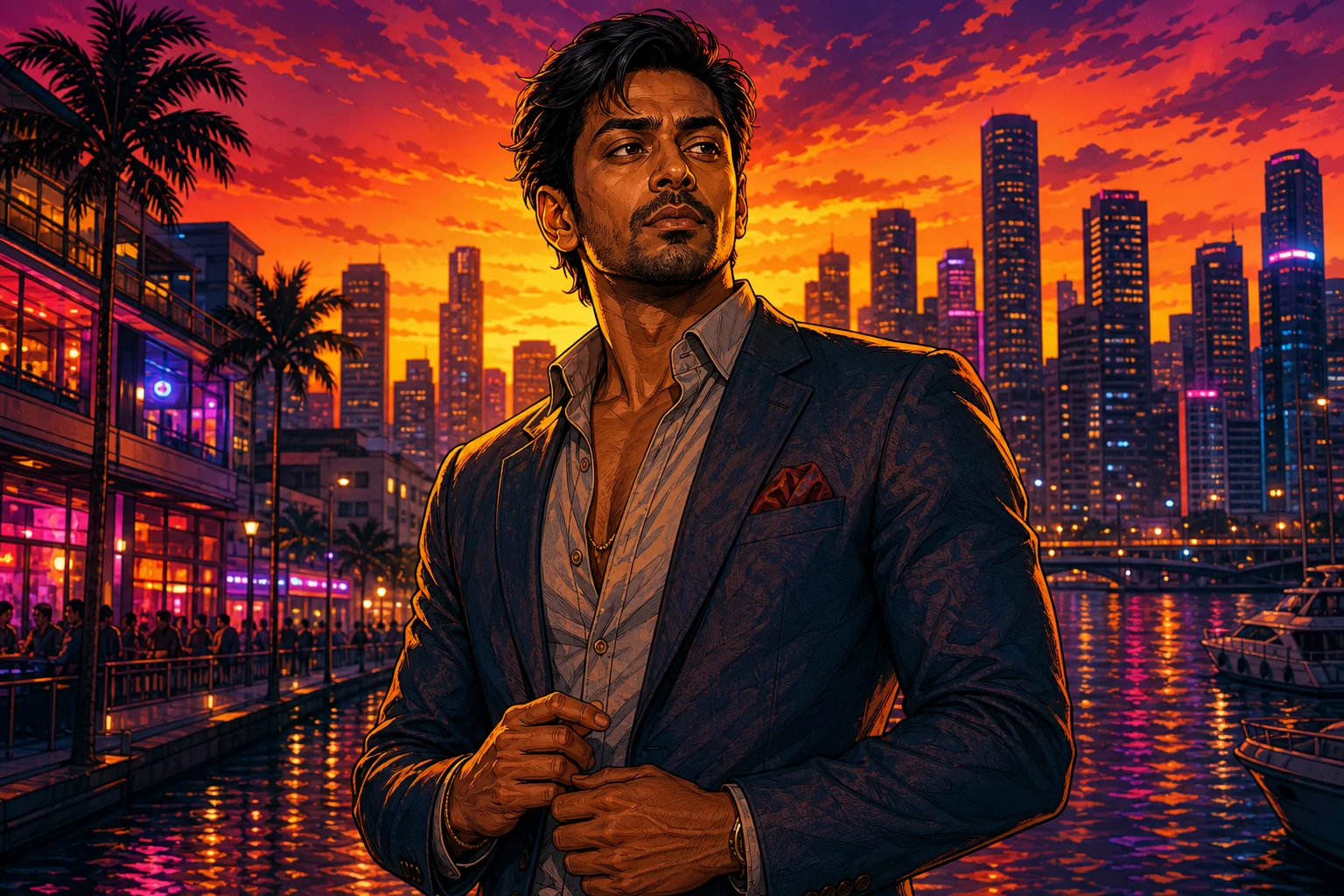
AI GTA filter example 4

Recognizable poster character

A sharp GTA filter variation focused on recognizable facial cues, outfit colors, and bold background atmosphere.

Popular ways to use the AI GTA filter

Use the GTA filter online when you want a bold character-poster look for a portrait without losing the person’s recognizable features.

Personal creative portraits

Create a focused AI GTA filter preview for a personal or creative project, such as a profile concept, character-style portrait, or themed visual idea.

Style exploration and comparison

Compare the visual direction before refining, sharing, or presenting the result, especially when testing pose, lighting, and poster-style mood.

How to prepare your AI GTA filter image

A strong source photo gives the GTA filter more usable visual information, especially around the face, hair, pose, outfit, and framing.

Choose a suitable portrait

  • Use a sharp source image with the main subject clearly visible.
  • Avoid heavy blur, blocked details, extreme crops, or confusing overlaps.
  • Choose a source whose pose and framing support the intended AI GTA filter result.

Prompt tips for better direction

Describe the intended GTA-style character poster look in plain terms: dramatic city mood, bold illustrated shading, confident attitude, strong outlines, vivid color grading, and the need to keep the same person recognizable. Mention any outfit, background, or expression details that should remain important.

Review the result before you use it

Generated details can vary between runs, so review the preview carefully and try a clearer source image or more specific direction when needed.

Check identity and likeness

Compare the face shape, hairstyle, expression, pose silhouette, and outfit color cues with the original portrait.

Review the visual style

Look for consistent GTA-inspired styling, including strong outlines, cinematic contrast, stylized color, and a polished poster finish.

Inspect fine details

Inspect faces, hands, text, edges, small objects, and background transitions for unusual artifacts before downloading or sharing.

AI GTA filter FAQ

Common questions about using the GTA filter online and getting a clear, recognizable portrait result.

What is the AI GTA filter?
The AI GTA filter is a portrait effect that restyles a person as a GTA-inspired game-poster character with bold outlines, dramatic lighting, stylized color, and a polished illustrated look.
Is the AI GTA filter free?
Availability and access can vary by platform or usage conditions. Check the current page experience for any limits or requirements before starting your edit.
How do I use the AI GTA filter?
Upload a clear portrait, apply the AI GTA filter, review the preview, and keep the version that best preserves the person’s identity, pose, outfit color cues, and overall composition.
What image formats does the AI GTA filter support?
Use a common image format such as JPG, PNG, or WebP when available. For the best result, choose a sharp image with the face and main subject details clearly visible.
Can I use AI GTA filter results commercially?
Usage rights can depend on the source image, the platform terms, and how you plan to use the result. Review the relevant terms before using an edited image in a commercial context.
What changes does the AI GTA filter make?
It changes the portrait into a GTA-style character image with cinematic lighting, strong outlines, polished shading, saturated colors, and a poster-like background mood.
Which source image works best?
A sharp, well-lit portrait works best. Avoid heavy blur, blocked facial details, extreme crops, and confusing overlaps that make the person hard to identify.
How do I keep the subject recognizable?
Start with a clear face, visible hairstyle, readable pose, and distinct outfit colors. After the preview, compare the result with the source and rerun with a clearer photo if important details drift.

Create your AI GTA filter image

Upload a clear portrait and create a bold game-poster style character image with vivid color, dramatic lighting, and recognizable personal details.