AI PS2 Filter for Retro Game-Style Photos

AI PS2 Filter for Retro Game-Style Photos

Turn a clear photo into an early-2000s console-style scene with low-poly shapes, soft textures, moody game lighting, and a recognizable subject.

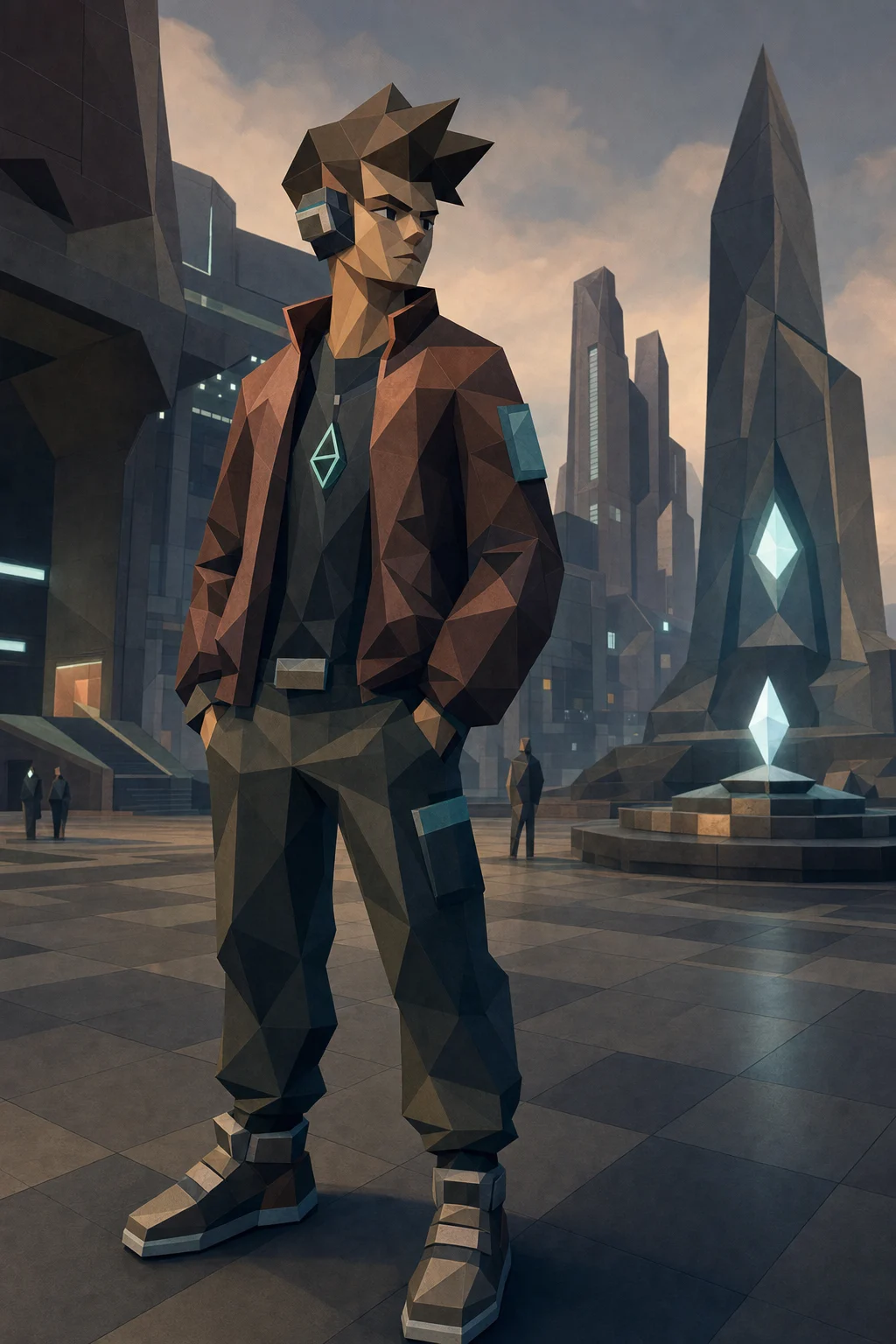
PS2 game-style render generated with AI PS2 Filter
0 / 2000
Template prompt

AI PS2 Filter for Retro Game-Style Photos

Apply the AI PS2 Filter effect to the uploaded image. Preserve the main subject identity or object shape, pose/layout, key colors, and recognizable details. Rebuild it as a PlayStation 2 era character or scene render with low-poly geometry, soft compressed textures, early-2000s game lighting, slight jagged edges, nostalgic menu or game atmosphere, and authentic retro console composition. Keep the uploaded subject identifiable.

PS2 game-style render generated with AI PS2 Filter

What is AI PS2 Filter?

AI PS2 Filter recreates your uploaded image as a PlayStation 2 era-inspired render. It emphasizes low-poly geometry, compressed-looking textures, jagged edges, nostalgic lighting, and a game-like composition while keeping the main subject identifiable.

From photo to PS2-style render

The template shifts your image from a modern photo into a retro game-style render while retaining the core subject and composition.

What changes

  • Recreates your photo as an early-2000s console-style image with low-poly shapes, nostalgic texture, moody lighting, and clear subject identity.
  • Applies PlayStation 2 era game styling while keeping the subject recognizable and usable.
  • Creates a polished PS2 Filter preview for quick comparison before further refinement.
  • Prepares a clean downloadable render for saving, sharing, or presenting.

What stays recognizable

  • Main subject identity or object shape, pose, layout, key colors, and recognizable details.
  • The uploaded subject’s overall identity and readable silhouette.
  • Defining colors, pose, and important subject details from the source image.
  • A coherent connection between the original composition and the finished PS2-style result.

How the AI PS2 Filter workflow works

Create a PS2-inspired version of your image in a simple review-friendly flow.

1

Upload a clear source

Choose a sharp image where the main subject, pose, outline, colors, and important details are clearly visible.

2

Apply the PS2 look

Use the AI PS2 Filter style to rebuild the image with low-poly geometry, soft textures, moody lighting, and retro console atmosphere.

3

Review and download

Check the result for subject identity, artifacts, and overall style coherence, then save the version that best fits your project.

AI PS2 Filter examples

Explore different examples of the PS2-inspired look, from character-like renders to atmospheric retro scenes.

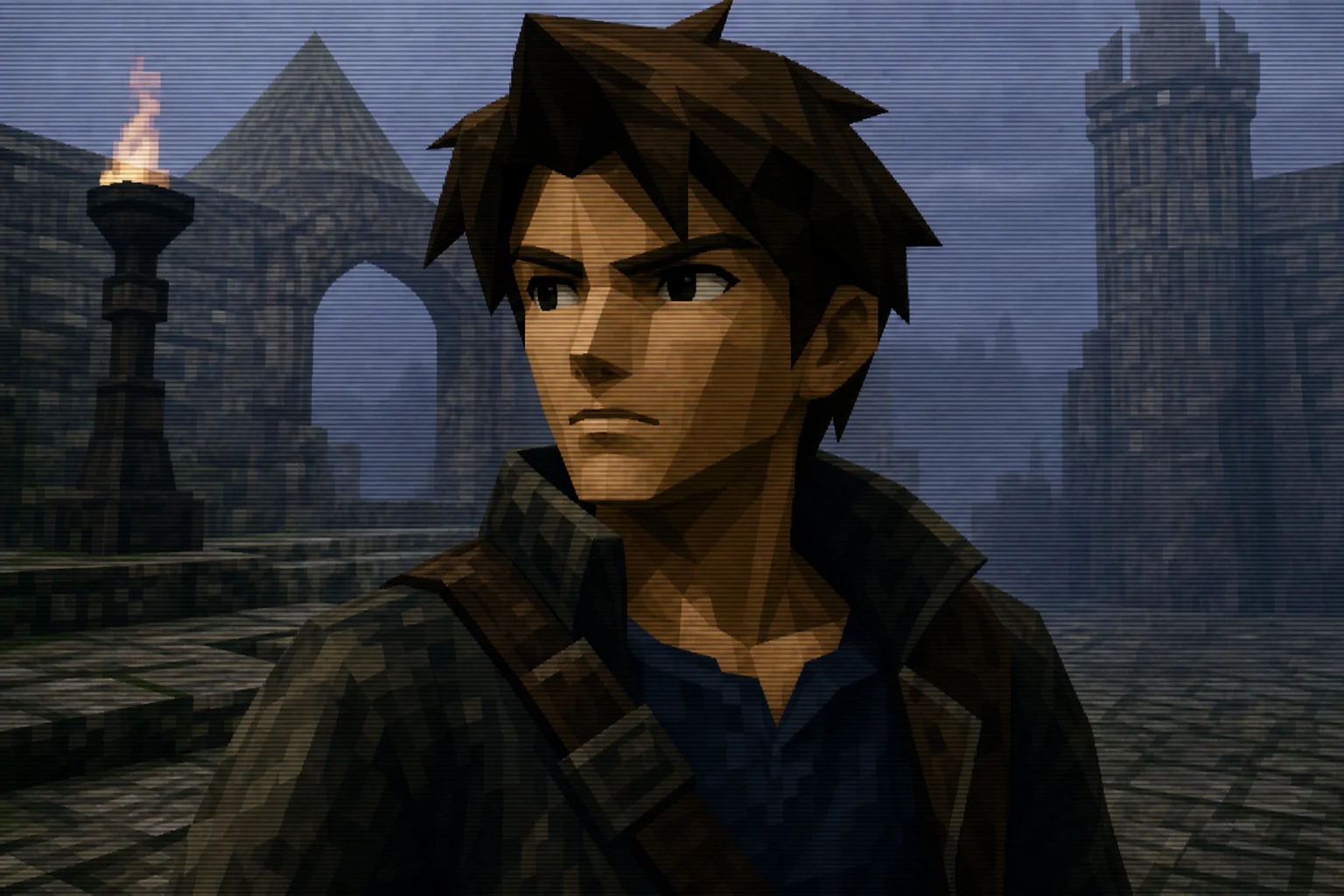
PS2 game-style render example 1

Low-poly character render

A low-poly character-style result with simplified forms, game-like shading, and a recognizable subject silhouette.

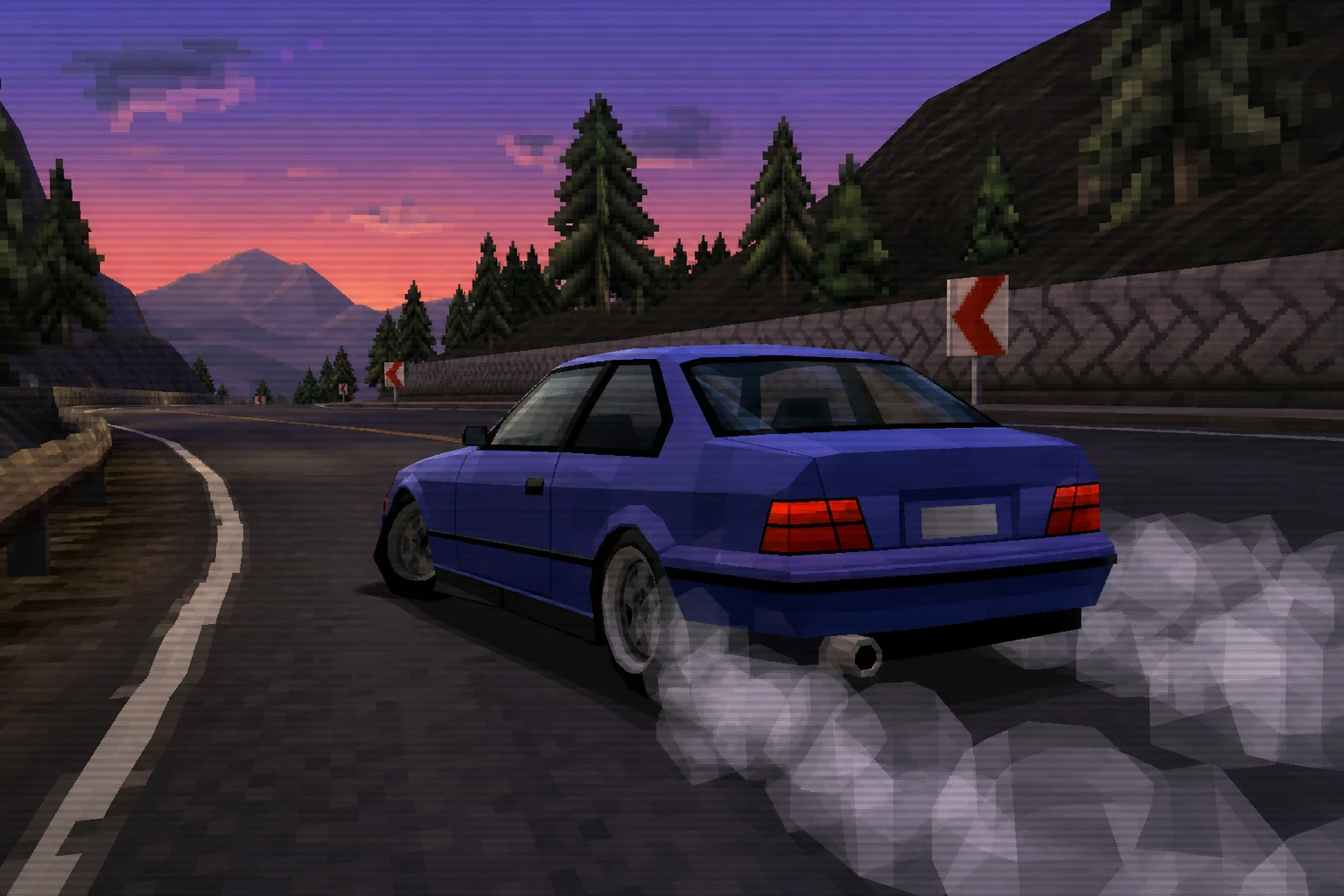
PS2 game-style render example 2

Moody PS2 game scene

A nostalgic console-style image with soft textures, moody lighting, and a retro game atmosphere.

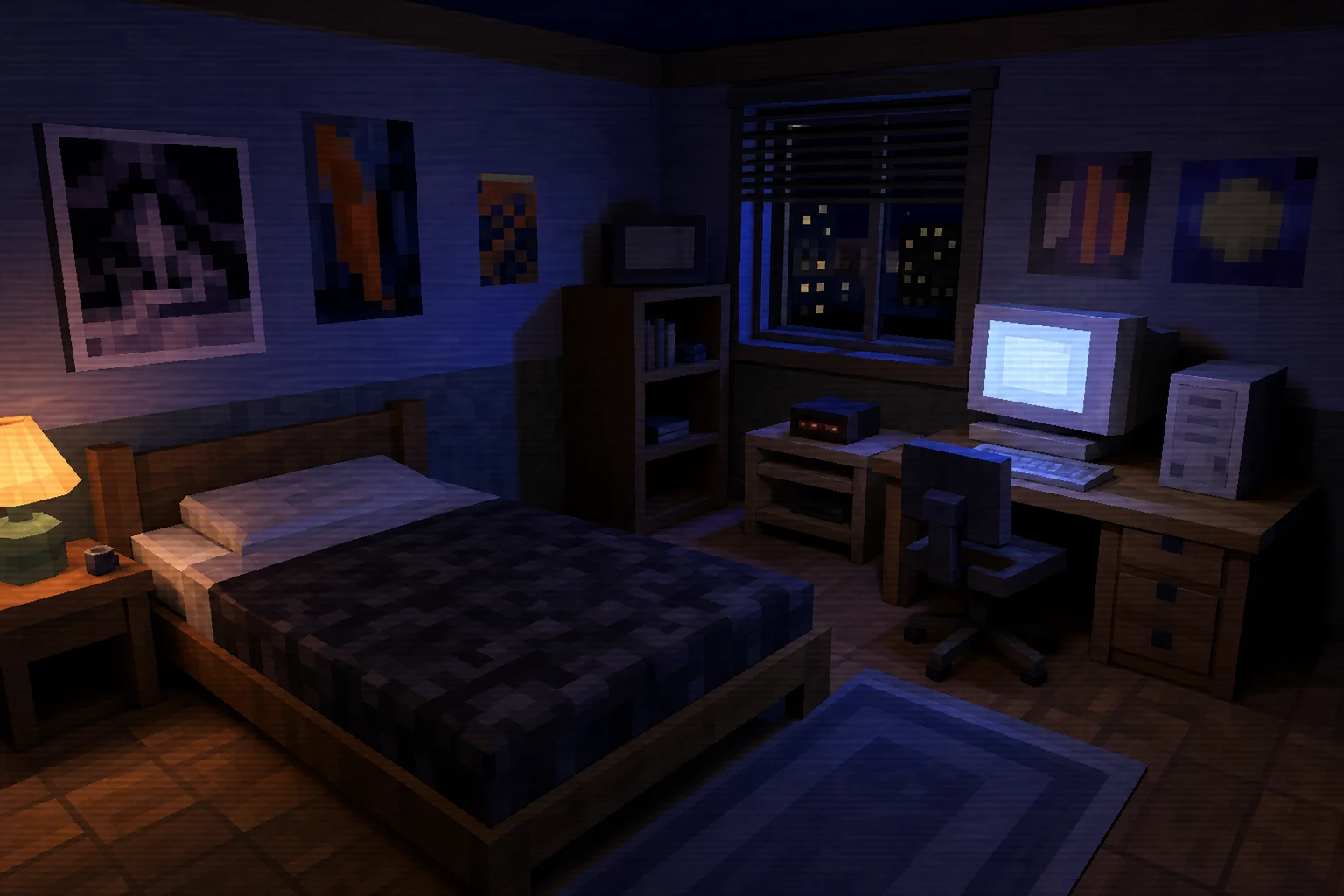
PS2 game-style render example 3

Classic console texture look

A stylized result that keeps the source composition while adding compressed-looking textures and subtle jagged edges.

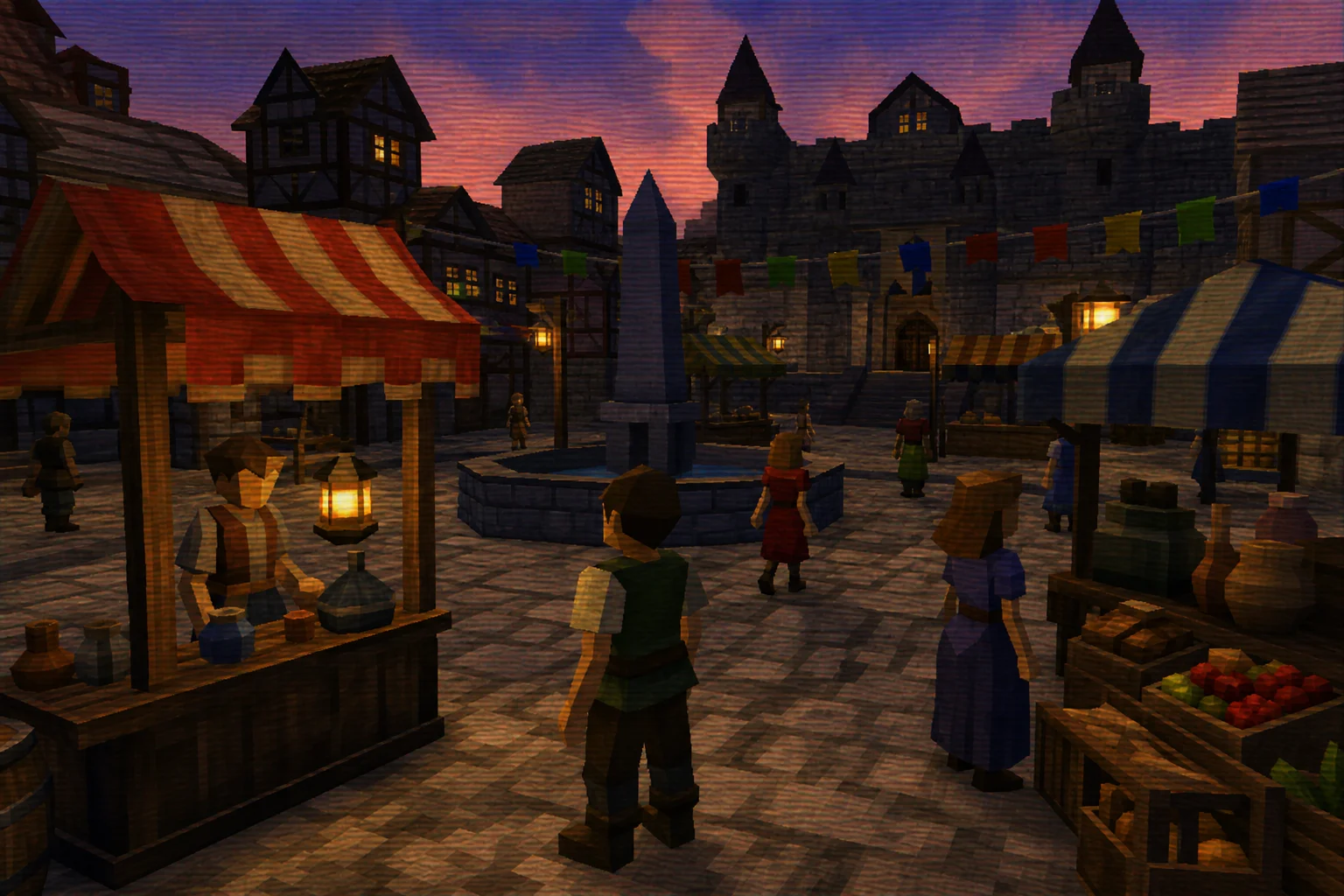
PS2 game-style render example 4

Recognizable retro portrait

A polished PS2 Filter example with strong subject readability and early-2000s visual treatment.

Ways to use AI PS2 Filter

Use this template when you want a fast retro console look that still respects the original subject.

Creative retro previews

Turn a portrait, pet, object, or scene into a focused PS2-style preview for a personal edit, mood board, character concept, or creative post.

Style direction checks

Generate a version of the image that helps compare the PlayStation 2 era visual direction before refining, sharing, or presenting the result.

How to get a stronger PS2 Filter result

A strong source image helps the PS2 Filter keep the subject recognizable while applying the retro console look.

Source image checklist

  • Use a sharp source image with the main subject clearly visible.
  • Avoid heavy blur, blocked details, extreme crops, or confusing overlaps.
  • Choose a source whose pose and framing support the intended AI PS2 Filter result.

Prompt tips

Describe the subject and the desired early-2000s game mood. Mention low-poly geometry, soft compressed textures, moody lighting, slight jagged edges, and any important details that must remain recognizable.

Review before you use the result

Generated details can vary between runs, so review the image before using it in a project or presentation.

Subject identity

Compare the face, object shape, silhouette, pose, and key colors against the original image.

PS2 visual style

Look for consistent low-poly forms, nostalgic texture, early-2000s lighting, and a believable PS2 game atmosphere across the whole image.

Fine details

Inspect faces, hands, text, edges, small objects, and background transitions for distortions or confusing artifacts.

AI PS2 Filter FAQ

Answers to common questions about creating a PS2-inspired image from your photo.

What is AI PS2 Filter?
AI PS2 Filter is a photo-to-style template that turns a source image into an early-2000s console-inspired render with low-poly shapes, soft textures, moody lighting, and retro game atmosphere.
Is AI PS2 Filter free?
Availability and access can vary by product settings or account status. Check the current page experience for the latest usage details before creating your image.
How do I use AI PS2 Filter?
Upload a clear image, make sure the main subject is visible, and create the PS2-style version. Review the result for subject identity, pose, colors, and any small-detail artifacts before downloading or sharing.
What image formats does AI PS2 Filter support?
Use a common image format with a clear subject and enough detail for the style transfer. If an upload is rejected, try exporting the image again in a standard photo format and avoid very small or damaged files.
Can I use AI PS2 Filter results commercially?
Usage rights can depend on your source image, platform terms, and the context where you plan to use the result. Review those details separately before using an output in a commercial setting.
What changes does AI PS2 Filter make?
It changes the image into a PS2-inspired game render with simplified 3D forms, retro texture treatment, era-style lighting, slight jagged edges, and a more cinematic console-game mood.
Which source image works best?
A sharp photo with the main subject fully visible works best. Avoid heavy blur, blocked facial details, extreme crops, busy overlaps, or lighting that hides the subject’s silhouette.
How do I keep the subject recognizable?
Start with a source where the pose, outline, key colors, and defining details are easy to read. After generating, compare the result with the original and retry with a clearer image or more specific prompt if needed.

Create your PS2-style image

Upload a clear image and recreate it with nostalgic PS2-style geometry, texture, lighting, and composition.