Apply the Outfit Generator effect to the uploaded portrait or full-body photo. Preserve the person identity, face, body proportions, pose, lighting, camera angle, and background. Change only the outfit according to the template style, with realistic fabric, fit, folds, shadows, accessories, and color harmony. Keep hands, face, hair, and scene consistent, and make the clothing look naturally worn by the same person.
What is Outfit Generator?
Outfit Generator is a visual template for changing the clothing in a portrait or full-body image while preserving the person and scene. It focuses on believable fabric fit, folds, shadows, color coordination, and body-aware proportions so the new outfit looks naturally worn by the same subject.
What the Outfit Generator changes
This template is designed to adjust the Outfit while keeping the person and photo context stable.
What changes
Try new outfits on a portrait or full-body photo while keeping your identity, proportions, pose, lighting, and background consistent.
Change clothing style with believable fabric fit, color coordination, shadows, and body-aware proportions.
Change only the outfit according to the template style, with realistic fabric, fit, folds, shadows, accessories, and color harmony.
Apply the Outfit Generator effect to the uploaded portrait or full-body photo.
What stays the same
Preserve the person identity, face, body proportions, pose, lighting, camera angle, and background.
Keep hands, face, hair, and scene consistent, and make the clothing look naturally worn by the same person.
The main subject remains recognizable from the source image.
Defining colors, pose, silhouette, and important subject details stay coherent.
How it works
Create a new outfit preview in a few simple steps using a clear source image and a specific clothing direction.
1
Upload your image
Choose a sharp portrait or full-body photo where the face, pose, body shape, and clothing area are visible.
2
Describe the clothing direction
Use the Outfit Generator template and describe the desired Outfit, including style, color, fabric, accessories, and formality.
3
Check the result
Review whether the new clothing fits the person naturally while the face, hands, pose, lighting, and background remain consistent.
4
Refine the preview
If needed, adjust the outfit description or use a clearer source image to better match your intended look.
Outfit Generator examples
Explore example directions for realistic clothing previews while keeping the same subject recognizable.
Office outfit preview
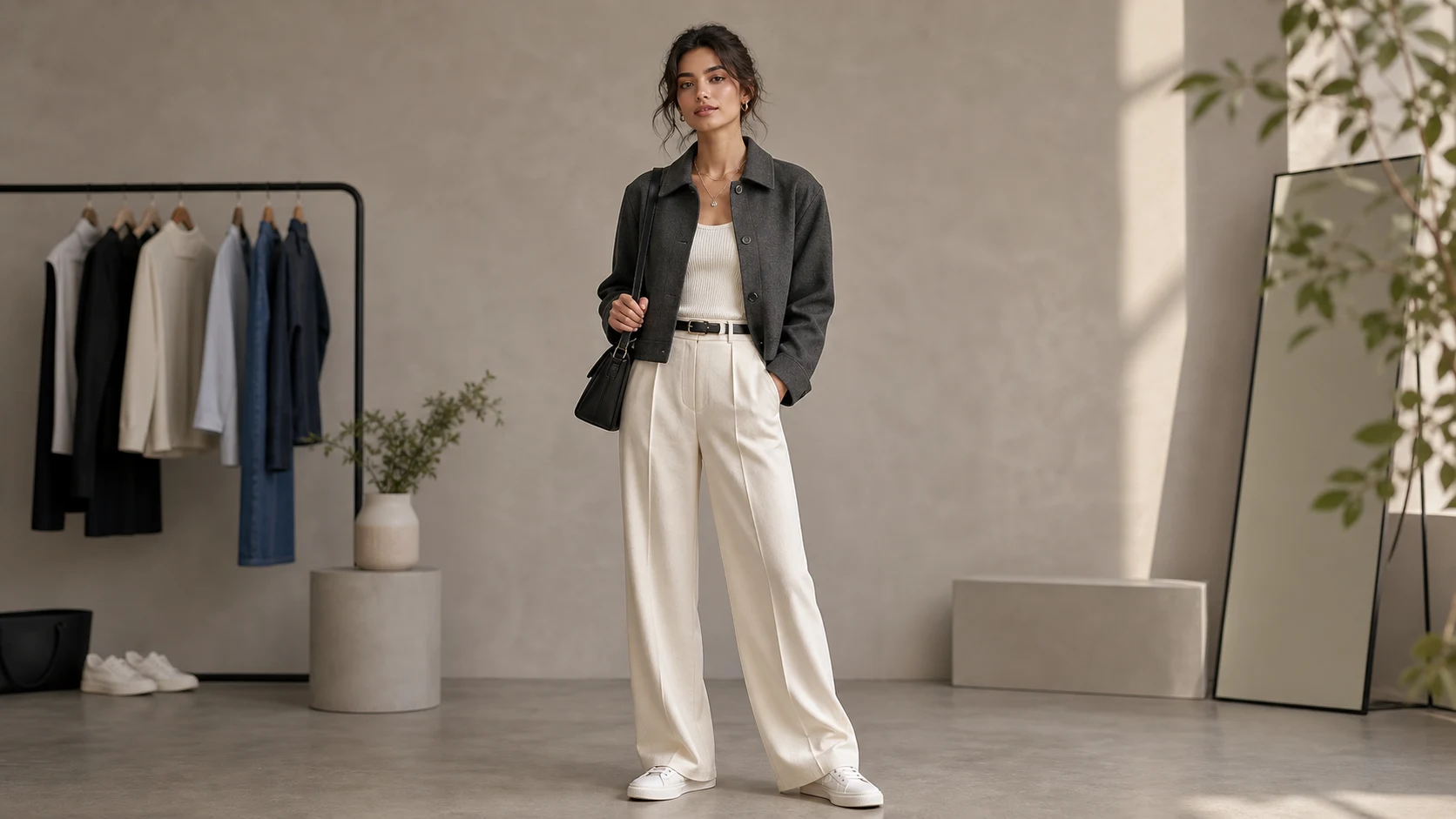
A polished outfit preview that focuses on professional styling, coordinated colors, and realistic fabric fit.
Alternative outfit styling
A second Outfit Generator example showing how a new clothing direction can be applied while preserving the person and scene.
Ways to use Outfit Generator
Use the Outfit Generator online to explore clothing directions before choosing, refining, sharing, or presenting a look.
Men's office attire
Preview shirts, blazers, trousers, ties, shoes, and coordinated office-ready combinations on a portrait or full-body photo.
Women's office outfits
Explore blouses, suits, dresses, skirts, jackets, and polished professional looks while keeping the same pose and scene.
Personal and creative projects
Create a focused outfit preview for a personal mood board, social concept, portfolio idea, or creative planning session.
Style direction comparison
Compare different visual directions before you refine details, share options with others, or present a preferred style.
How to get a cleaner Outfit Generator result
A strong source image and a clear outfit direction help the result look more natural. Keep the focus on changing clothing while preserving the person and environment.
Source image checklist
Use a sharp source image with the main subject clearly visible.
Avoid heavy blur, blocked details, extreme crops, or confusing overlaps.
Choose a source whose pose and framing support the intended Outfit Generator result.
Prompt guidance
Describe the outfit style you want, such as men's office attire, women's office outfits, streetwear, formalwear, or seasonal clothing. Mention key colors, fabrics, accessories, and the level of formality, while asking to preserve the face, pose, lighting, camera angle, background, and body proportions.
Review your outfit preview
Generated details can vary between runs, so review the image carefully before sharing, presenting, or refining it further.
Check identity and proportions
Compare the face, hair, body proportions, silhouette, and pose with the source image to confirm the person still looks recognizable.
Review the outfit realism
Look at fabric fit, folds, shadows, color harmony, and accessories to make sure the outfit appears naturally worn by the same person.
Inspect fine details
Inspect faces, hands, edges, small objects, text, and background transitions for artifacts or inconsistent details before using the result.
Outfit Generator FAQ
Common questions about using the Outfit Generator online for portrait and full-body outfit previews.
What is Outfit Generator?
Outfit Generator helps you create a visual preview of different clothing on a person in an existing image. The goal is to change the outfit while keeping the identity, pose, proportions, lighting, and background consistent.
Is Outfit Generator free?
Availability can depend on the current ClipCanva experience. Check the template page and account flow for the latest access details before you start.
How do I use Outfit Generator?
Upload a clear portrait or full-body photo, choose this template, and describe the outfit direction if needed. Use a source where the person, pose, and clothing area are easy to see for the most coherent preview.
What image formats does Outfit Generator support?
Use common image formats supported by the upload tool, such as JPG, PNG, or WebP when available. A sharp, well-lit image with visible clothing and body shape usually works better than a blurry or heavily cropped file.
Can I use Outfit Generator results commercially?
Usage rights can depend on the source image, the people or brands shown, and the platform terms that apply to your project. Review those details before using any result in a public or commercial setting.
What Outfit Generator changes can I request?
It changes the clothing style, colors, fabric appearance, fit, folds, shadows, accessories, and overall outfit coordination. It is intended to leave the face, hair, hands, pose, body proportions, lighting, camera angle, and background intact.
Which source image works best?
A clear portrait or full-body image works best. Avoid heavy blur, blocked body details, extreme crops, confusing overlaps, or poses that hide too much of the clothing area.
How do I keep the subject recognizable?
Start with a sharp image where the face, hair, body proportions, and pose are clearly visible. After generating, compare the result with the source and check that the subject remains recognizable.
Ready to try a new outfit?
Upload a clear portrait or full-body photo and create a focused outfit preview that keeps the same person, pose, lighting, and scene.